31
1. To start the SafeLINC FPII software and access the SafeLINC FPII, point your web browser
to the assigned DNS name that’s recorded on the MIS/IT Configuration Worksheet. For
example, if your DNS name is fpii.your_domain.com, then point your web browser to
http://fpii.your_domain.com/
to access the SafeLINC FPII homepage.
Note: You may need to adjust your proxy settings in your web browser depending on
how your MIS/IT Department has configured the network. Because it’s difficult to
predict all possible configurations, consult with your MIS/IT Department on how
to make adjustments to these settings. However, if your network uses a proxy
server, you must configure your web browser to bypass the proxy server for local
addresses.
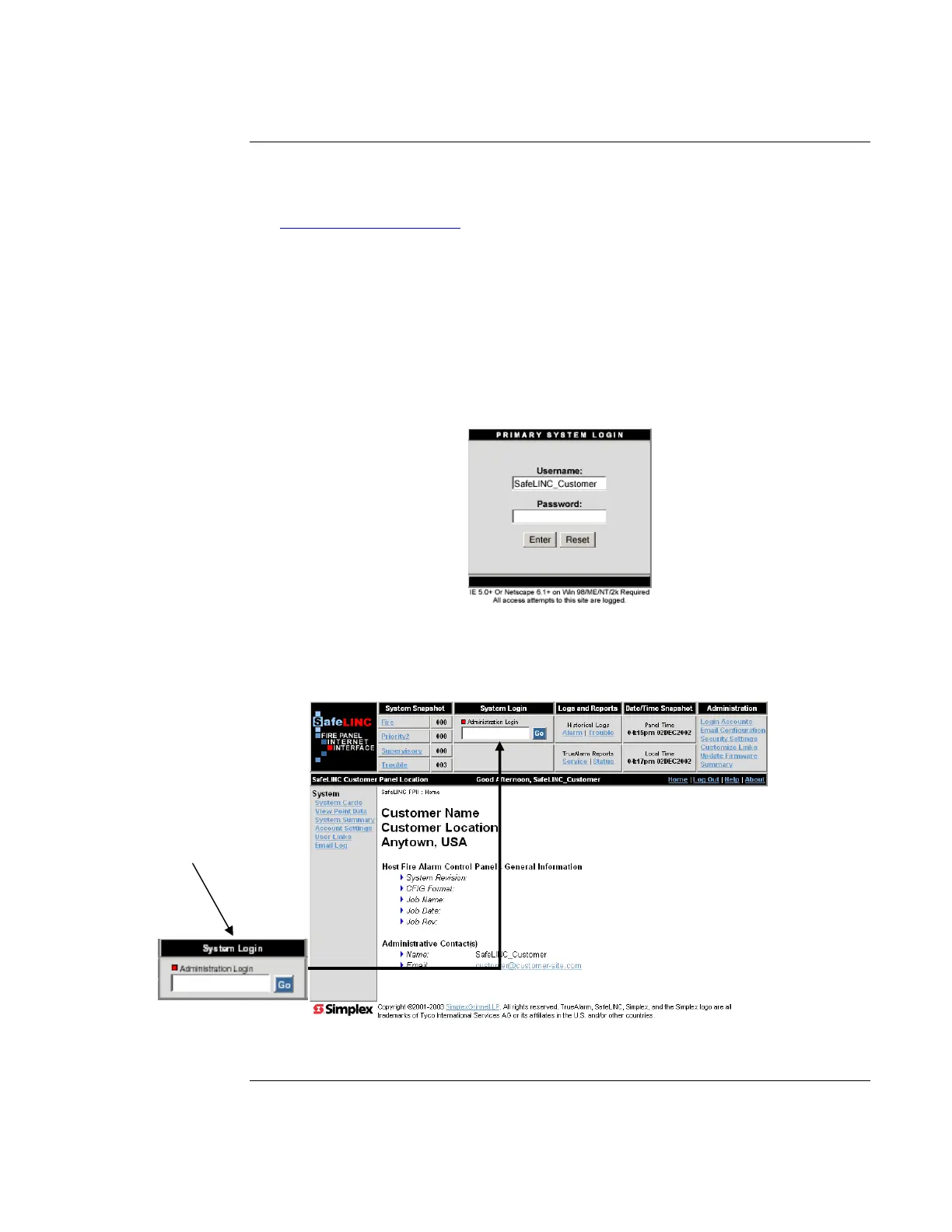
2. On the Primary Login dialog, enter your username and password (User 1 account
information) from the MIS/IT Configuration Worksheet. Use the Reset button to clear the
fields if necessary. The administrator (User 1) can only perform this login initially.
Figure 29. The Primary Login Box
3. When the Home Page appears, enter the administrator password (as defined in the boot-up
configuration) into the Administration Login field at the top of the screen.
Figure 30. The Home Page
Starting Up the SafeLINC FPII
Logging In as an
Administrator
Enter the administrator
password here



 To Next Page