Sinterit LISA PRO User Manual | 35
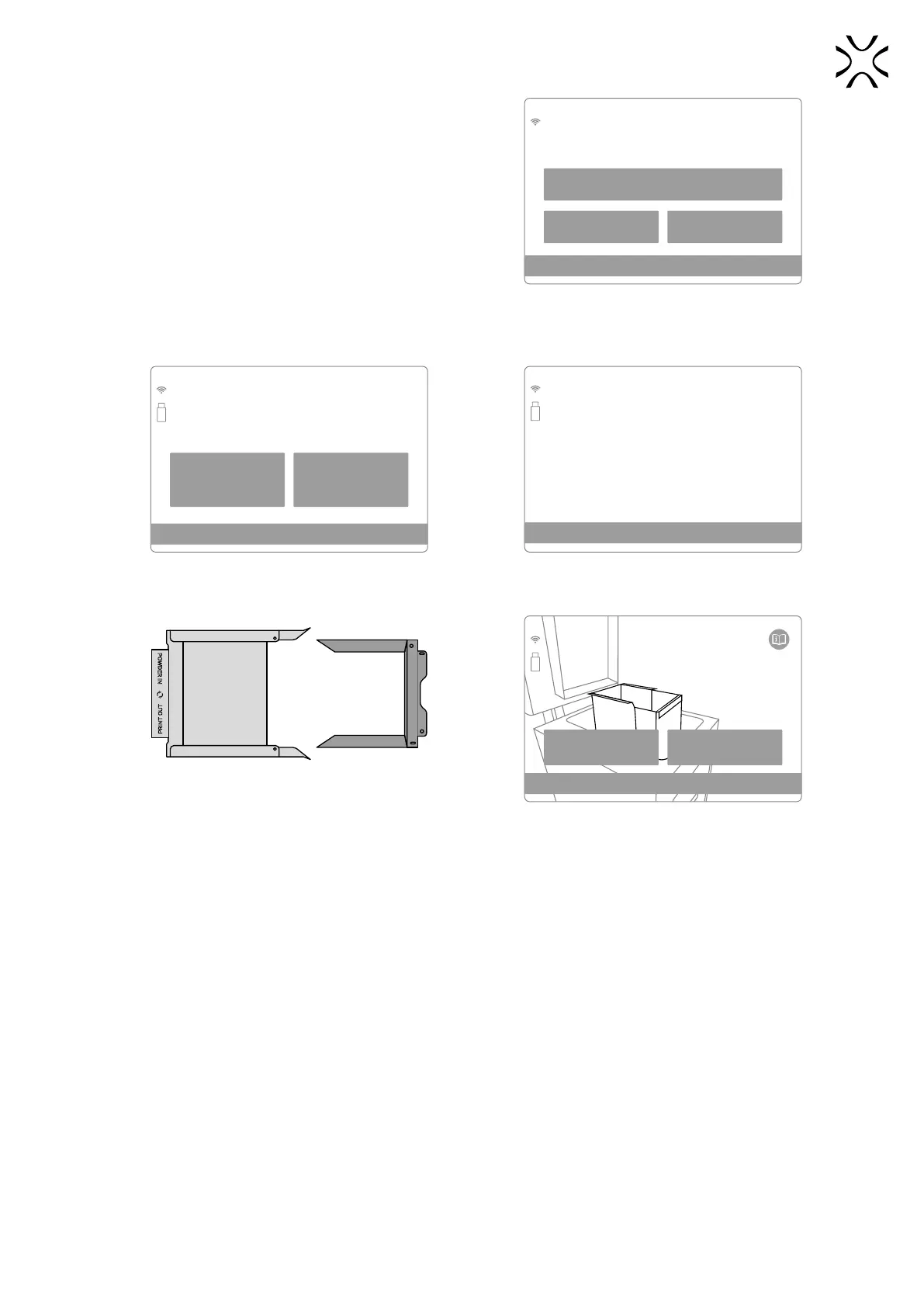
4. Click the REMOVE PRINTOUT button if you want to pull out
the printout.
• If you removed it earlier you can skip this step by pressing
the ALREADY DONE button
BACK REMOVE PRINTOUT
ALREADY DONE
PREPARATION STEP 1/9
Removing printout
You can skip the step if you have already
removed the printout
The printout removal screen.
5. Check that the way of the Recoater is not obstructed. If not, conrm with the “DONE” button. The Recoater will be
homing.
BACK DONE
PREPARATION STEP 1/8
Removing printout
Make sure that the path of the Recoater
is not obstructed
Check the Recoater’s path.
Print bed
•
Feed bed
•
Recoater
•
PREPARATION STEP 1/9
Please wait while
Recoater and Beds get positioned...
Homing...
Recoater’s homing screen.
6. Prepare the IO Box. You will need it to take out the printout easily and cleanly.
Feed Bed Print Bed
BACK NEXT
PREPARATION STEP 2/10
Place and spread IO BOX
in the correct orientation.
Make sure there is a free area
above the print bed inside the tool.
Correct position of the elements of the IO Box to pull out
printouts.
The printer will also help with a suitable screen.
7. Place the IO Box into the Print Chamber as shown above. We recommend rst to insert the folded IO Box into the
Print Chamber and then spread them out to the width of the Print Chamber. Be careful of the elements inside the
Print Chamber and on the Lid.
8. Press the NEXT button.
9. After pressing the NEXT button, the Print Bed is positioned and the printout is ejected.


 To Next Page