Wi-Fi Home Cam User Manual
12
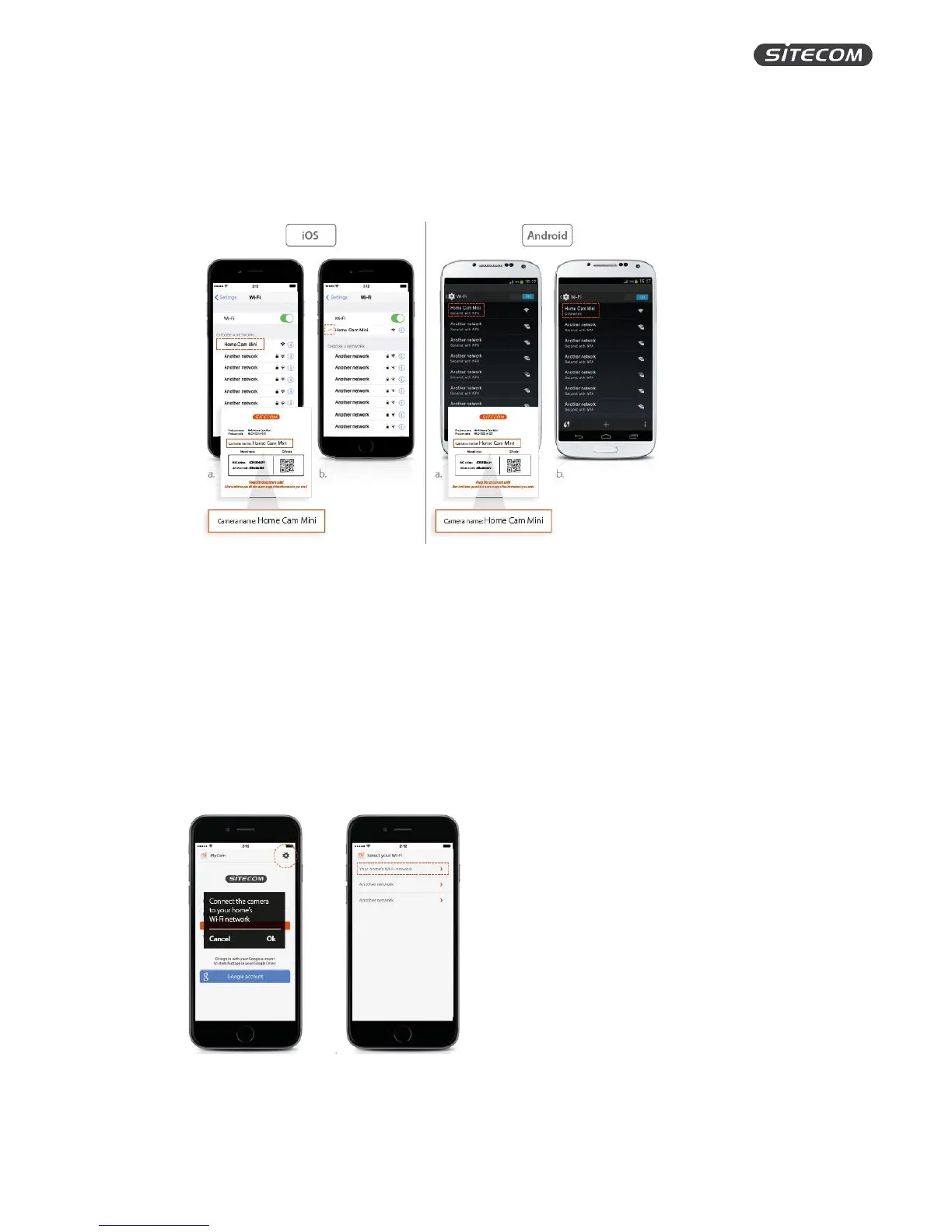
Step 3: Select the Wi-Fi Home Cam in your Wi-Fi settings
1. Go to settings on your iPhone / Android phone
2. Click ‘Wi-Fi’.
3. Select “Home Cam Mini / Home Cam Twist” from the list of available networks.
Info: At this stage, this is an unsecured network, no password is required. After the installation, the
Wi-Fi Home Cam will be connected to your home network and this network will no longer be visible.
Step 4: Connect the camera to your Wi-Fi network
1. Open the MyCam app.
2. Click ‘OK’ in the pop-up to start the installation procedure.
Don’t see the pop-up? Click the gearwheel symbol in the corner
3. Select your Wi-Fi home network from the list of available networks.
4. Enter the password for your Wi-Fi home network
5. Wait 1 minute until the LED is solid blue.
Info: Your Wi-Fi Home Cam will no longer be connected to your phone but will instead connect to your
Wi-Fi home network.


 To Next Page