Click , choose , tap on the object or person you want to track, and tap
to confirm your selection.
(NOTE: Make sure the size of the frame you mark is the same as the object
or person you tap,the frame should not be too large.)
14
②. Low-Battery return to home
4. HAND GESTURE
Click on the APP, follow the TIP on the APP(PIC.1):
NOTE: Hand gesture should use the RIGHT HAND to start.
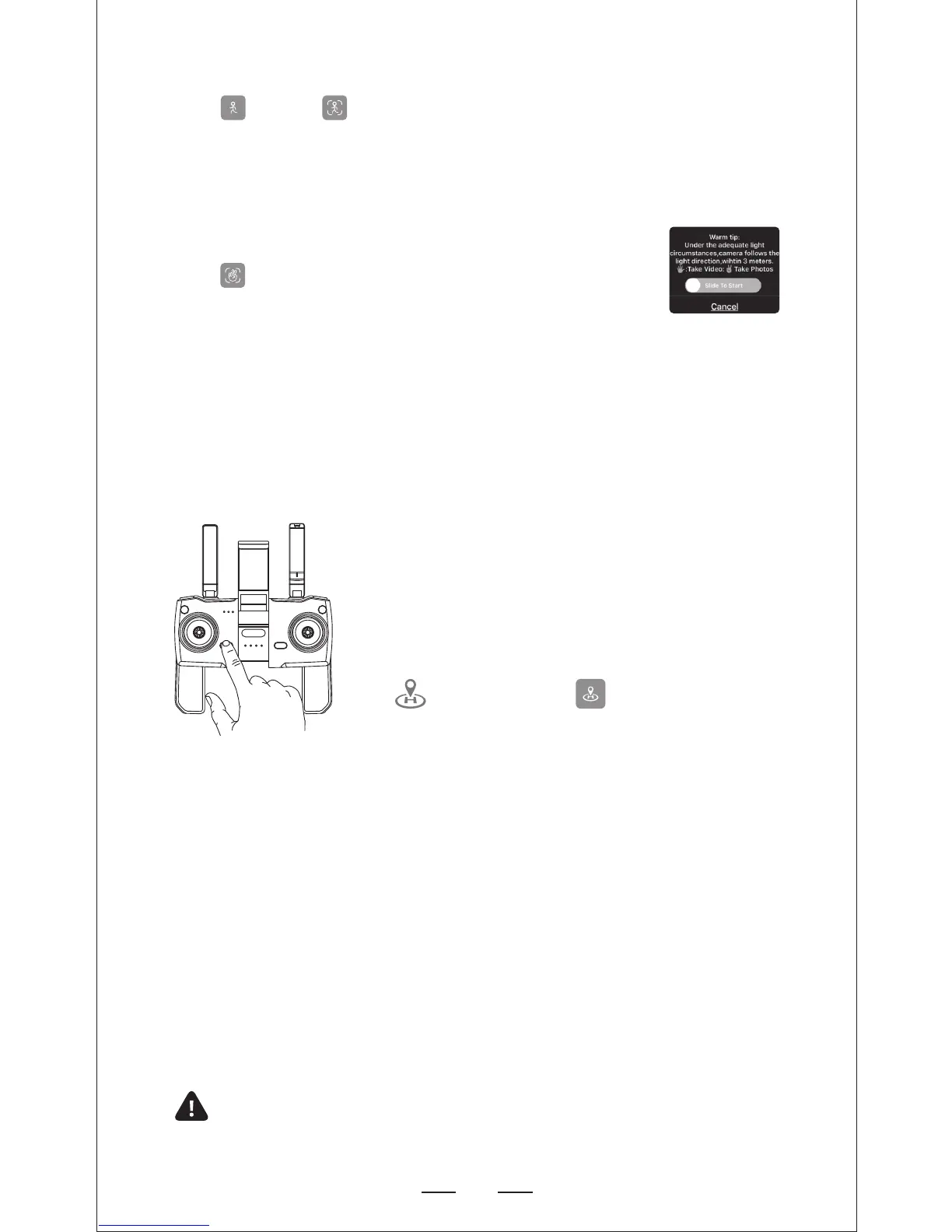
The Return to Home (RTH) function bring the drones back to the Take Off Point.
This function only can be achieved under GPS mode.
There are 3 types of RTH: Smart RTH/Low-battery RTH/Fail connection RTH
Press the Return to Home Button on your Transmitter
or tap on the App of your smart phone, and the
transmitter will start beeping. Your drone will return
to the TAKE OFF Point. Press the button again to stop
RTH procedure. Pull the throttle down to land the drone
in a safe area.
Low-Battery RTH is triggered when the Flight Battery level is low, When Low-
Battery RTH is activated, the drone will fly back to where away from you about
100 feet, and you can still control your drone. Pull the throttle down to land
the drone in a safe area. When the power of drone is completely empty, drone
will return to the TAKE OFF point where you set.
Drone will enter Return to Home Mode if the signal to the transmitter is lost.
Rebind the transmitter to the drone if dronr flies back into your view. Pull the
throttle down to land the drone at safe area.


 To Next Page