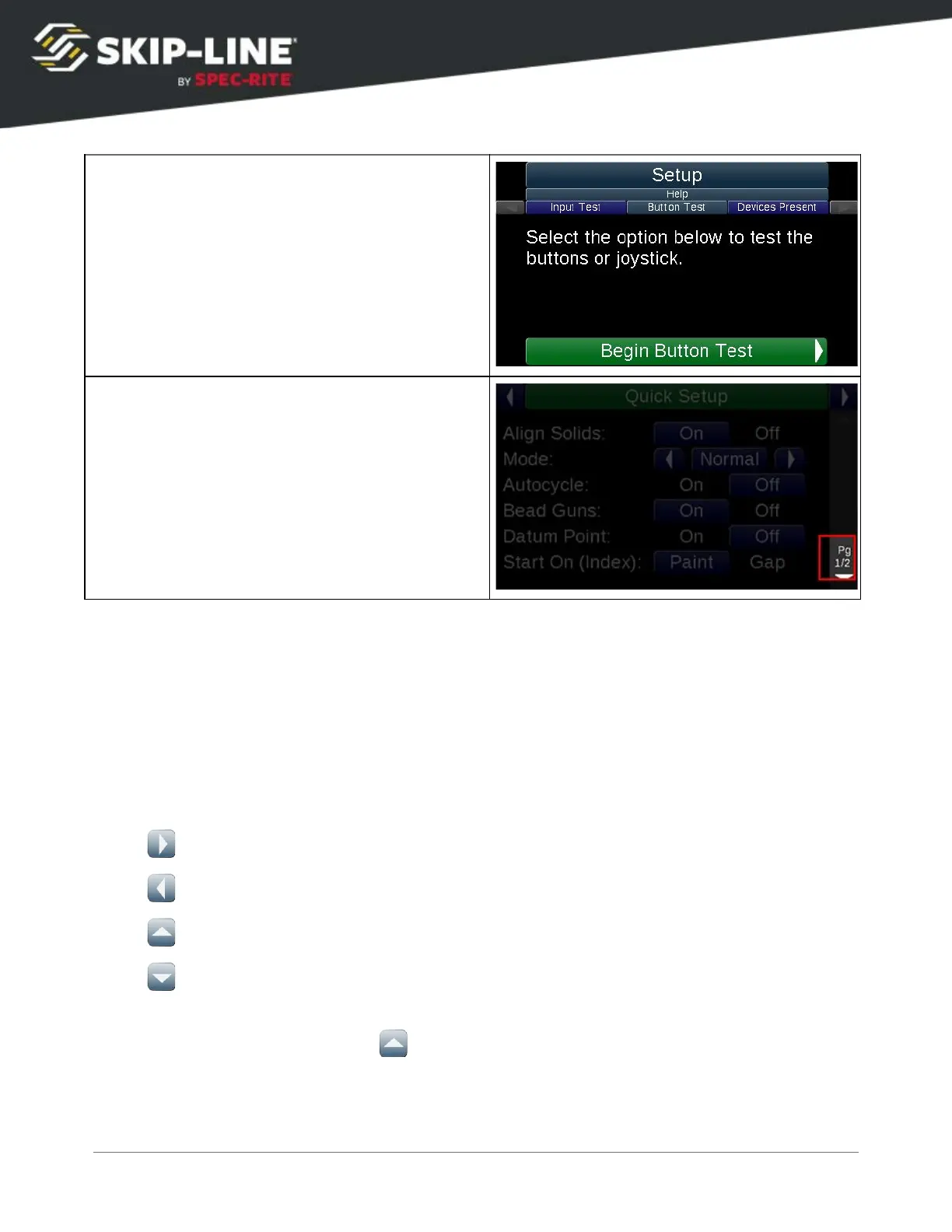
When there are
multiple pages
of information
available on a screen it is indicated in the lower
right hand corner.
Pg ½
means that there are
two pages available and you are currently
viewing page one.
To access the next page simply scroll your
cursor down through all the menu items on the
screen.
4.1.1
4.1.2 Menu Bar Navigation
The menu bar
is visible on almost every screen, making it easy to know your
current location within the menu. The uppermost menu bar is called the
Top-Level Menu
. Some menus have sub-menus, while others do not.
Navigation buttons
have the following behaviors when the cursor is on the
menu bar:
: Navigate to the next menu to the right.
: Navigate to the previous menu to the left.
: Navigate up a menu level.
: Navigate down into a sub-menu, or into an action screen.
If a menu does not have a sub-menu, pressing down will enter an Action
Screen
. Pressing and holding returns the Cursor to the menu bar on all
Action Screens.
SC-12 Road Marking Control System - Installation and Operation Manual
17



 To Next Page