Page 40 of 61
SKIPPER Electronics AS
Edition: 2021.02.17
ESN200 Operation and Installation Manual
Chapter: CONFIG software setup
PC connection Setup
Features available via JB70E2-SA second ethernet LAN connector to a PC with SKIPPER soware:
-Printing to PC printer
-History download
-Soware upgrade
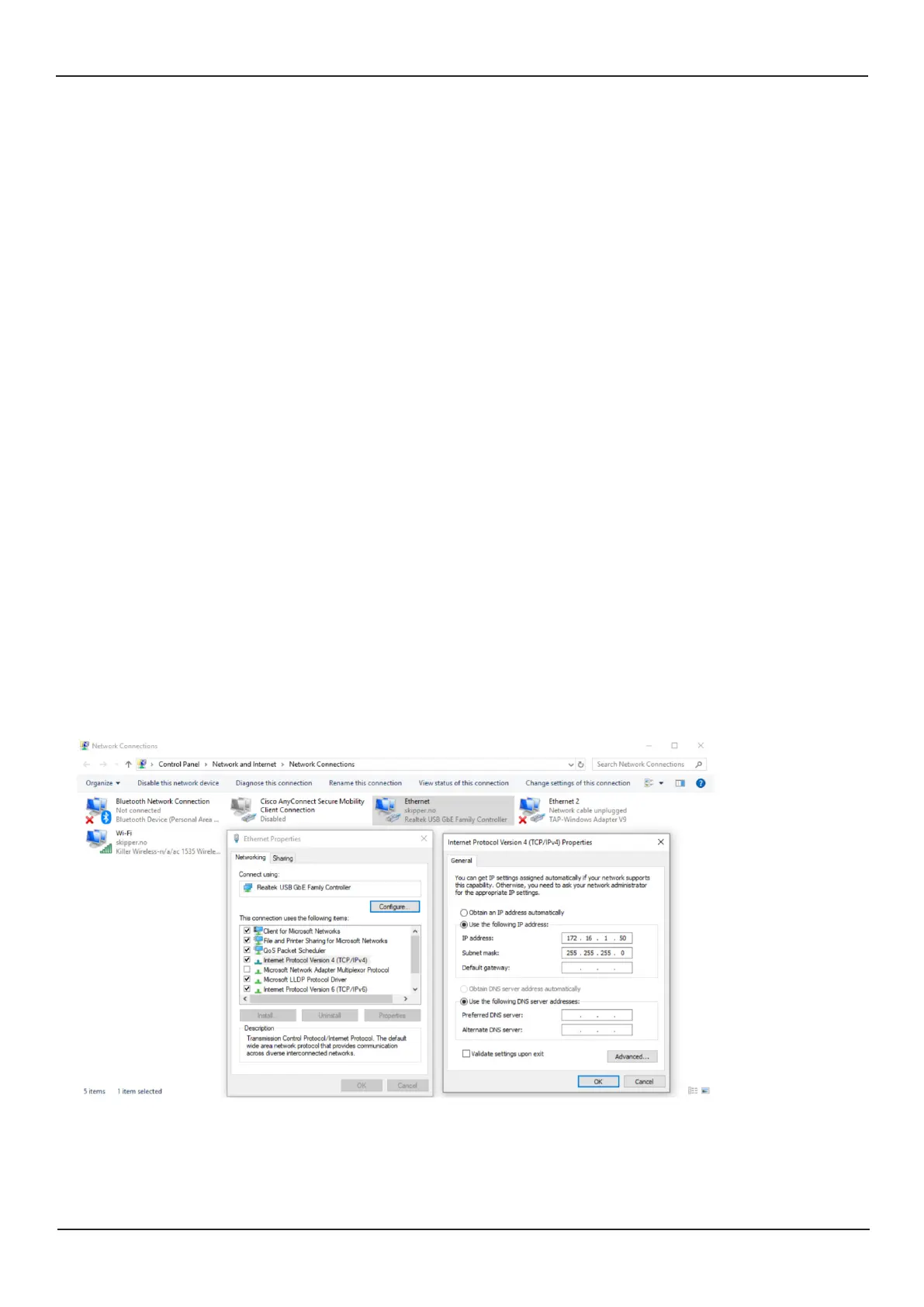
e PC ethernet adaptor to be connected to the ESN200 needs to be precongured to a unique IP address
on the same subnet mask as the ESN200. e.g. 172.16.1.xxx (e Display unit ESN200-SB default IP address
is 172.16.1.109 and the electronic unit JB70E2-SA is 172.16.1.108.)
Setting up static IP address in Windows:
1: Click Start menu > Control panel > Network and sharing center or Network and internet > Network
and sharing center.
2: Click change adaptor settings.
3: Right click on local area connection.
4: Click properties.
5: Select Internet protocol version 4 (TCP/IPv4)
6: Click properties.
7: Select Use the following IP address
e ESN Printing app is installed with the service soware and a shortcut can be made to it in folder C:/
Skipper/servicesoware/esnprinter.exe



 To Next Page