TAKING CONTROLPERSONAL PLANNER
21 USING YOUR SKY BOX
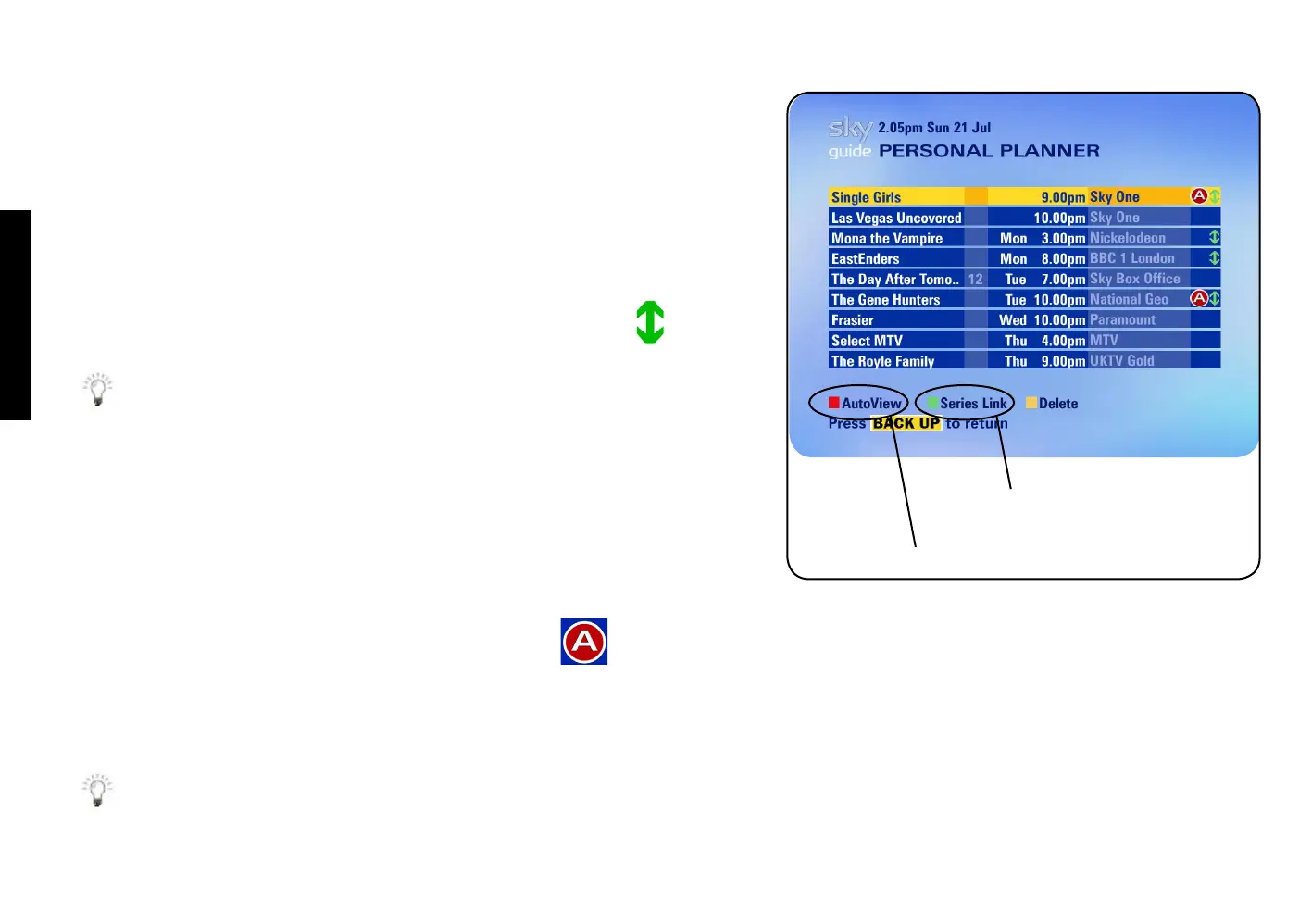
Linking series
Programmes that are part of a series and shown by the same broadcaster can
be linked so you can automatically get reminders for the entire series.
Set a series link as follows:
1 Go to the TV Guide menu and press the green key (Planner).
2 Highlight a programme you’ve set a reminder for. If it’s part of a series,
the green option (Series Link) appears.
3 If you can see the green option, press the green key.
The Series Link symbol appears next to the programme.
If you choose to watch something else instead of a linked programme,
the link is broken and future episodes are not added to your Planner.
Changing channels automatically with AutoView
If there’s something on later that you’re sure you’ll want to watch, you can
choose to tune straight to it with AutoView.
To turn AutoView on, highlight the programme in your Personal Planner, then
press the red key (AutoView).
The AutoView symbol appears next to the programme.
A reminder message appears one minute before the programme is due to
start. Your Sky box tunes to the programme at its start time unless you stop it
by pressing back up.
AutoView might not work with some programmes, such as Box Office
programmes.
press green to set the series link
press red to set AutoView


 To Next Page