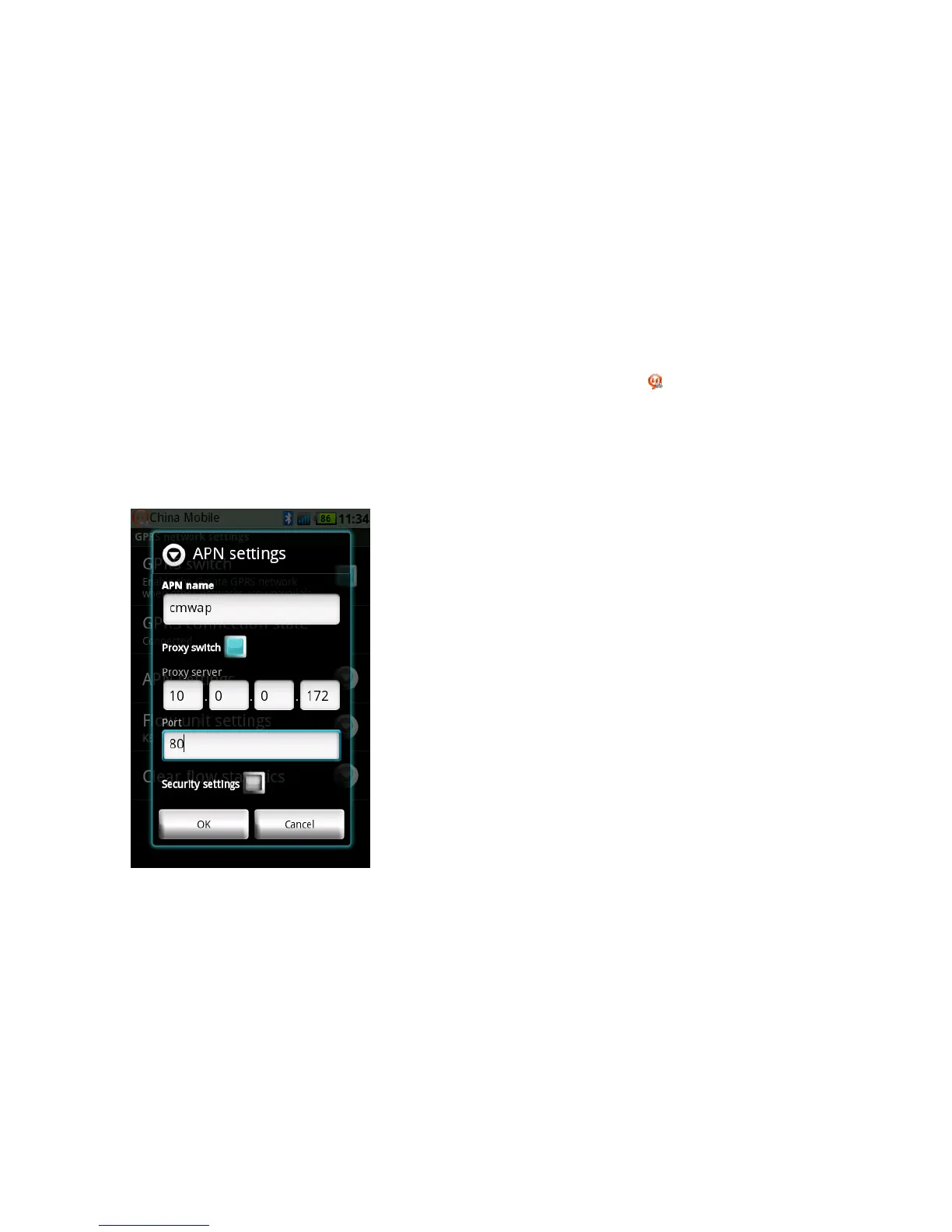
With Proxy:
1.SettingsNetworkAPNSettingsAPNname(Your APN Name depends on your SIM card, please
consult with your operator for details); the figure below uses China Mobile as example.
2.Settings NetworkAPNSettings -> Switch on Proxy switch option, and input Proxy Server
and Port (depends on your SIM card, please consult with your operator for details). The figure
below uses China Mobile as example. Click Done to save settings.
3.SwitchonSettingsGPRSSwitchfromtheclient’smaininterface,aflashing
iconwillappear,once
theiconstopsflashing(indicatingonlinestatus),internetisonlineandavailableforuse.
Updating Gmate Client
Note: Ensure WiFi or Gmate GPRS is turned on.
Gmate automatically detects new version, and alerts with OK/Next Time option when update(s) are available:
OK: Immediately update to new version of Gmate client.
Next time: Gmate client will remind daily to update to new version.



 To Next Page