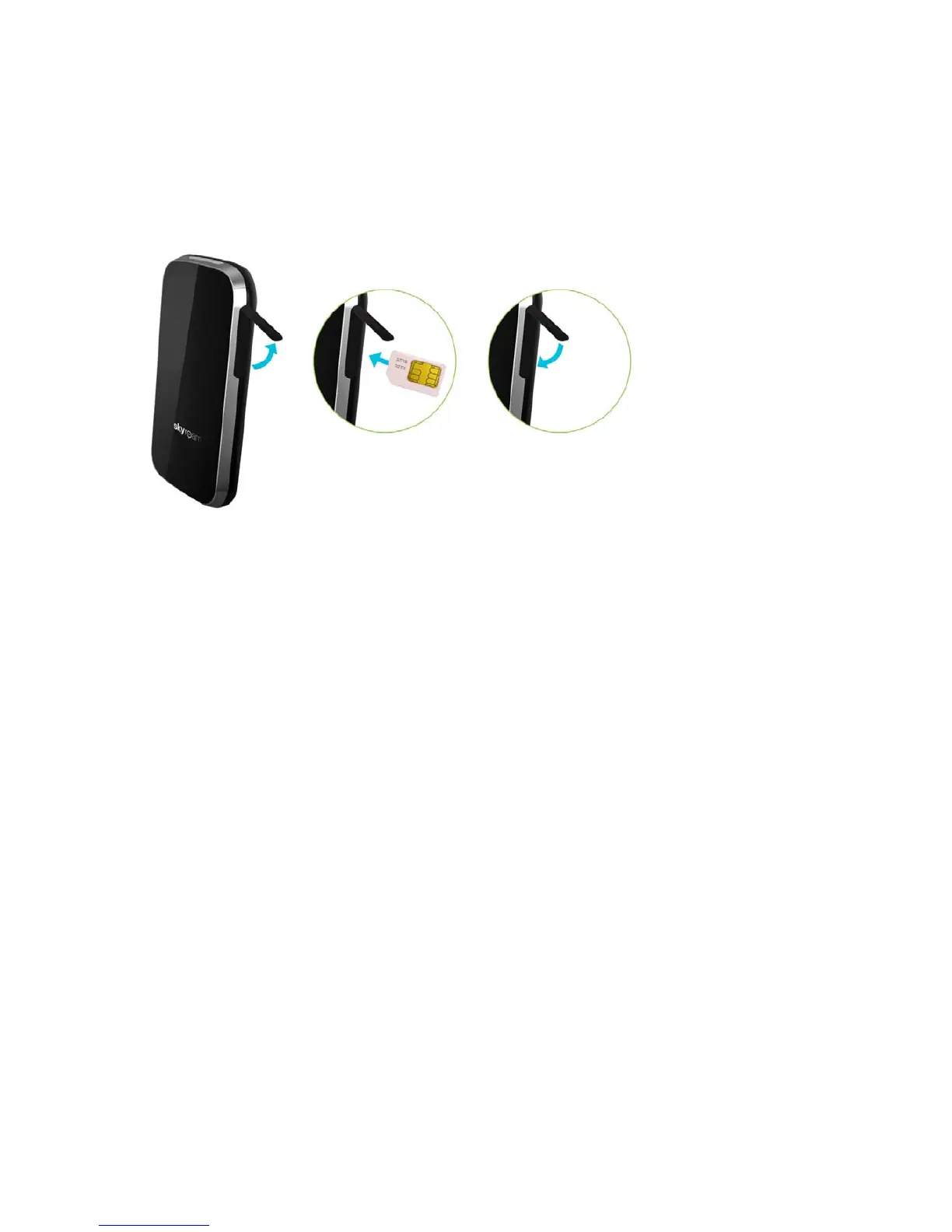
Installing SIM card
Insert SIM card into Gmate+ SIM card slot as shown in below figure, and confirm a light clicking sound
indicating when the SIM is fully inserted.
1. Connect USB cable between USB port of Gmate+ and a computer.
2. While charging, Gmate+ status light will alternate between red and green.
Note: 2-3 hours is required for full charge.
Gmate+ Status Light
1. No light indicates off mode。
2. Flashing yellow light indicates “Disconnected with client” status.
3. Flashing green light indicates “Connection established with client” status.
4. Alternating flash between red and green light indicates “Battery Charging” status. Once fully charged the
light becomes stable green.
5. Flashing red light indicates “Low power” status.



 To Next Page