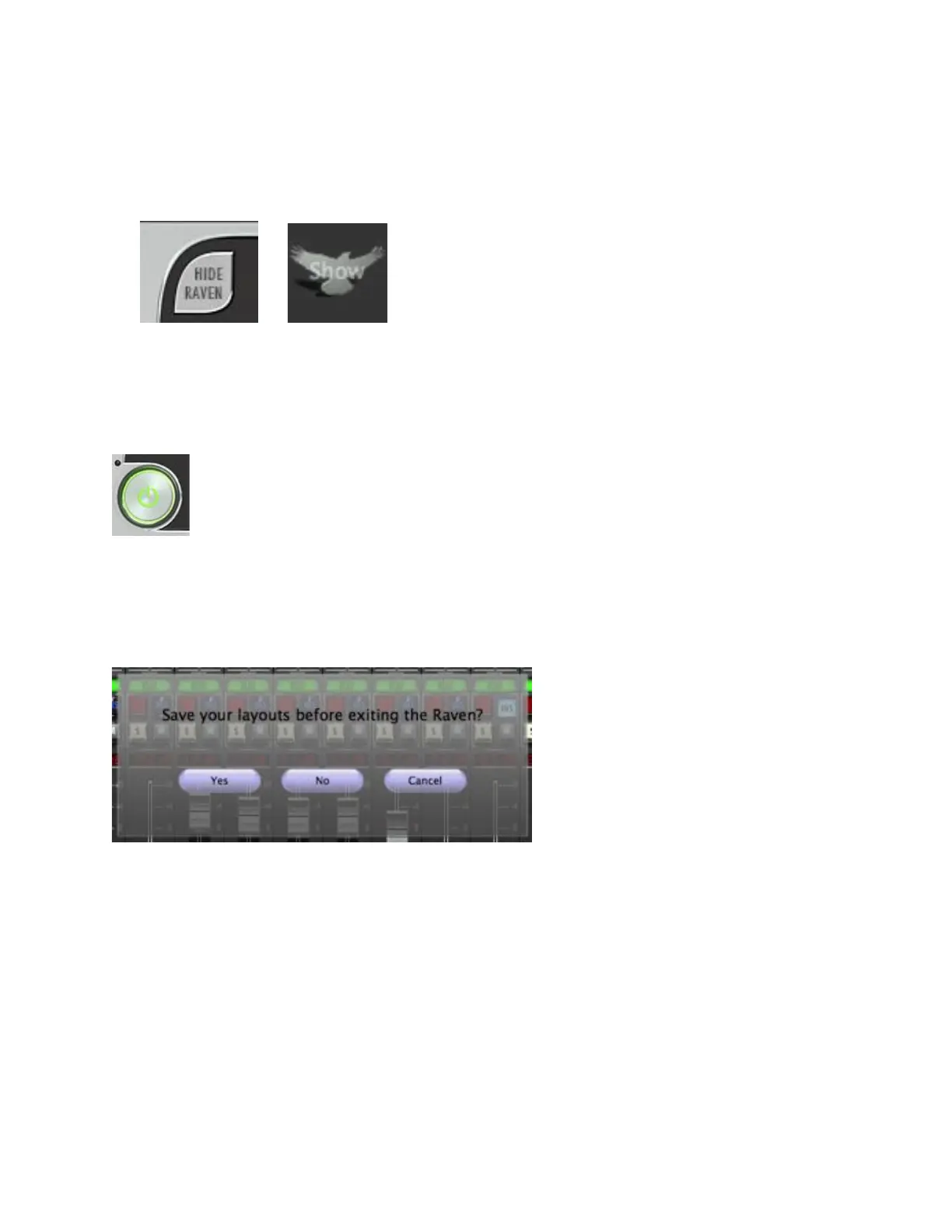
Toolbar. Touch to Hide your RAVEN software almost entirely except for the
RAVEN on the bottom left hand side displaying the text, “Show.” Touch or
click the RAVEN Logo “Show” button on the bottom left hand side of the
screen and the RAVEN software will again appear.
Note: This can be very helpful when using an internet browser or something
that appears hidden behind RAVEN’s software overlay.
1. Power – Exits the RAVEN software.
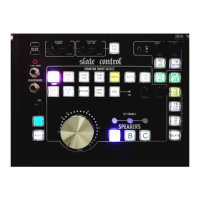
When the power button is pressed and held, you will be prompted to save a
RAVEN session. If you wish to save your RAVEN session, press yes. If not, press
no. Pressing cancel will keep the current RAVEN session running. (See section
on Saving a RAVEN Session for further details.)
2. Banking – Moving between tracks is quick and easy. Using your finger on
the lower half of the fader plate, simply glide one finger across the screen
in the direction you would like to move. The tracks will move one track at
a time in this scenario.
If you would prefer to move by eight tracks, simply use two fingers to
swipe left or right on the lower half of the fader plates. Note: If there are
less than eight tracks to the end of the project, RAVEN will restrict you
from overswipes. Simply glide your finger for the remaining tracks.



 To Next Page