Smappee Infinity – Installation manual – English
Smappee Connect series as gateway
Option A – Connection through Ethernet
Only possible with a Smappee Connect. Insert the ethernet cable before power-up.
Option B – Connection using Wi-Fi
Possible with a Smappee Connect and Smappee Wi-Fi Connect.
Setup
• Select and set up the internet connection in the Smappee mobile app.
• The Connect will open its hotspot.
• The light on the bottom of the Connect will emit a flashing blue colour when the hotspot can
be selected in the list of available Wi-Fi networks on your smartphone. Please note that it can
take a few minutes before the hotspot is open.
• Make sure your mobile data (3G/4G) is switched OFF on your smartphone before proceeding.
• For more details about the Wi-Fi properties, please see Addendum 2.
Resetting the Wi-Fi: If the Smappee has to be connected to another Wi-Fi network or the
authentication password has to be changed, select in the Smappee App Settings > Your
Smappee Monitors > Infinity modules > Smappee Connect > Change your Wi-Fi settings
and follow the steps in the app.
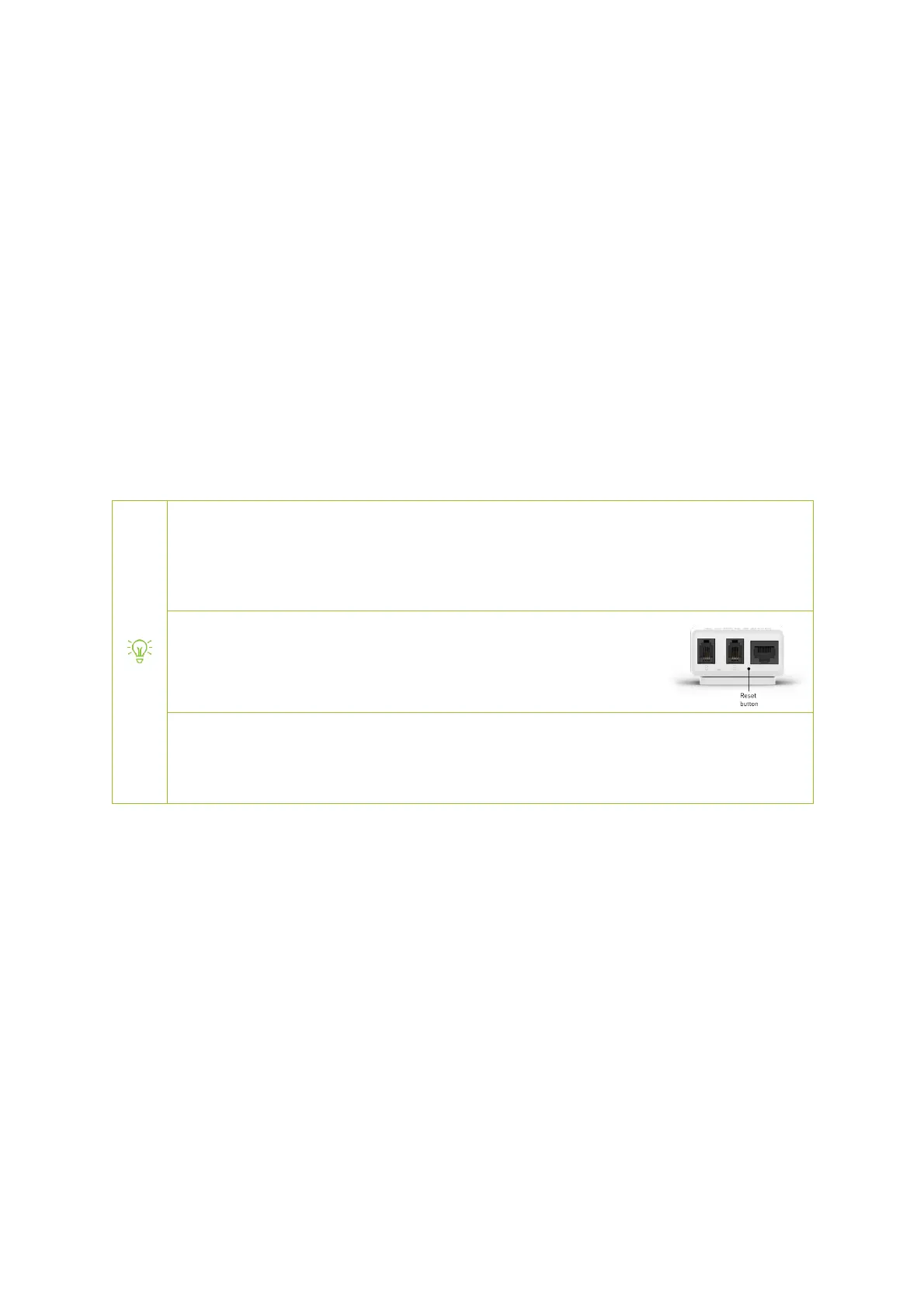
Smappee Connect reset button: Press the reset button on the bottom
of the Connect using a small pin.
Factory reset: Carry out a factory reset when you re-install a Smappee Infinity monitor at
another location or when you want to start with the factory settings. Press the reset
button of the Connect with a small pin until the light at the bottom of the Connect turns
blue.


 To Next Page