CHAPTER 2
USING THE DISPLAY
21 smarttech.com/kb/171166
To write or draw in digital ink
1. Pick up one of the display’s pens.
2. Use the pen to write or draw in digital ink.
NOTE
The PenID feature enables you to use the black and red pens at the same time and
customize their colors and other settings independently.
To erase digital ink
Move a pen’s eraser over the digital ink you want to erase.
OR
Move your palm or fist over the digital ink you want to erase.
Changing pen color, thickness and other properties
You can change a pen’s default color, thickness and other properties:
l To change a pen’s properties while using the Whiteboard app or any of the other apps in the
iQ experience, see Using the Whiteboard.
l To change a pen’s properties while using a connected computer, see Using SMARTInk.
Using the iQ experience
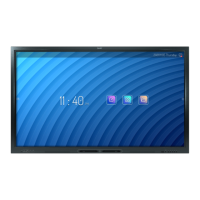
Using the Home screen
The Home screen in the iQ experience shows recent files and favorite apps and files. You can also
start sharing with the display by tapping in the upper right corner. You can change the display's
background to personalize the display.
To show the Home screen
Tap the Home button at the bottom of the screen.


 To Next Page