3D Printing
52 53
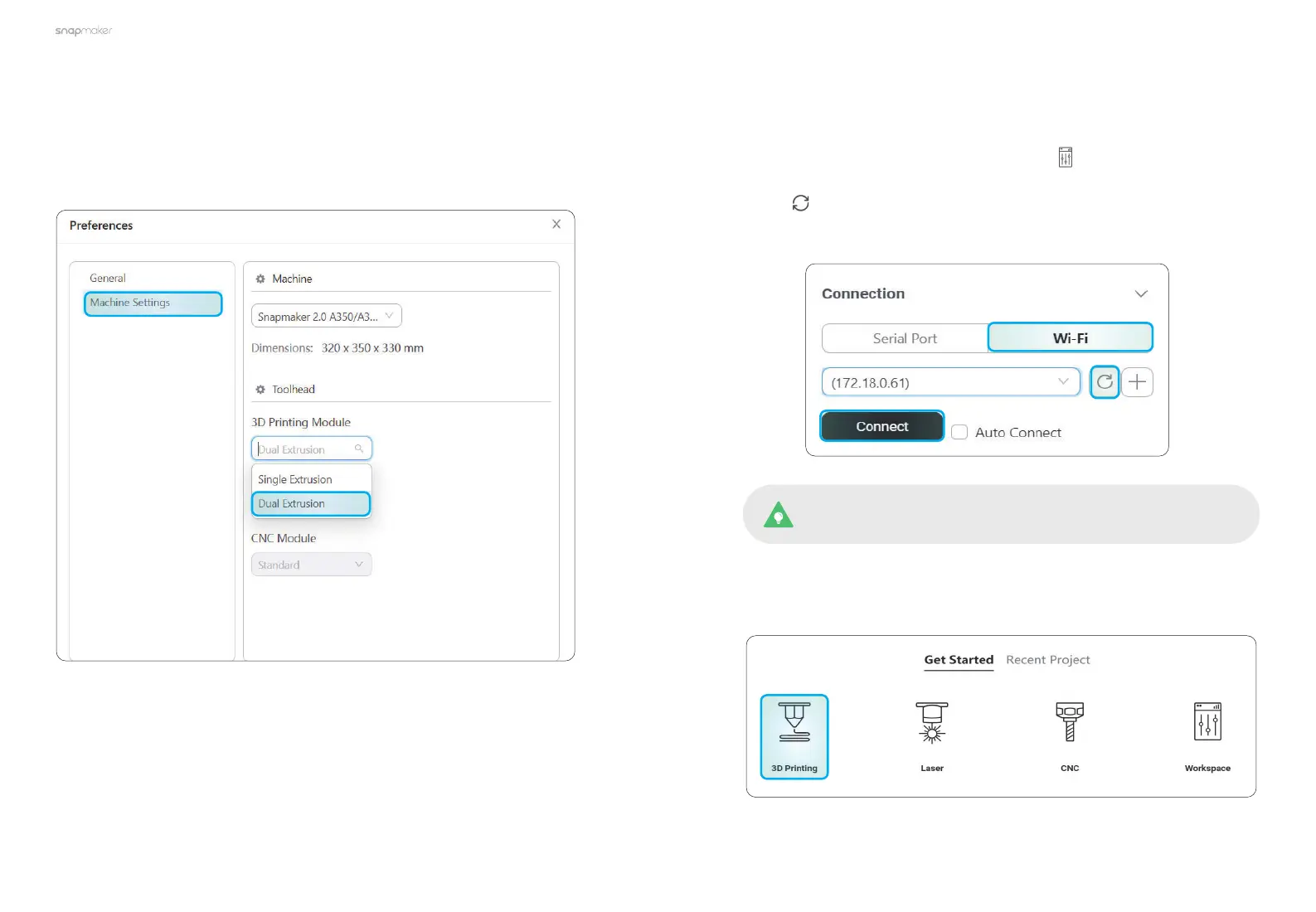
a. On the Home page of Snapmaker Luban, click to enter Workspace;
b. On the Connection panel at the top left corner, click Wi-Fi;
c. Click , select your machine from the drop-down list, and click Connect;
d. Tap Yes on the Touchscreen to allow the connection.
2. Ensure that your computer and machine are connected to the same Wi-Fi
network, and take the following steps to connect Snapmaker Luban with your
machine:
3.4 Getting Started
3.4.1 Generate the G-code File
1. Launch Snapmaker Luban, click Settings > Preferences in the menu bar to
select the machine model and module type.
You can also connect Snapmaker Luban with your machine via
the USB cable.
3. At the top-left corner of Workspace, click Back to return to the Home page.
Then, click 3D Printing to enter the 3D Printing G-code Generator.



 To Next Page