60
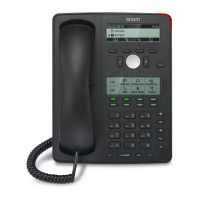
D315 | D305 User Manual Using the Phone
Note: Call forwarding is indicated in the status line, which can display only one
message at a time; forwarding of all calls (Fig. 1) is also indicated by the symbols on
the display.
When "Forward when busy" (Fig. 2) and "Forward after timeout" (Fig. 3) are both
activated, "Forward when busy" is shown in the status line. If there are other status
messages with a higher priority than call forwarding (e.g., firmware update available,
reboot required, etc.), they will take precedence over the call forwarding indication.
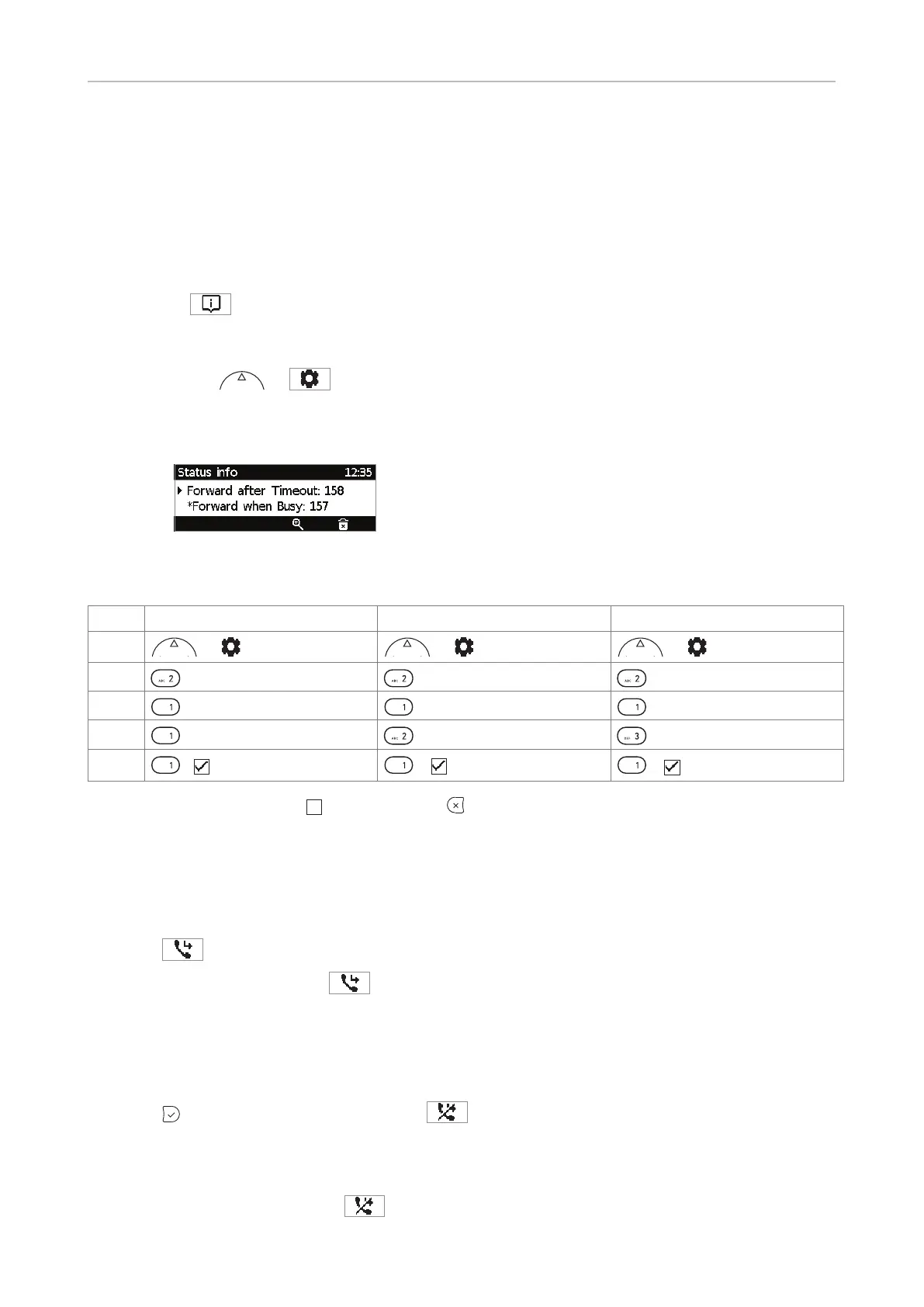
Press
to show the Status info screen with all current status messages, including
call forwarding. When the symbol is not available on the display, you can access
Status info from the Settings menu:
1. Press
or
.
2. Press 6 Information.
3. Press 1 Status info.
Turning o call forwarding
Forward all Forward when busy Forward after timeout
Press
or or or
Press
2 Call Features
2 Call Features
2 Call Features
Press
1 Call Forwarding
1 Call Forwarding
1 Call Forwarding
Press
1 Forward All
2 Forward when Busy
3 Forward after Timeout
Press
1
Activate
1
Activate
1
Activate
The menu item changes to "1
Activate". Press for two seconds to return to the idle screen.
Turning forwarding of all calls on/o with a programmable function key
Turning call forwarding on
1. Press
. The display will show the Target when Forwarding screen.
Note: If the function key
is not available when the display is in idle mode, you can
make it available on the Function Keys page of the phone's web interface. For further
information see "Configuring the function keys" on page 61. Default settings: See "At
a glance" on page 18.
2. If no forwarding number has been set or if it needs to be changed, make the necessary entries.
3. Press
. The symbol now is crossed o:
.
Turning call forwarding o
Press the function key underneath
.



 To Next Page