16
Snom D7C User Manual Conguring the function keys
7. The default for Context is Active, i.e., all congured identities whose status is "active".
a. If you want to restrict the functionality to a congured identity, select Context and press .
b. Select the identity from the menu and press . The following prompts depend on the selected
functionality.
8. Select Type and press . Use / to scroll to a functionality on the list and press . The
information you will then be prompted to enter depends on the selected functionality.
9. In our example, the functionality is Extension. Press to select and return to the Key # function
menu where Number has been added to the menu below "Type".
10. Select Number and press .
11. Enter the extension number and press .
12. The Label is optional. See "SmartLabels" on page 11 for more information. Enter a name or
other descriptive text and press , or press without entering data to save.
13. Press briey to return to the Key # Function menu; press for 3 seconds to return to the idle
screen.
Conguration on the web interface
Font size and text alignment
1. Open the web interface of the phone.
2. Click Preferences in the menu on the left side of the window.
3. Click the Appearances tab.
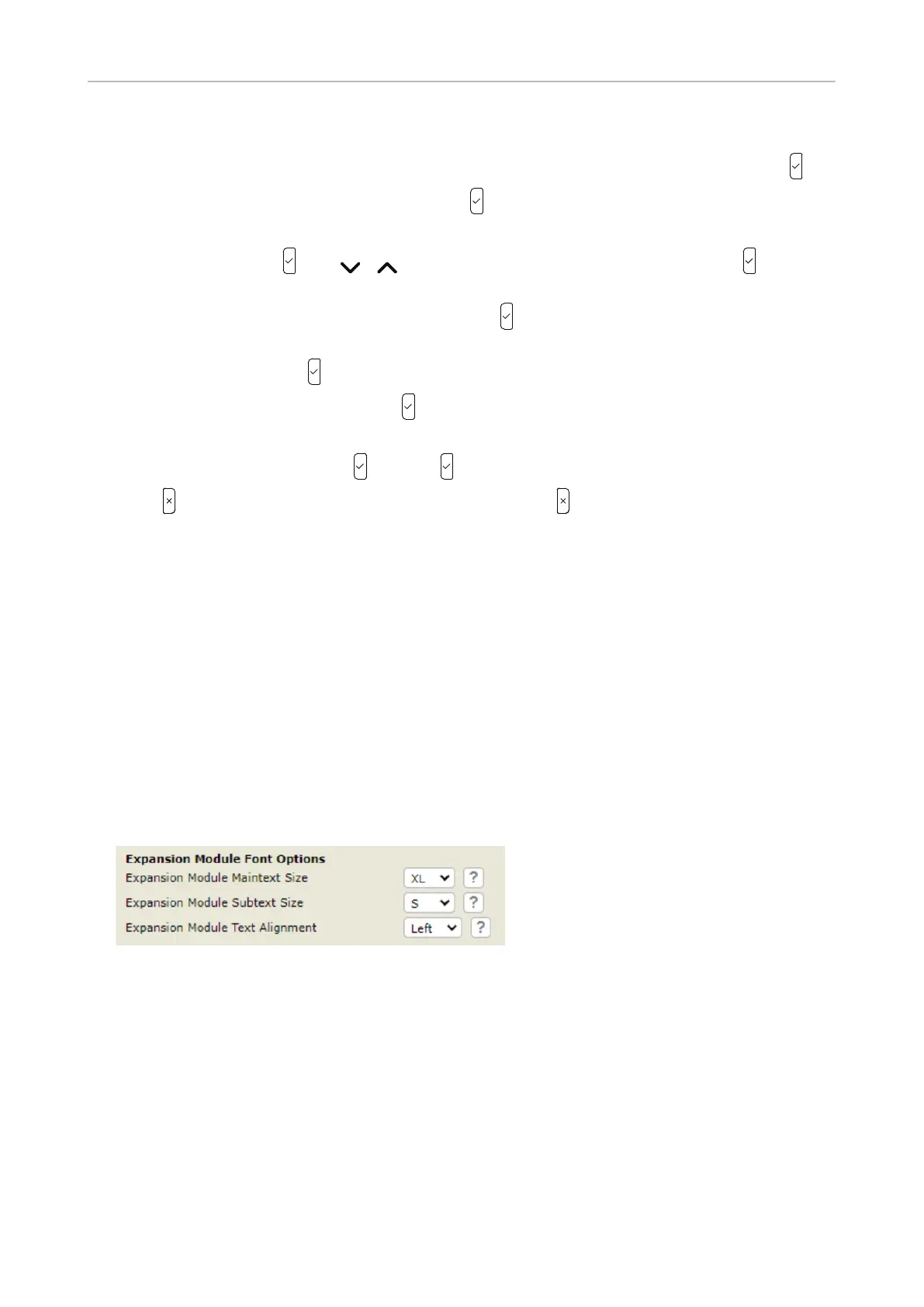
4. Scroll down to Expansion Module Font Options and select font size and text alignment from the
respective drop-down menus. The defaults are XL for Main Text and S for Sub Text size, and left-
aligned for the text alignment.
5. Click Apply and Save.
Function settings
1. Open the web interface of the phone.
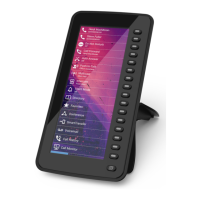
2. Click Function keys in the menu on the left side of the window. The keys on the three pages of
each module are numbered consecutively from 1–48 on each module:
◦ Page 1: 1–16
◦ Page 2: 17–32
◦ Page 3: 33–48


 To Next Page