23
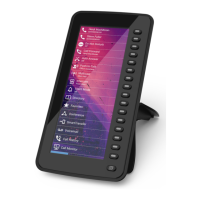
Snom D7C User Manual Firmware update
Firmware update
Manual update via the phone's web interface
◦ The phone must be running rmware 10.1.64.14 or higher.
◦ The name of the update's le must have the format snomD7C-<version>-r.bin.
◦ The le must be located on a server that can be reached by your phone.
◦ Update the expansion modules one at a time.
◦ Before the update, disconnect other modules from the phone.
1. Connect the expansion module you want to update to your phone. Wait until its LEDs have lit up
and gone out and the labels are shown on the display.
2. Open the phone's web user interface.
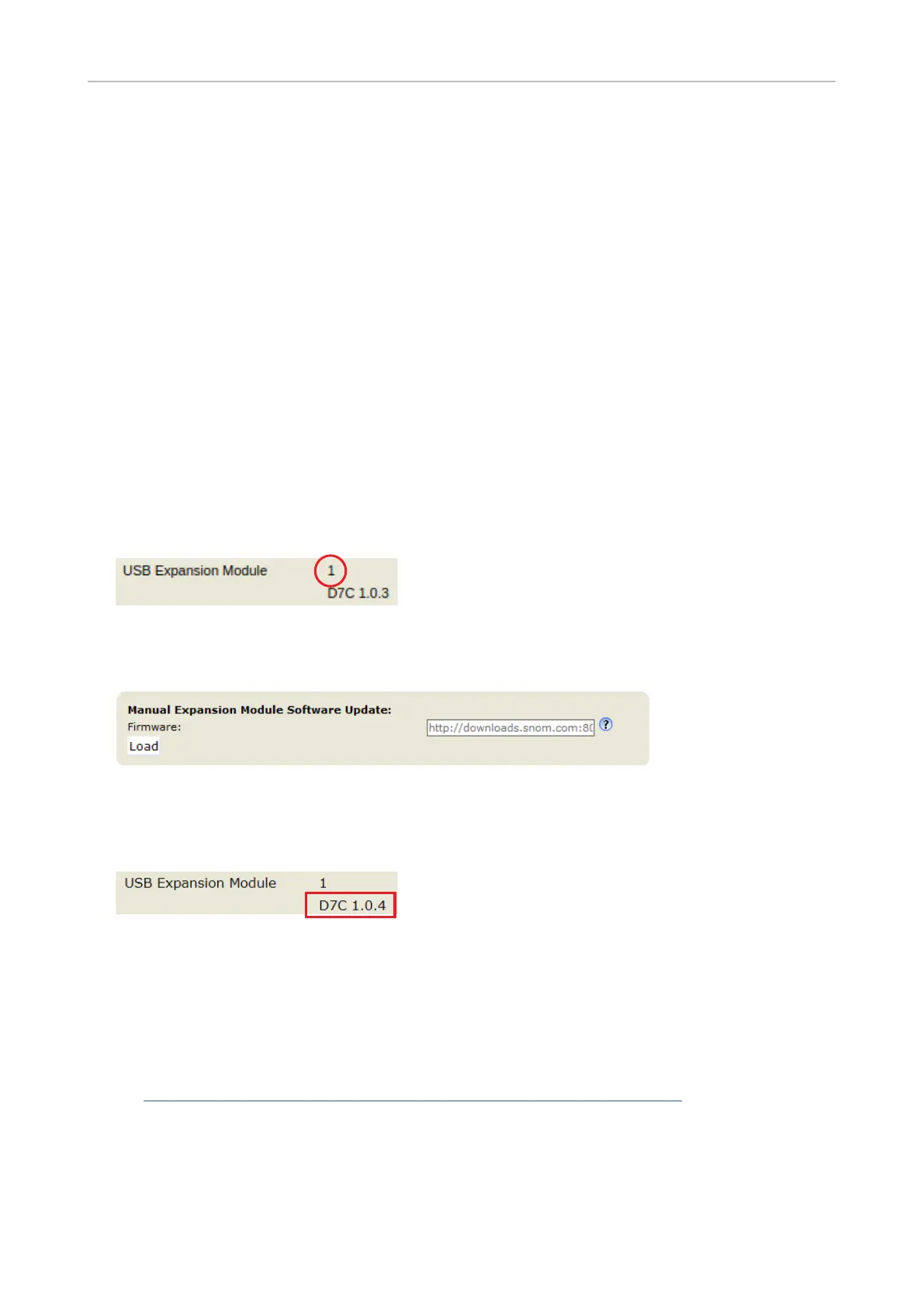
3. Click System Information in the menu on the left side of the window, and conrm that the number
of the USB expansion module is 1.
4. Click Software Update in the menu on the left side of the window.
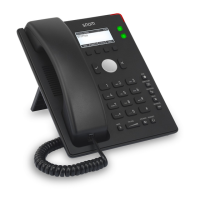
5. Enter the HTTP URL to the update le into the Firmware text eld of the Manual Expansion
Module Software Update section and click Load.
The progress of the update is shown on the phone's display. When it is nished, phone and
expansion module will reboot.
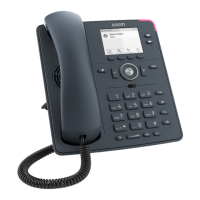
6. After the reboot, click System Information again to check whether the new rmware version is
displayed in the line below the module number.
Update via provisioning
◦ The phone must be running rmware 10.1.64.14 or higher.
◦ The name of the update le's name must have the format snomD7C-<version>-r.bin. An
example for the expansion module rmware syntax can be found at
https://service.snom.com/display/wiki/Firmware+Update+XML+Settings.
◦ The le must be located on a server that can be reached by your phone.
◦ The phone's update policy settings must be auto_update (update automatically) or
ask_for_update (ask for update, i.e., the user receives a prompt to conrm the update).
◦ Update the expansion modules one at a time.


 To Next Page