23
D862 Short User Manual Using the Phone
Holding multiple calls
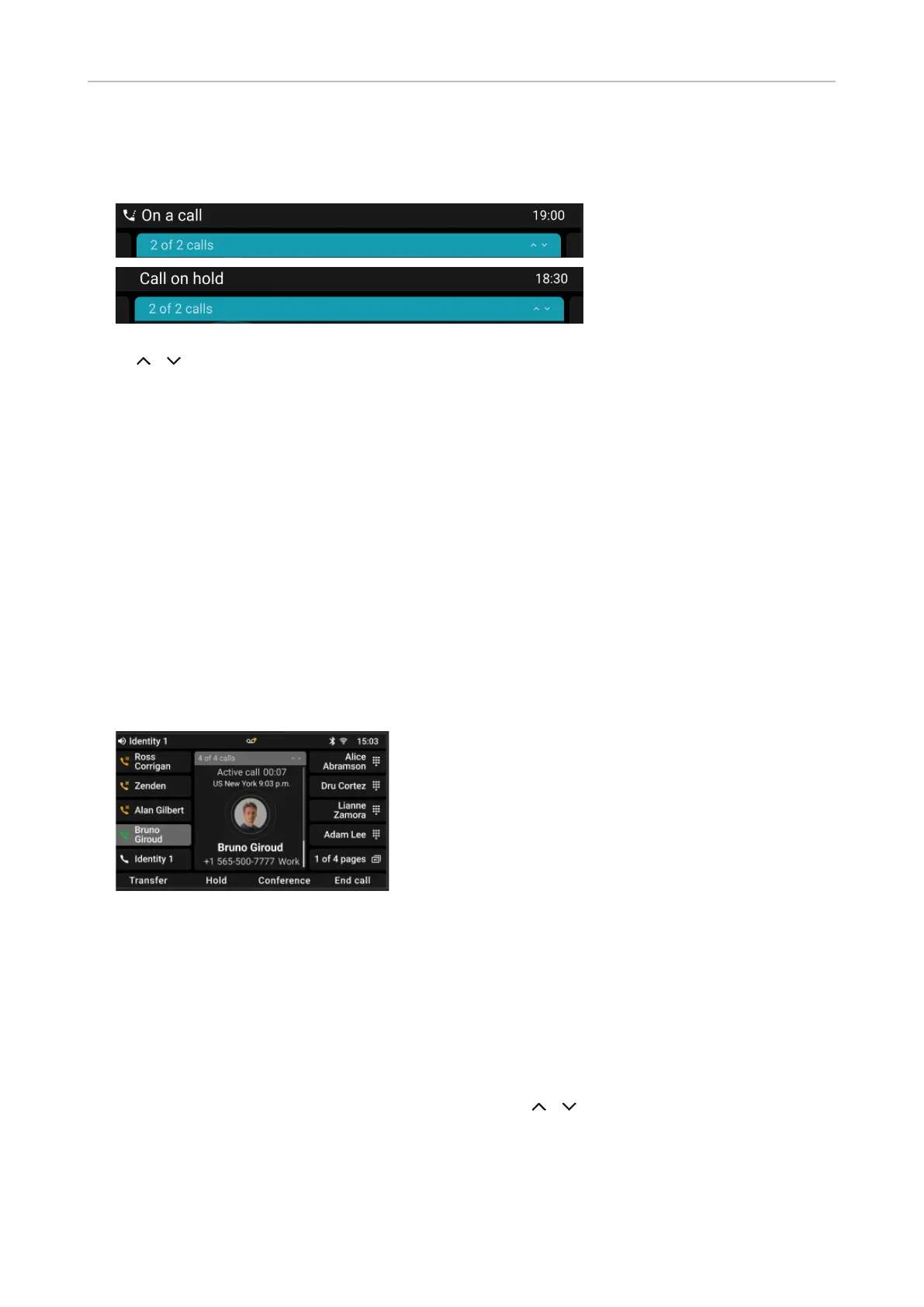
The status lines at the top of the display indicate the number of calls on your phone.
Press / to scroll through the calls. Your input on the phone's keys will affect the call on the
display. It can be resumed, terminated, or selected for conference setup.
Conference
The maximum number of participants in phone-based conferences is five (you and four others).
Note: This section refers to phone-based conferences. For the number of participants
in server-based conferences and how to set up and join them, please check with your
network administrator or your VoIP provider.
Initiating a conference
1. With a call on the line, press Conference. The call is put on hold.
2. Dial the number and announce the conference
3. Press Join.
4. Press End call to terminate the conference.
If you have a SmartLabel key set up to speed dial a number, you can blindly add that party to the
conference.
1. With a call on the line, press Conference. The call is put on hold.
2. Press Blind conf.
3. Press the SmartLabel key to start the conference.
• Putting the conference on hold: press Hold. Press Resume to restart the conference.
• Press Details to open the interactive screen. Use / on the navigation key to select
individual participants or the conference. Your input on the phone's keys will affect the
highlighted participant or the entire conference.
• You can mute or remove the highlighted individual participant.
• You can end or split the highlighted conference.
Two calls, one active,
one on hold.
Two calls, both on hold.



 To Next Page