Device Manual V3.2_iOS 16
In case of using Autoconnect your application will only request the PIN password, if
someone has changed the PIN password of the SOL-ONE device while using another smart
phone.
4.2.5.2.4 Change PIN password
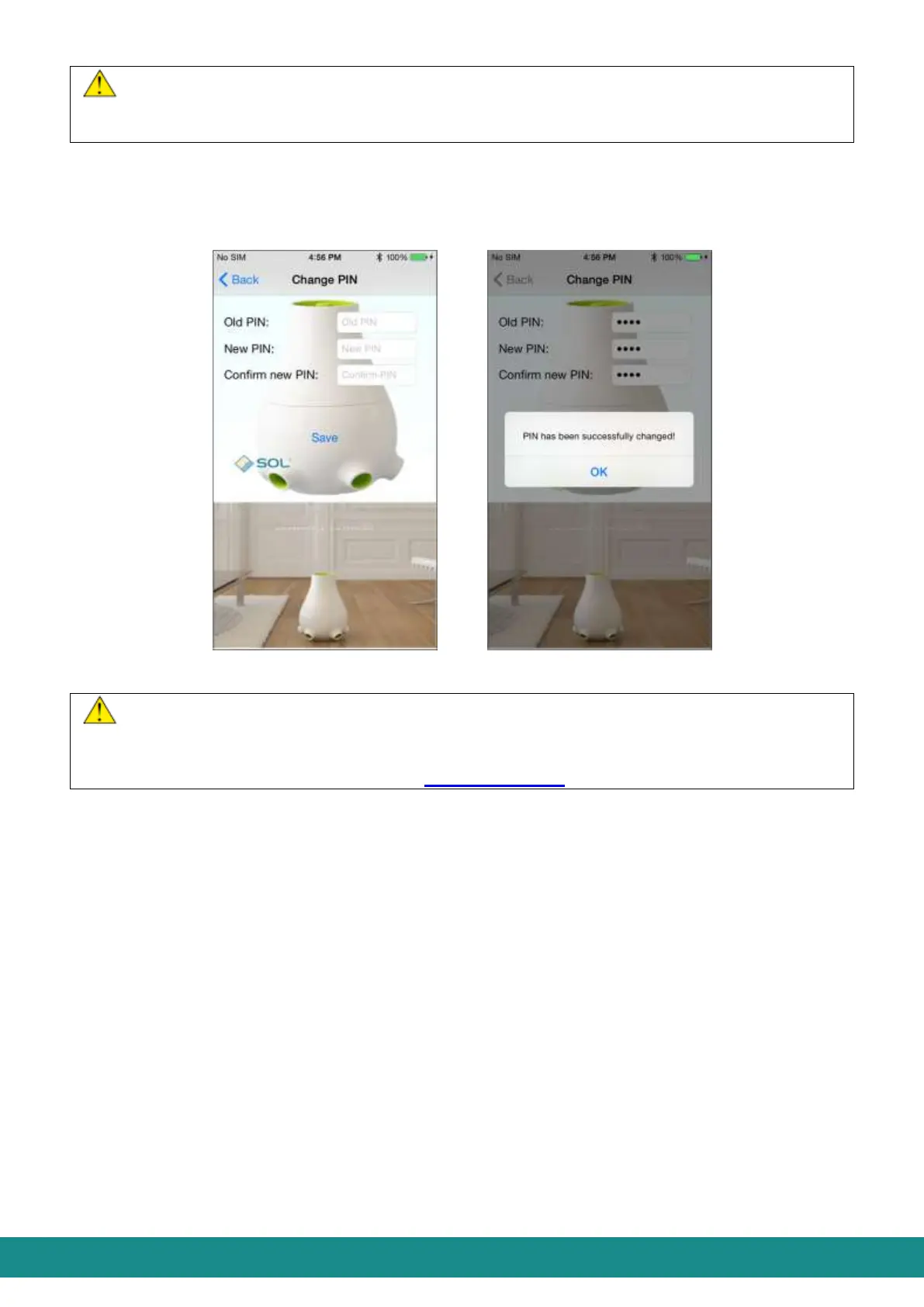
The device requests a PIN password as described in Part 4.2.4.1 6). With the function
shown at Figure 21 you can change this PIN password:
Figure 21: User Interface, Changing PIN password
To change your PIN password, you must know the previous PIN password – therefore
we highly advise you to write it down. SOL-ONE has a PIN2 password for those cases when
the PIN password is forgotten or gets lost. You can receive your PIN2 password using the
serial number by making an application at www.soluxury.eu
4.2.5.2.5 Scenting
Choosing “Scenting by” function you can set the frequency of the running periods. Options
are from 5 up to 250 minutes. This time is the length of intervals between two scenting
periods. After setting the time period you prefer, touch „Save”.
4.2.5.2.6 Night lights dim
Depending on the environment of the device, the lights at nighttime can be bothersome (for
instance in bedrooms). Therefore by choosing the function “Night lights dim” you can set
the intensity of the lightingin the night-morning time period:
None: All lights are on during night time
Color: No RGB lighting during night time
Color & UV: Neither RGB lighting or UV indicator light during night time
All: All lights are turned off during night time
After setting the lighting to your preferences, touch „Save”
By touching „<” you can go back to the User Interface as shown at Figure 1.



 To Next Page