Page 34
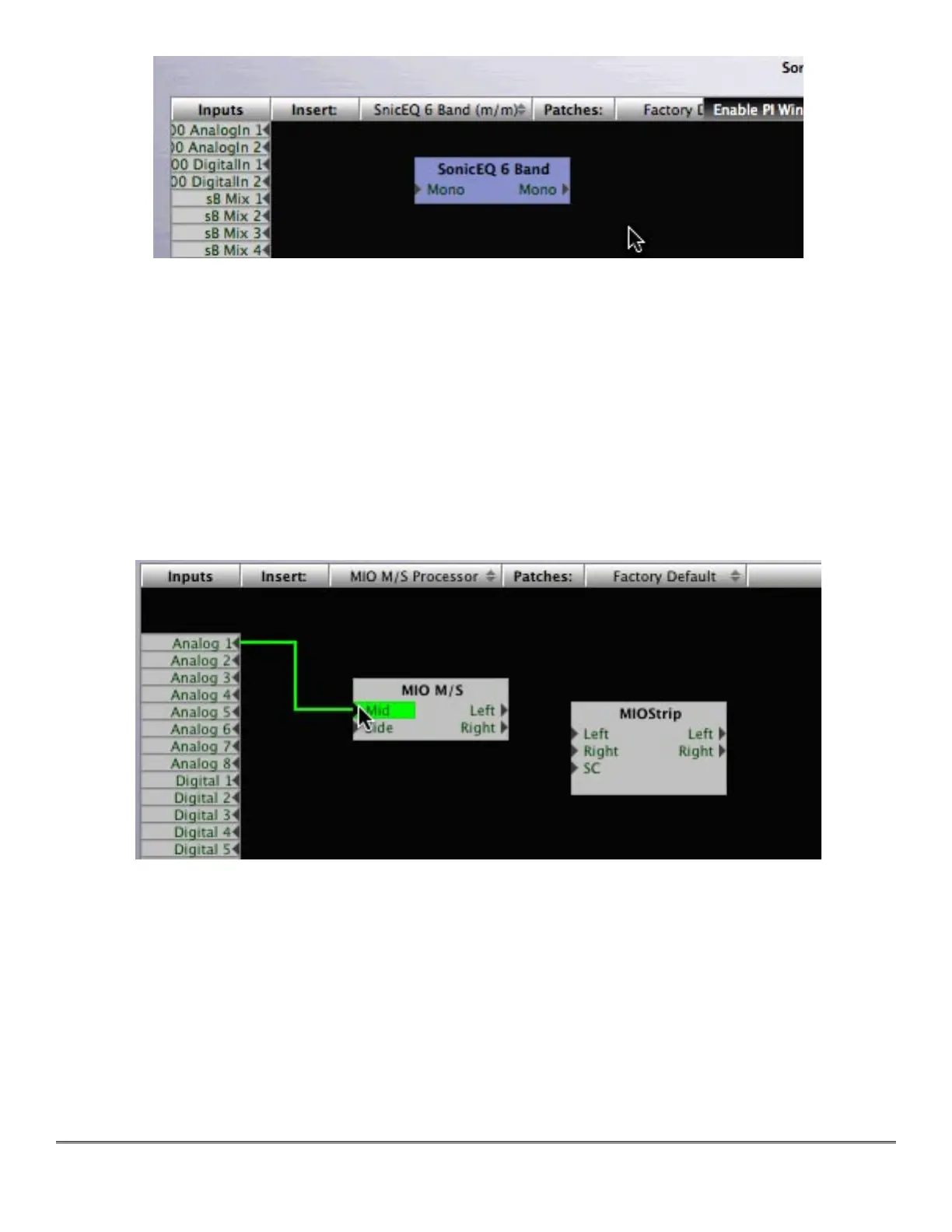
Figure 10 — Dropping the new instance onto the Graph
Once you have instantiated the process you want to use, you can “wire them in.” To make
connections, click and hold on a Source Bus, any one of the small gray rectangles with the bus
name at the left of the graph, and drag the “connection” to an input port on the target process.
When you have made a valid connection, the target port will switch from gray to green. Sourc-
es can be multed to as many inputs as you like but, only one connection can be made to a
processor input or Process Bus port. If you make a new connection to an input port that already
has a connection, the old connection will be automatically disconnected. To remove a connec-
tion without establishing a new one, control-click on the input port to which the connection is
made.
Figure 11 — Connecting the Analog 1 bus to the input of an M/S processor block
To finish creating a new signal processing configuration, you will need to route the output of
your processor(s) to appropriate Process Buses on the output or right side of the Graph. When
you are done, you will have a complete signal processing chain.
Graphs are “live” and continuously modifiable. You can drag processor blocks around to bet-
ter visualize the connections, and you can add new processes, even while you are processing
audio with the existing configuration. You can make and break connections as you please.



 To Next Page