Page 50 Creating Network Access Rules
• Select the service or group of services affected by the
access rule from the Service drop-down list. If the
service is not listed, you must define the service in the
Add Service window. Select Create New Service or
Create New Group to display the Add Service
window or Add Service Group window.
• Select the source of the traffic affected by the access
rule from the Source drop-down list. Selecting Create
New Network displays the Add Address Object
window.
• Select the destination of the traffic affected by the
access rule from the Destination drop-down list.
Selecting Create New Network displays the Add
Address Object window.
• Select a user or user group from the Users Allowed
drop-down list.
• Select a schedule from the Schedule drop-down list.
The default schedule is Always on.
• Enter any comments to help identify the access rule in
the Comments field.
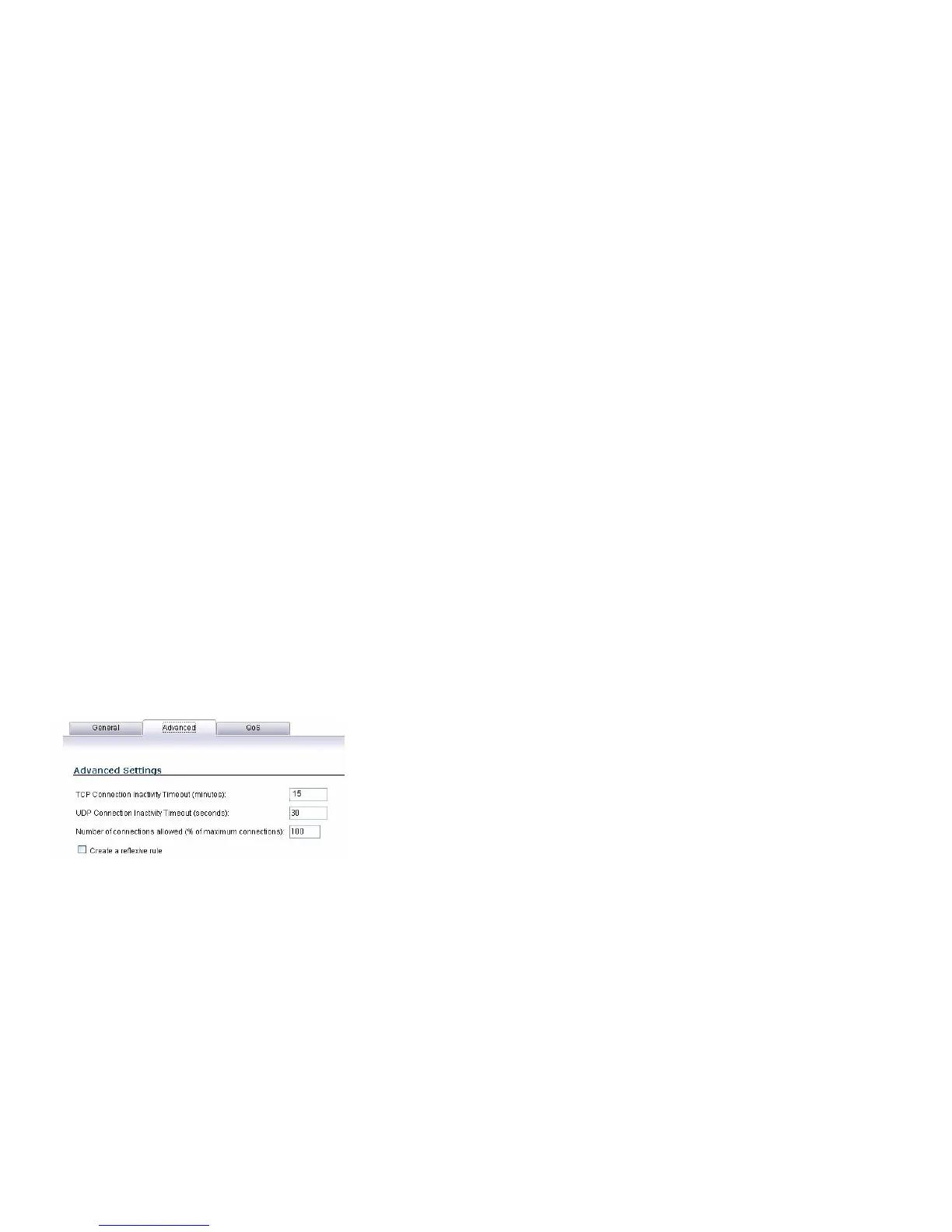
4. Click on the Advanced tab.
• In the TCP Connection Inactivity Timeout (minutes)
field, set the length of TCP inactivity after which the
access rule will time out. The default value is 15
minutes.
• In the UDP Connection Inactivity Timeout
(minutes) field, set the length of UDP inactivity after
which the access rule will time out. The default value
is 30 minutes.
• In the Number of connections allowed (% of
maximum connections) field, specify the percentage
of maximum connections that is allowed by this access
rule. The default is 100%.
• Select Create a reflexive rule to create a matching
access rule for the opposite direction, that is, from
your destination back to your source.
5. Click on the QoS tab to apply DSCP or 802.1p Quality of
Service coloring/marking to traffic governed by this rule.
See the SonicOS Enhanced Administrator’s Guide for
more information on managing QoS marking in access
rules.
6. Click OK
to add the rule.


 To Next Page