1
1
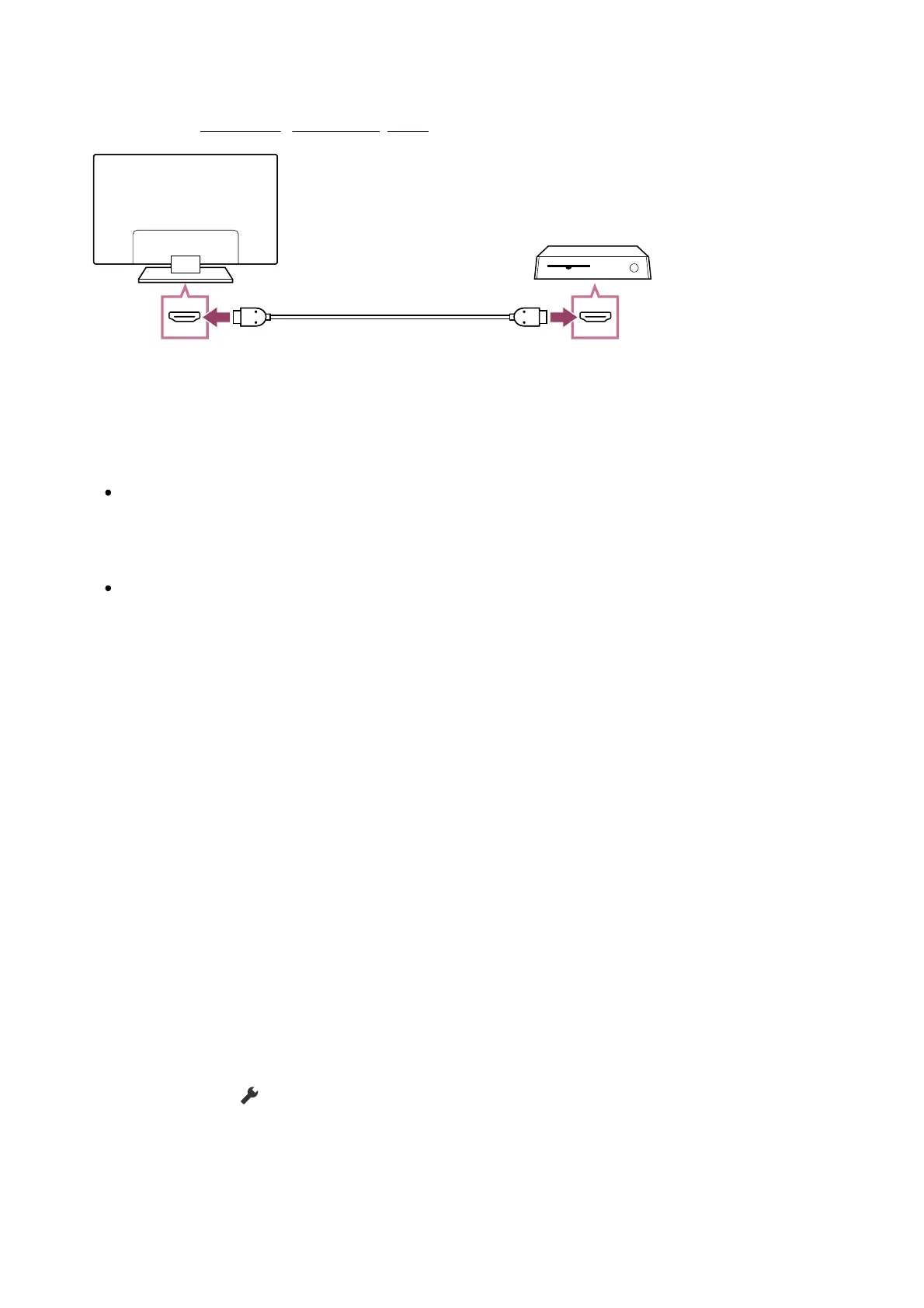
Connect an HDMI-supported video game console to your TV with an HDMI cable.
To connect an audio amp or sound bar at the same time, refer to HDMI connection (eARC
supported) in Connecting an audio system.
(A) Video game console
(B) HDMI cable (sold separately)
Hint
A Premium High Speed HDMI Cable(s) is fine for general purposes, but if you want to
connect a video game console that supports 4K 120Hz, use the HDMI cable included
with the game console, or an Ultra High Speed HDMI Cable.
The type and position of the HDMI port differs depending on your TV. Refer to the
documentation provided with the TV.
Changing HDMI input settings
After connecting, set the connected HDMI input port.
To maximise the performance of your TV and video game console, set the [HDMI signal
format/VRR].
Auto setup
With the video game console turned on, connect it to the TV with an HDMI
cable.
Set by following the instructions on the TV screen.
Manual setup
Press the (Quick Settings) button on the remote control, and select the
following in order.
[Settings] — [Channels & Inputs] — [External inputs] — [HDMI signal format/VRR]
Select the optimal format for your video game console.
™
™




 To Next Page