42
Creating a new folder
a Set the mode dial to SET UP.
b Select (Disc Tool 2) with v/
V, [Create REC. Folder] with B/
v/V, and [OK] with B/v, then
press z.
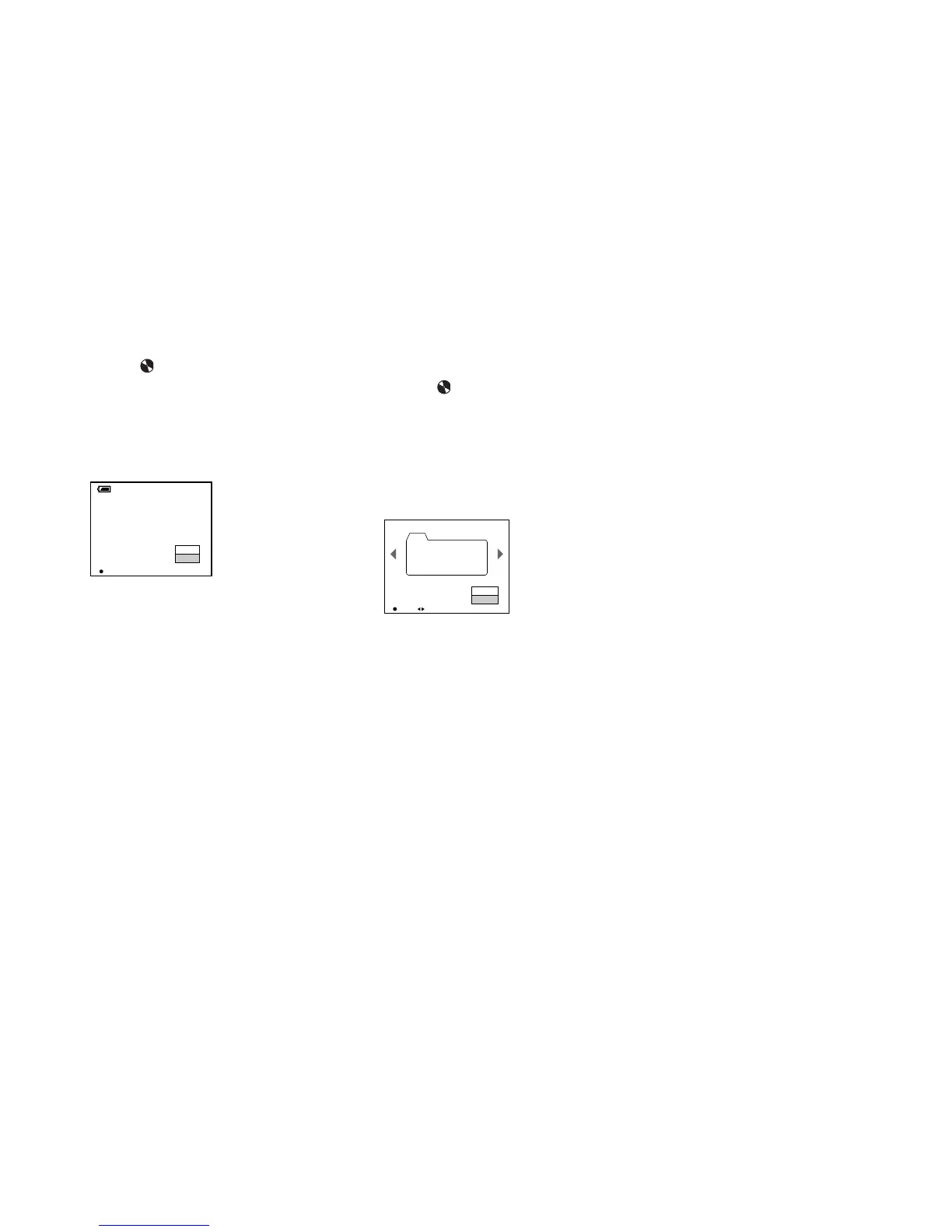
The following screen appears.
c Select [OK] with v, then press
z.
A new folder is created with a number
one higher than the largest number in
the disc, and the folder becomes the
recording folder.
To cancel folder creation
Select [Cancel] in step 2 or 3.
• Once you create a new folder, you cannot delete
the new folder with the camera.
• Images are recorded in the newly created folder
until a different folder is created or selected.
Changing the recording
folder
a Set the mode dial to SET UP.
b Select (Disc Tool 2) with v/
V, [Change REC. Folder] with
B/v/V, and [OK] with B/v, then
press z.
The recording folder selection screen
appears.
c Select the desired folder with
b/B, and [OK] with v, then
press z.
To cancel changing the
recording folder
Select [Cancel] in step 2 or 3.
• You cannot select the “100MSDCF” folder as a
recording folder.
• The image is stored in the newly selected
folder. You cannot move images to a different
folder with this camera.
2
OK
Ready?
O K
Cancel
60min
Create REC. Folder
Creating REC. Folder 102MSDCF
2
Select REC. Folder 2/2
Folder Name:
No. Of Files:
Created:
102MSDCF
0
2003 7 4
1:05:34
AM
102
OK BACK/NEXT
O K
Cancel


 To Next Page
 Loading...