Customizing your Sony CLIÉ™ handheld (Preferences) 73
Customizing the full-screen pen stroke
activities
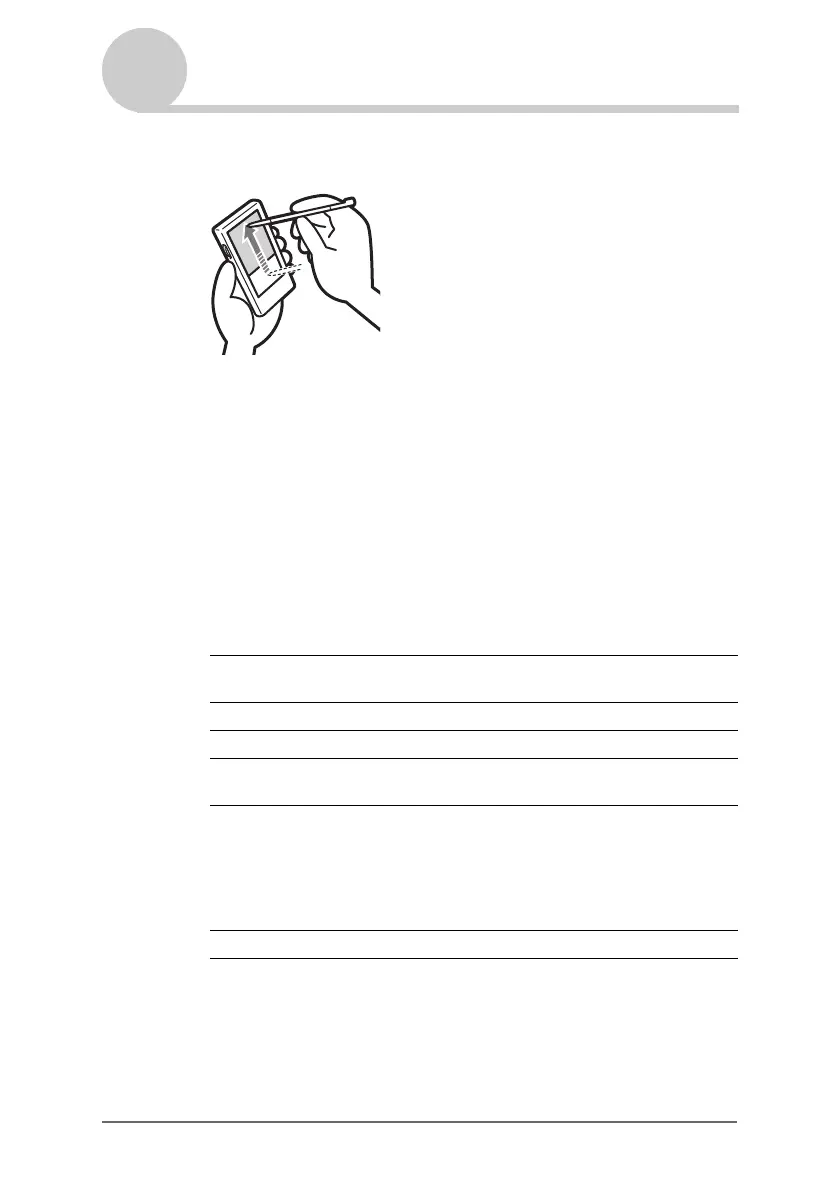
You can customize the assignment of the full-screen pen stroke.
By default, the full-screen pen stroke activates Graffiti
®
Help.
1 Tap the arrow V in the top right-hand corner of the
Preferences screen and select Buttons.
2 Tap Pen.
The Pen screen is displayed.
3 Tap the arrow V next to Graffiti Help and select the settings
for the full-screen pen stroke.
4 Tap OK.
Backlight Turns on the backlight of your CLIÉ handheld without
using the POWER button.
Brightness Opens the Adjust Brightness screen.
Keyboard Opens the on-screen keyboard for entering text.
Graffiti Help Opens a series of screens that show the complete Graffiti
character set.
Turn Off & Lock Turns off and locks your CLIÉ handheld. To start your
CLIÉ handheld operation when it is locked, you need to
enter the password (to use the Lock function, you need to
enter a password).
b For details, please refer to “Protecting your data with a
password” (page 164).
Beam Data Beams the current record to another Palm OS PDA.
Drag the stylus from the bottom
of the writing area to the top on
the screen.



 To Next Page