36
GB
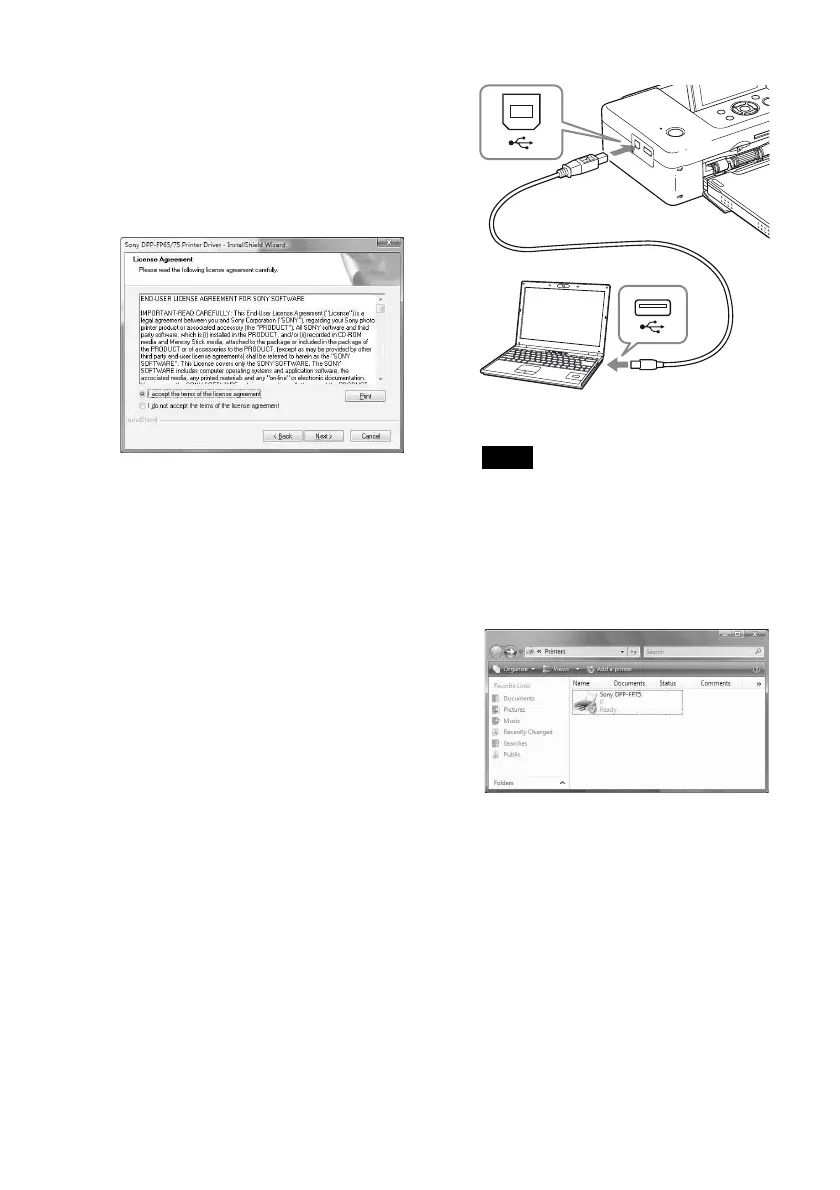
3 Click “Next”.
The license agreement dialog box is
displayed.
4 Read the agreement thoroughly,
and if you agree, check “I accept
this agreement” and click “Next”.
5 Click “Install”.
Installation starts.
6 When the “Sony DPP-FP65/75
printer driver has been successfully
installed.” dialog is displayed, click
“Finish”.
7 Press the 1 (on/standby) button to
turn on the printer.
8 Connect the USB connectors of the
printer and your PC with a USB
cable (not supplied).
Printer driver installation starts
automatically.
Note
Use a B-type USB cable shorter than 3m in
length.
9 Wait for a while, then check to see
that “Sony DPP-FP65” or “Sony
DPP-FP75” has been added to the
“Printers” or “Printers and Faxes”.
10 When the installation is complete,
remove the CD-ROM from your PC
and keep it for future use.
To continue the process and install the
Picture Motion Browser software, follow
the procedures from step 2 on page 38.
To USB
connector
To USB connector
Windows PC



 To Next Page