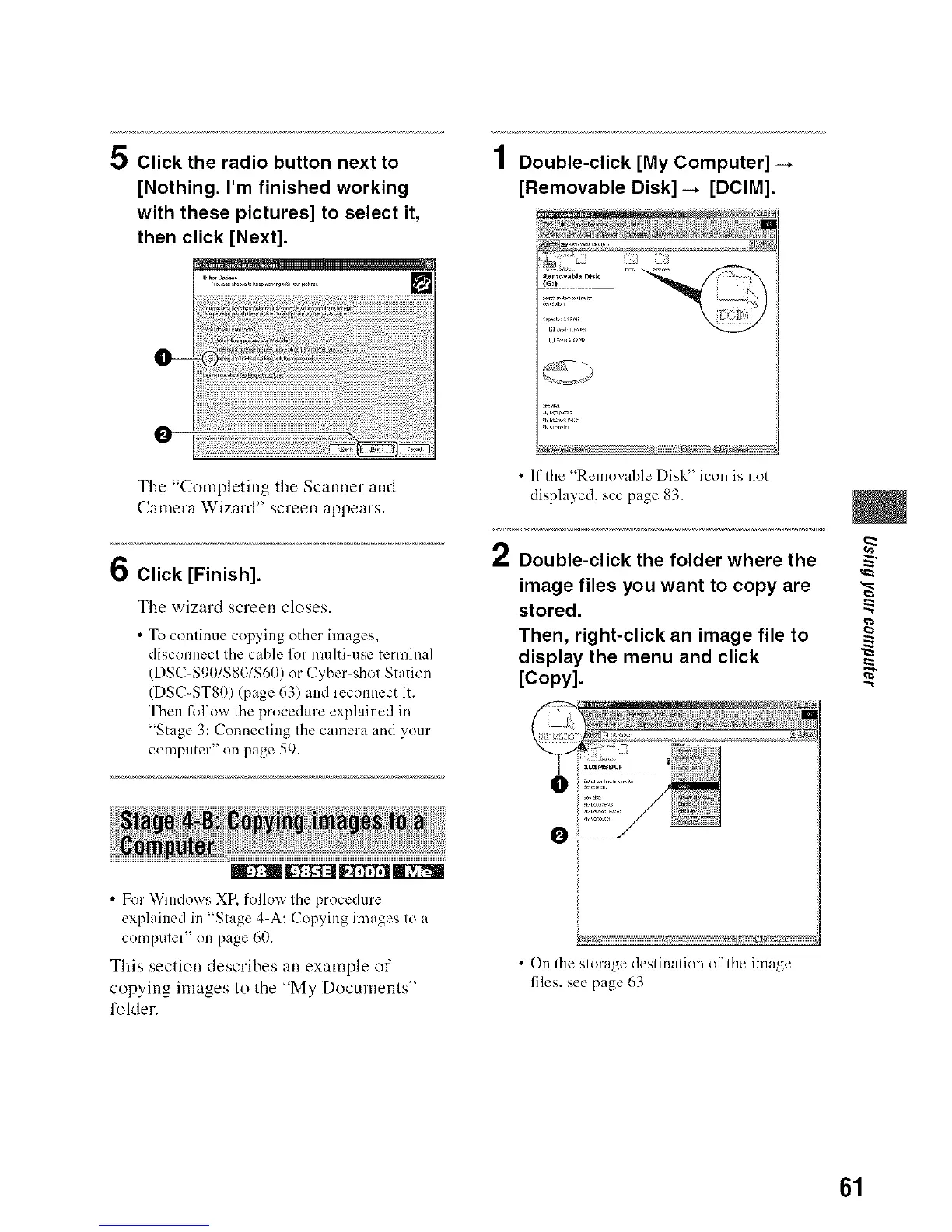
5 Click the radio button next to
[Nothing. I'm finished working
with these pictures] to select it,
then click [Next].
0
The "Completing the Scanner and
Camera Wizard" screen appears.
6 Click [Finish].
The wizard screen closes.
•To continue copying other images,
disconnect the c:,ble li)r multi-use terminal
(DSC-$90/$80/$60) or Cyber-shot Station
(DSC-ST80) (page 63) and reconnect it.
Then [k>llow the procedure explained in
"Stage 3: Connecting the camera and your
computer" on page 59.
N_ FfITITIM
1 Double-click [My Computer] -.
[Removable Disk] -4 [DCIM].
I ?
tJ ........
• It" the "Removable Disk" icon is not
displayed, see page 83.
oN
/ Double-click the folder where the
image files you want to copy are
stored.
Then, right-click an image file to
display the menu and click
[Copy].
• For Windows XR follow the procedure
explained in "Stage 4-A: Copying images to a
computer" on page 61).
This section describes an example of
copying images to the "My Documents"
folder.
• On the slorage destination of the image
files, see page 63
61






 To Next Page