Settings and Adjustments
Using
the
Setup
Display
Press
OPTIONS
when
the
player
is
in
stop
mode.
en
CD
=
=
IC
rn
l»
=
c.
>0
S:
=
rn
-
3
CD
=
-
rn
The
default settings are underlined.
To
turn
off
the
setup
display
Press
OPTIONS
or
RETURN
twice.
;:iii
General
Setup
4
Select
and
adjust
each
of
the
following
items
by
pressing
'to/oJ,
and
ENTER.
;:iii: General Setup (page 17)
Makes the player-related settings.
~)
: Audio Setup (page 18)
Makes the audiosettings according to
playback conditions.
~a:
Language Setup (page 18)
Makes the language settings for the
on-screen display
or
sound track.
Cii:
Parental Control (page 19)
Sets the parental control limit.
•
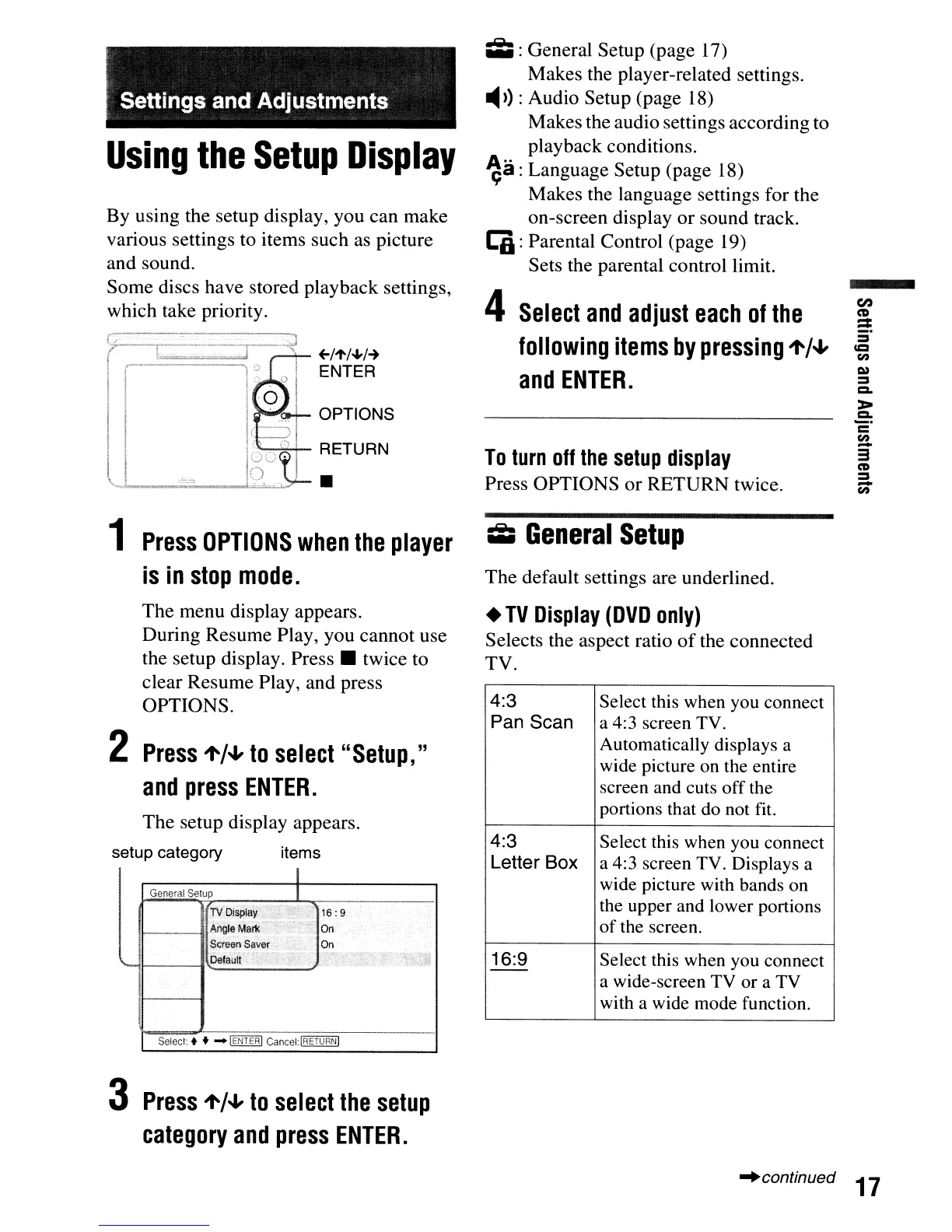
By using the setup display, you
can
make
various settings to items such as picture
and sound.
Some
discs have stored playback settings,
which take priority.
I
lL::~",
~
1
The
menu display appears.
During Resume Play, you cannot use
the setup display.
Press.
twice to
clear Resume Play, and press
OPTIONS.
2
Press
'to/oJ,
to
select
"Setup,"
a
nd
press
ENTER.
The
setup display appears.
setup category items
General
Setup
~
.........
-,-:---;::;------------_.
Select:
• t _IENTERI
Cancel:IRETURNI
•
TV
Display
(DVD
only)
Selects the aspect ratio
of
the connected
TV.
4:3
Select this when you connect
Pan Scan a 4:3 screen TV.
Automatically displays a
wide picture on the entire
screen and cuts off the
portions that do not fit.
4:3
Select this when you connect
Letter Box a 4:3 screen TV. Displays a
wide picture with bands on
the upper and lower portions
of
the screen.
16:9 Select this when you connect
--
a wide-screen TV or a TV
with a wide mode function.
3
Press
'to/oJ,
to
select
the
setup
category
and
press
ENTER.
"continued
17


 To Next Page