FDR-AX43/AX45/AX60
4-734-285-21(1)
F:\56216_EN\SONY\CX49400_IM_GB\4734285211\47342
85211FDRAX434560GB\01GB\050SAV.fm
master:Right_2 column
GB
31
Saving images
One-touch connection
with a smartphone
supporting NFC
• Cancel the sleep mode or unlock
the screen on the smartphone
beforehand.
• Make sure that is displayed
on the LCD monitor of the
camcorder and the smartphone.
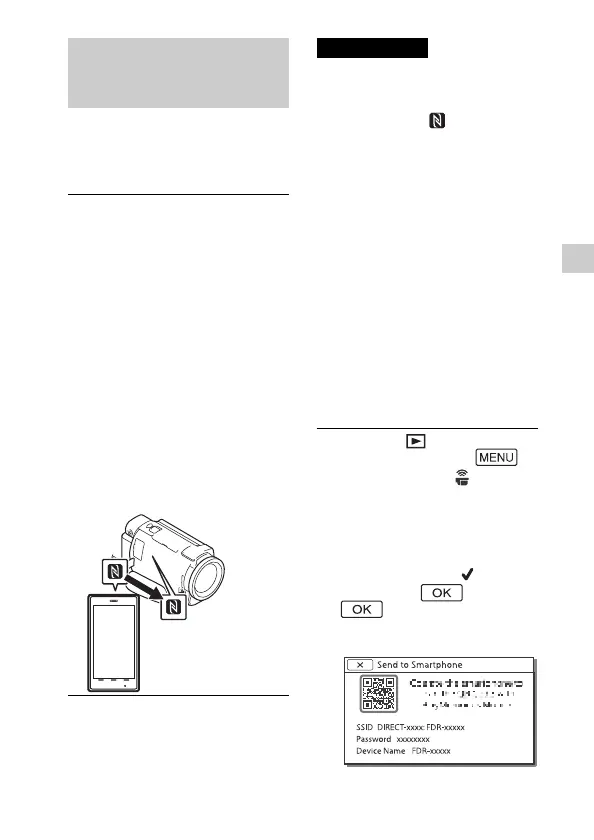
• Continue touching the
camcorder to the smartphone
without moving until Imaging
Edge Mobile starts (1 to 2
seconds).
• If the camcorder cannot be
connected with the smartphone
by NFC, see “Connecting to a Wi-
Fi network using the QR Code”
(page 31).
Connecting to a Wi-Fi
network using the QR
Code
Transferring MP4 movies
and photos to your
smartphone
1
Activate the NFC function of
the smartphone.
• On an iPhone/iPad, launch
Imaging Edge Mobile, and then
select [Scan NFC/QR Code of the
Camera]
[Scan NFC of the
Camera] to activate the NFC
function.
2
On the camcorder, play back
an image to be sent to the
smartphone.
• You can transfer MP4 movies
and photos only.
• To select MP4 movies when you
play back movies, see
“Switching to MP4” (page 21).
3
Touch the camcorder to the
smartphone.
Notes
1
Press the (View Images)
button, then select
[Wireless] [ Function]
[Send to Smartphone]
[Select on This Device]
image type.
2
Select the image you want to
transfer, and add , and
then select
.
• The QR Code, SSID, and
password are displayed.



 To Next Page