EasyManua.ls Logo

Sony FH-B411 - Recording CD: Specifying Tape Length; Recording CD: Specifying Track Order

Sony FH-B411
20 pages
Print Icon
To Next Page IconTo Next Page
To Previous Page IconTo Previous Page
Loading...
>
continued
6
Press
>
on
the
CD
player
after
10
seconds.
The
CD
starts
playing.
To
start
recording
more
precisely
1
After
step
2,
press
0D.
2
Press
@
(C
is
linked
and
depressed
at
the
same
time).
3
Press
>
on
the
CD
player.
4
Press
fill
again
at
the
desired
point
to
start
recording.
Adjusting
the
volume
or
the
audio
emphasis
will
not
affect
the
recording
level
But
these
controls
will
change
the
sound
levels
you
hear
through
speakers
or
headphones,
ll
Recording
a
CD:
Specifying
Tape
Length
(time
edit)
You
can
have
the
stereo
system
create
programs
based
on
the
tape
length.
The
CD
player
makes
programs
that
will
fit
the
tape
length.
For
example,
if
you
use
a
40-minute
tape
to
record
a
46-minute
CD,
the
CD
player
will
automatically
choose
tracks
that
will
fit
within
the
40-minutes,
filling
as
much
of
the
tape
as
possible.
You
can
also
program
desired
tracks
by
priority.
In
this
case,
you
can
designate
desired
tracks
beforehand
and
the
remaining
tracks
will
be
programed
to
fit
the
remaining
time.
Use
the
buttons
on
the
unit
to
do
this
operation.
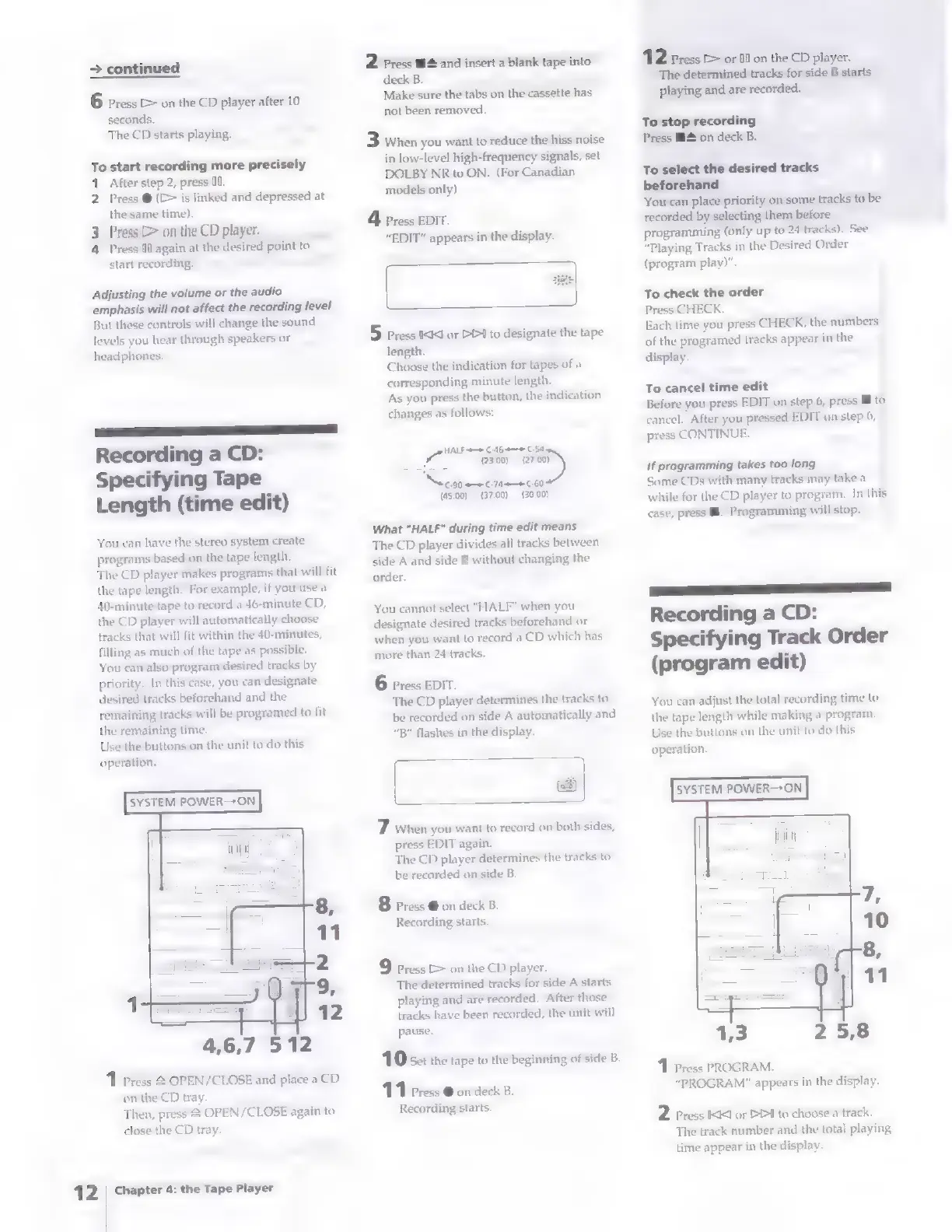
SYSTEM
POWER—ON
4,6,7
512
1
Press
&
OPEN/CLOSE
and
place
a
CD
on
the
CD
tray.
Then,
press
2
OPEN/CLOSE
again
to
close
the
CD
tray.
Chapter
4:
the
Tape
Player
2.
Press
§#
and
insert
a
blank
tape into
deck
B.
Make
sure
the
tabs
on
the
cassette
has
not
been
removed.
3
when
you
want
to
reduce
the
hiss
noise
in
low-level
high-frequency
signals,
set
DOLBY
NR
to.ON.
(For
Canadian
models
only)
4
Press
EDIT.
“EDIT”
appears
in
the
display.
5
Press
iid
or
DDI
to
designate
the
tape
length.
Choose
the
indication
for
tapes
of
a
corresponding
minute
length,
As
you
press
the
button,
the
indication
changes
as
follows:
HALF
C46-e—e
C54
a
(23.00)
(27,
<n)
cso
C060
(@5,00)
(37.00)
(30.00)
What
"HALF"
during
time
edit
means
The
CD
player
divides
all
tracks
between
side
A
and
side
B
without
changing
the
order.
You
cannot
select
"HALF"
when
you
designate
desired
tracks
beforehand
or
when
you
want
to
record
a
CD
which
has
more
than
24
tracks.
6
Press
EDIT.
The
CD
player
determines
the
tracks
to
be
recorded
on
side
A
automatically
and
“B"
flashes
in
the
display.
7
when
you
want
to
record
on
both
sides,
press
EDIT
again.
The
CD
player
determines
the
tracks
to
be
recorded
on
side
B.
8
Press
@
on
deck
B.
Recording
starts.
9
Press
>
on
the
CD
player.
The
determined
tracks
for
side
A
starts
playing
and
are
recorded.
After
those
tracks
have
been
recorded,
the
unit
will
pause.
10
set
the
tape
to
the
beginning
of
side
B.
11
Press
@
on
deck
B.
Recording
starts.
112
Press
E>
or
fll
on
the
CD
player.
The
determined
tracks
for
side
B
starts
playing
and
are
recorded.
To
stop
recording
Press
i
on
deck
B.
To
select
the
desired
tracks
beforehand
You
can
place
priority
on
some
tracks
to
be
recorded
by
selecting
them
before
programming
(only
up
to
24
tracks).
See
“Playing
Tracks
in
the
Desired
Order
(program
play)”.
To
check
the
order
Press
CHECK.
Each
time
you
press
CHECK,
the
numbers
of
the
programed
tracks
appear
in
the
display.
To
cancel
time
edit
Before
you
press
EDIT
on
step
6,
press
Bto
cancel.
After
you
pressed
EDIT
on
step
6,
press
CONTINUE.
If
programming
takes
too
long
Some
CDs
with
many
tracks
may
take
a
while
for
the
CD
player
to
program.
In
this
case,
press
Ml.
Programming
will
stop.
——EESEE—
SS
Recording
a
CD:
Specifying
Track
Order
(program
edit)
You
can
adjust
the
total
recording
time
to
the
tape
length
while
making
a
program.
Use
the
buttons
on
the
unit
to
do
this
operation.
SYSTEM
POWER-*ON
1
Press
PROGRAM.
“PROGRAM”
appears
in
the
display.
2
Press
IKI]
or
PEI
to
choose
a
track.
The
track
number
and
the
total
playing
time
appear
in
the
display-

Related product manuals