38
Additional Operations
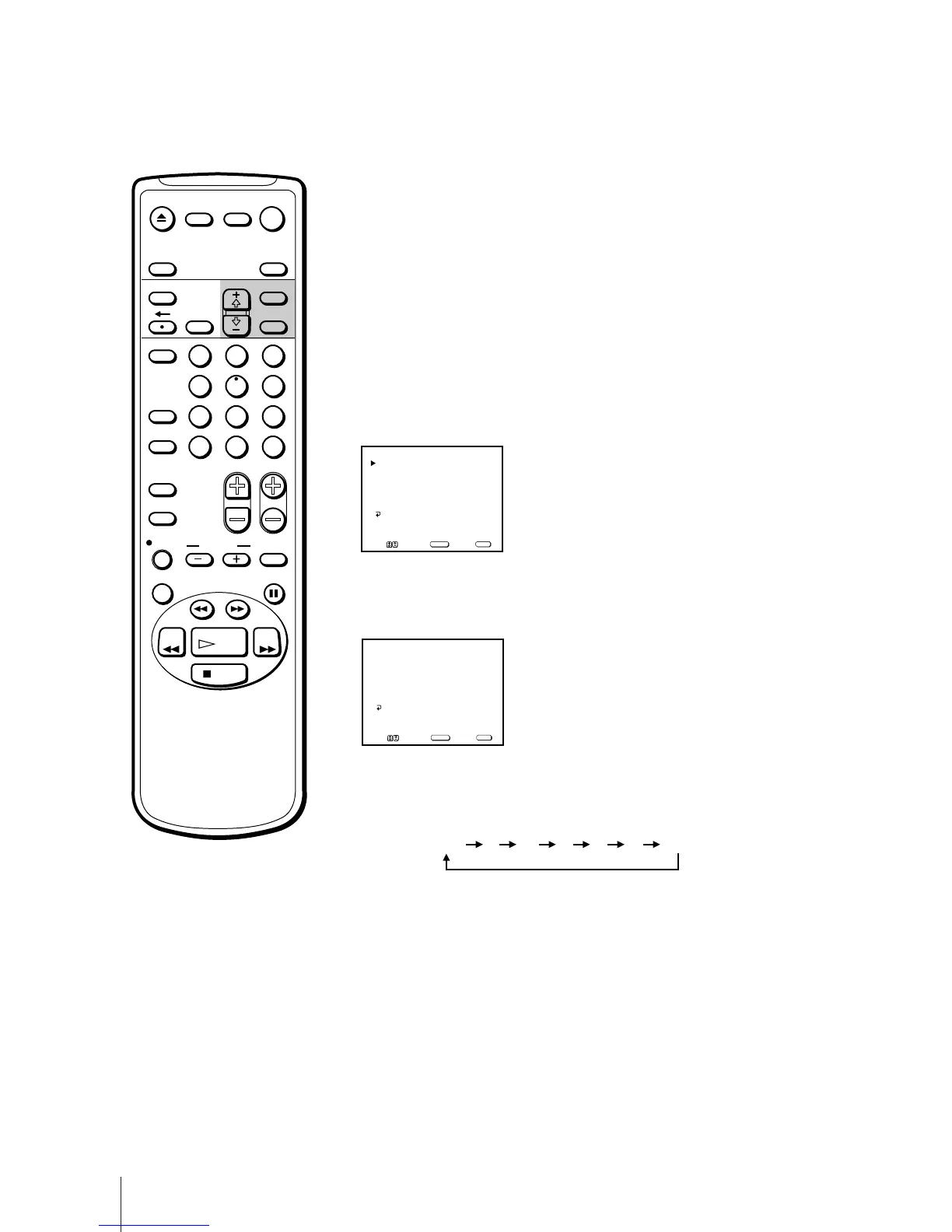
Use the CHANNEL FIX feature to prevent the Video/TV’s input channel
from being accidentally changed.
It is recommended that you set up your Video/TV as follows when you
connect a cable box.
1 Press MENU to display the main menu.
2 Move the cursor (z) to “SET UP” with + ◊ or – √ and press SELECT.
The SET UP menu appears.
3 Move the cursor (z) to “CHANNEL SET UP” with + ◊ or – √ and press
SELECT.
The CHANNEL SET UP menu appears.
4 Move the cursor (z) to “CHANNEL FIX” with + ◊ or – √ and press
SELECT.
The selected position turns red.
5 Using + ◊ or – √, select the Video/TV’s cable box input channel that you
want to set and press SELECT.
With each press, the input mode changes as follows:
When you set CHANNEL FIX to “2-6,” you can only watch the TV channel
that you have fixed, or the input line.
When you set CHANNEL FIX to “LINE,” you cannot switch the line input
to a TV channel.
When you want to switch CHANNEL FIX off, set it to “OFF.”
6 Press MENU to return to the original screen.
Selecting the Video/TV’s Cable Box
Input Channel –
CHANNEL FIX
CABLE: OFF
CHANNEL FIX: OFF
AUTO PROGRAM
CHANNEL SKIP/ADD
VCR P lus+ SET UP
CHANNEL SET UP
MENU
Move Select Exit
SELECT
MENU
CABLE: OFF
CHANNEL FIX: OFF
AUTO PROGRAM
CHANNEL SKIP/ADD
VCR PLUS+ SET UP
CHANNEL SET UP
MENU
Move Select Exit
SELECT
MENU
OFF 2 3 4 5 6 LINE
EJECT
COUNTER/
REMAIN
COUNTER
RESET
SLEEP
MENU
CHVOL
SELECTRESET
INDEX
JUMP ENTER
TAPE SPEED
X2 PAUSE
SEARCH
REC
SLOW
VCR Plus
MUTING DISPLAY
POWER
TV
1
2
3
4
5
6
7
8
9
0
&7
STOP
PLAY
REW FF
TIMER ON SCREEN
INPUT
SELECT



 To Next Page