Help Guide
Wireless Stereo Headset
LinkBuds Open
Pairing and connecting with a computer (Windows 10)
The operation to register the device that you wish to connect to is called “pairing”. First, pair a device to use it with the
headset for the first time.
Before starting the operation, make sure of the following:
Your computer has a Bluetooth function that supports music playback connections (A2DP).
The computer is placed within 1 m (3.2 ft) of the headset.
The headset is charged sufficiently.
The operating instructions for the computer is in hand.
Depending on the computer you are using, the built-in Bluetooth adaptor may need to be turned on. If you do not
know how to turn on the Bluetooth adaptor or are unsure if your computer has a built-in Bluetooth adaptor, refer to the
operating instructions supplied with the computer.
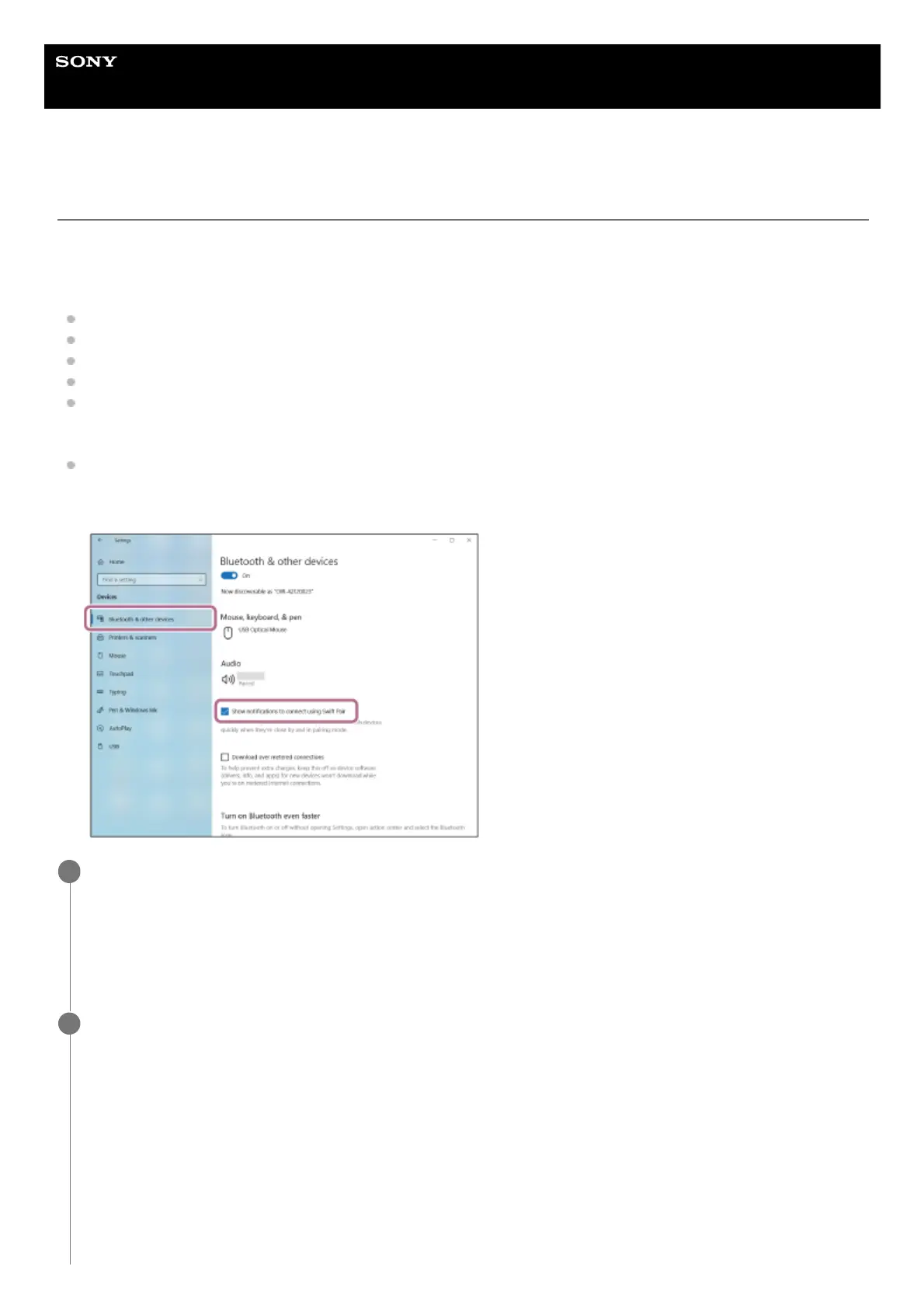
If your OS version is Windows 10 version 1803 or later, the Swift Pair function can be used to make pairing easier. To
use the Swift Pair function, click the [Start] button - [Settings] - [Devices] - [Bluetooth & other devices], and check the
[Show notifications to connect using Swift Pair] checkbox.
Check the status of the headset.
When you pair the headset with a device for the first time after purchase or after initializing the headset (when there
is no pairing information on the headset) : Proceed to step 2.
When you pair a second or subsequent device (the headset has pairing information for other devices) : Proceed to
step 3.
1
(If you selected “when there is no pairing information on the headset” in step 1)
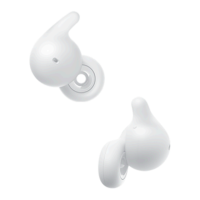
Remove both headset units from the charging case.
2


 To Next Page