Help Guide
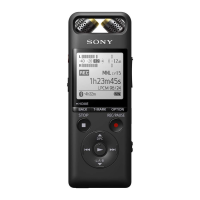
Linear PCM Recorder
PCM-A10
Customizing the recording settings for [My Scene]
You can customize the recording settings for [My Scene 1] or [My Scene 2] of the Scene Select function to make a
recording scene that suits your preference.
Hint
When a recording scene is already selected for [Scene Select], changing any of the recording settings in step 1 displays [*] next
to the selected scene icon and then the message [Current Setting Not Saved. Save to My Scene?]. If you want to save the
recording settings you changed, select [Yes] and then [My Scene 1] or [My Scene 2] for [Save to].
Related Topic
Selecting a recording scene for an individual situation
Default settings for the recording scenes of the Scene Select function
Selecting the recording mode (REC Mode)
Selecting the sensitivity level of the built-in microphones (Built-In Mic Sensitivity)
Reducing noise during recording (Recording Filter)
Recording automatically in response to the input sound volume – the VOR function
Adjusting the recording volume for input sounds to avoid sound distortion (LIMITER)
4-740-912-31(2) Copyright 2018 Sony Corporation
Use the Settings menu to set the following:
The following recording menu items can be set.
REC Mode
Built-In Mic Sensitivity
Ext. Input Setting
Recording Filter
VOR
LIMITER
1
Select [Scene Select] - [My Scene 1] or [My Scene 2] from the OPTION menu, and then press
.
2
Press
or to select [Copy Current Settings], and then press .
[Copy Current Recording Setting?] appears on the display window.
3
Press
or to select [Yes], and then press .
4


 To Next Page