EasyManua.ls Logo

Sony RM-E700 - Page 21

Sony RM-E700
86 pages
Print Icon
To Next Page IconTo Next Page
To Previous Page IconTo Previous Page
Loading...
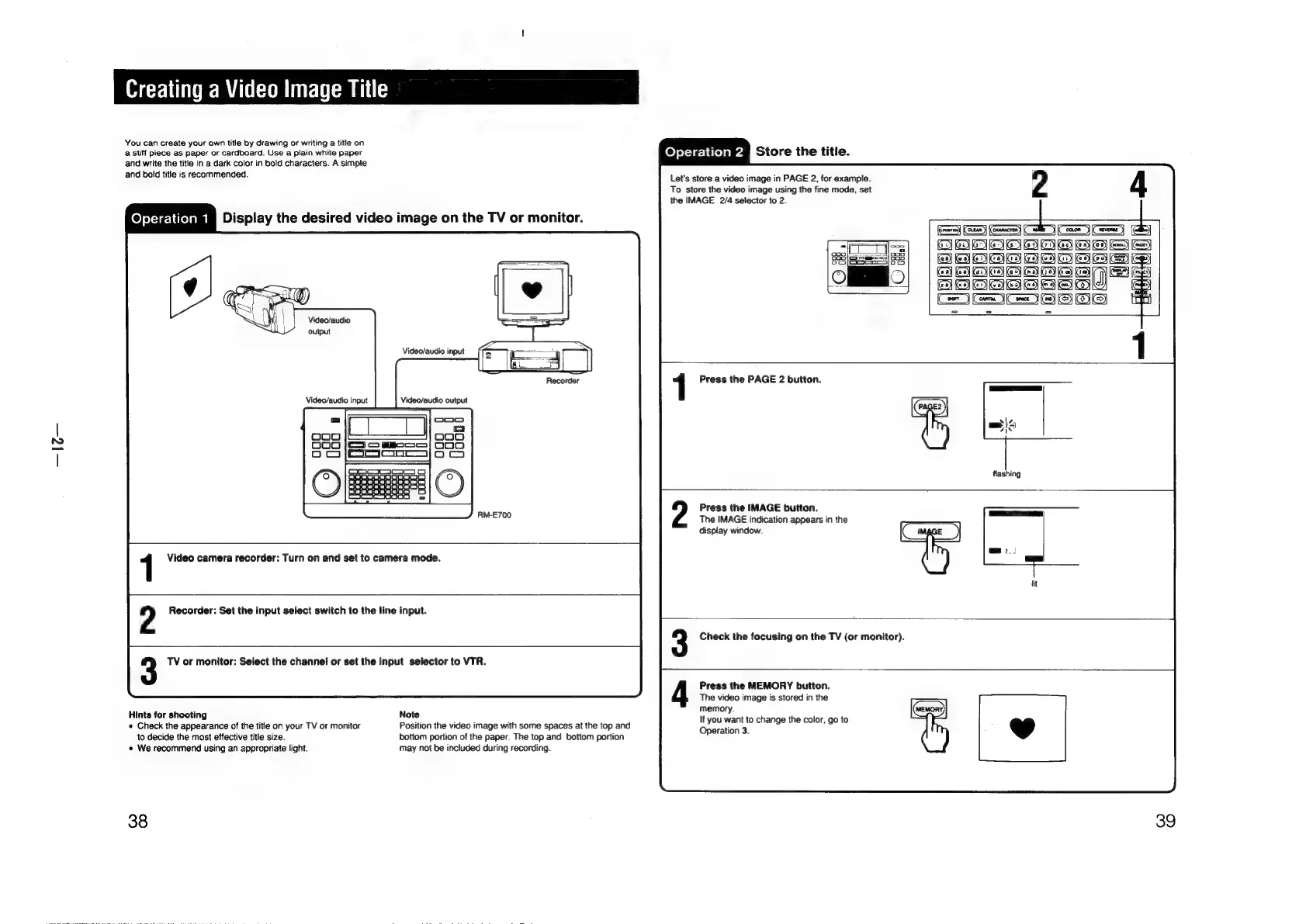
Creating
a
Video
Image
Title
You
can
create
your
own
title
by
drawing
or
writing
a
title
on
P
.
a
stiff
piece
as
paper
or
cardboard.
Use
a
plain
white
paper
Operation
ya
Store
the
title.
and
write
the
title
in
a
dark
color
in
bold
characters.
A
simple
and
bold
title
is
recommended.
Let's
store
a
video
image
in
PAGE
2,
for
example.
2
To
store
the
video
image
using
the
fine
mode,
set
the
IMAGE
2/4
selector
to
2.
feyyie-ltielemm
Display
the
desired
video
image
on
the
TV
or
monitor.
Se
SAaoTSsces
==
Video/audio
output
1
Recorder
1
Press
the
PAGE
2
button.
Press
the
IMAGE
button.
The
IMAGE
indication
appears
in
the
display
window.
1
Video
camera
recorder:
Turn
on
and
set
to
camera
mode.
2
Recorder:
Set the
input
select
switch
to
the
line
input.
Check
the
focusing
on
the
TV
(or
monitor).
3
TV
or
monitor:
Select
the
channel
or
set
the
input
selector
to
VTR.
Press
the
MEMORY
button.
The
video
image
is
stored
in
the
Hints
for
shooting
Note
memory.
(eon)
e
Check
the
appearance
of
the
title
on
your
TV
or
monitor
Position
the
video
image
with
some
spaces
at
the
top
and
-
ecisohtig
change
the
color,
go
to
to
decide
the
most
effective
title
size.
bottom
portion
of
the
paper.
The
top
and
bottom
portion
e
We
recommend
using
an
appropriate
light.
may
not
be
included
during
recording.
38
39

Other manuals for Sony RM-E700

Related product manuals