Editing76
SLV-975HF 3-858-120-11 (1)
Insert editing
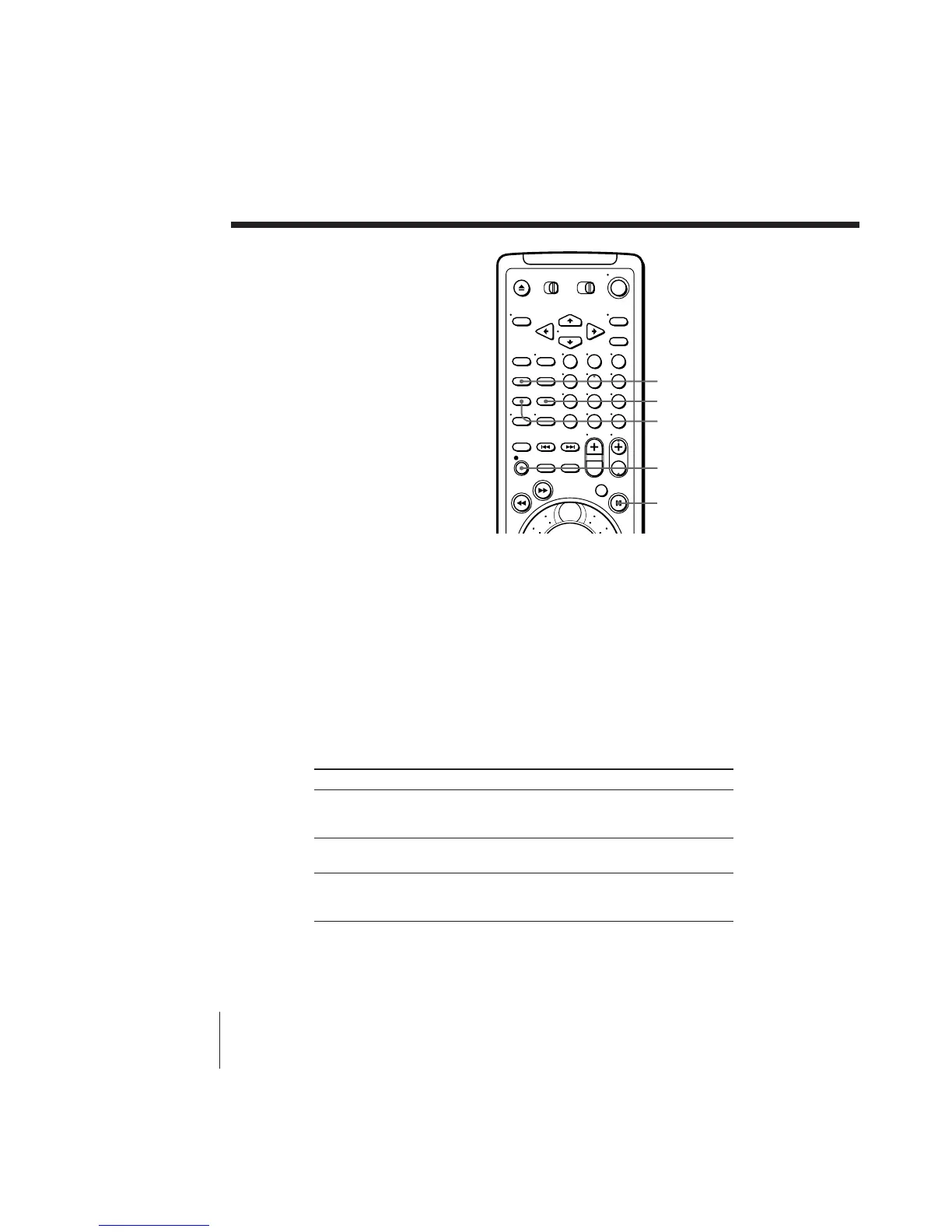
123
456
789
0
COUNTER
RESET
VIDEO INSERT
AUDIO INSERT
r REC
Before you start editing
• Turn on your TV and set it to the
video channel.
• Press INPUT SELECT to display “L2”
in the display window.
• Press TAPE SPEED on the remote
commander to select the tape speed,
SP or EP.
• On this VCR, press EDIT to display
“EDIT” in the display window. If the
other VCR has a similar switch, set it
to ON as well.
1 Insert a source tape into the playback VCR or the stereo system. Search
for the point to start playback and set it to playback pause.
2 Insert a prerecorded tape into this (recording) VCR. Search for the end
of the scene to be replaced and press P PAUSE.
3 Press COUNTER RESET on this VCR to reset the counter to
“0H00M00S.”
4 Rewind the prerecorded tape to the beginning of the scene to be
replaced.
The VCR pauses.
5 Press the INSERT buttons:
P PAUSE
To replace
Picture and
hi-fi sound
Monaural sound only
Picture, hi-fi and
monaural sound
Press
VIDEO INSERT
“VID INS P” appears on the TV screen and “V
INSERT” appears in the display window.
AUDIO INSERT
“A INSERT ” appears in the display window.
AUDIO INSERT, then VIDEO INSERT
“A/V INS P” appears on the TV screen and “AV
INSERT ” appears in the display window.
6 To start editing, press the P PAUSE buttons on this VCR and the other
VCR (or stereo system) at the same time.



 To Next Page