EasyManua.ls Logo

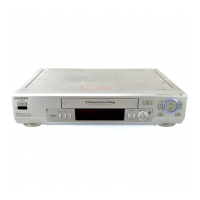
Sony SLV-975HF - User Manual

Sony SLV-975HF
90 pages
Print Icon
To Next Page IconTo Next Page
Loading...
SLV-975HF 3-858-120-11 (1)
Video Cassette
Recorder
Operating Instructions
Owner’s record
The model and serial numbers are located at the rear of the
unit. Record these numbers in the spaces provided below.
Refer to them whenever you call upon your Sony dealer
regarding this product.
Model No. _________________________
Serial No. _________________________
©1996 by Sony Corporation
SLV-975HF
SLV-975HF CS
SLV-975HF MX
SLV-975HF PX
j
G
3-858-120-11(1)

Other manuals for Sony SLV-975HF

Question and Answer IconNeed help?

Do you have a question about the Sony SLV-975HF and is the answer not in the manual?

Summary

Operating Instructions

Owners Record

Record model and serial numbers for product reference.

Installing

Installation Precautions

Ensure ventilation, avoid heat/dust, proper placement, and prevent condensation.

Information

FCC Compliance and Interference

Equipment meets FCC limits; provides measures to correct radio/TV interference.

Copyright Warning

Caution regarding unauthorized recording of copyrighted material.

Getting Started

Step 1: Unpacking

Check received items: remote, batteries, cables, plug adaptor, Cable Mouse.

Step 2: Setting Up the Remote Commander

Prepare the remote for operation and control of VCR/TV.

Remote Commander Setup

Insert batteries, set COMMAND MODE switch, and understand TV control buttons.

Remote Control for Other TVs

Program remote for non-Sony TVs using manufacturer code numbers.

TV Code Number List

Table of manufacturers and corresponding remote control codes.

Step 3: Hookups

Selecting the Best Hookup Option

Guide to choosing connection based on TV and cable setup.

Pre-Connection Steps

Safety and preparation before making connections.

Audio;Video (A;V) Hookup

Connect VCR to TV and stereo system via A/V inputs for improved quality.

S-LINK Hookup

Connect VCR using S-Link for automatic TV input switching.

VCR Setup for A;V Hookup

VCR setup procedures after A/V connections are made.

Hookup 1: Using Cable Box Control

Connect VCR with cable box for channel control via Cable Mouse.

Hookup 1: VCR Setup

Setup steps for Hookup 1: RF unit, language, clock, cable box settings.

Hookup 1: VCR Plus+ Channel Setup

Set up VCR Plus+ channels for Hookup 1, auto or manual.

Automatic Clock Setting

VCR auto-sets clock via time signal; manual setting available.

Hookup 2: No Cable Box or Few Scrambled Channels

Connect VCR without cable box or with limited-scrambled-channel box.

Hookup 2: VCR Setup

Setup steps for Hookup 2: RF unit, language, clock, tuner preset.

Hookup 2: VCR Plus+ Channel Setup

Set up VCR Plus+ channels for Hookup 2, auto or manual.

Hookup 3: Antenna Hookup

Connect VCR using antenna: VHF/UHF and VHF-only antenna connections.

Hookup 3: VCR Setup

Setup steps for Hookup 3: RF unit, language, clock, tuner preset.

Hookup 3: VCR Plus+ Channel Setup

Set up VCR Plus+ channels for Hookup 3, auto or manual.

Hookup 4: Incompatible Cable Box with Many Scrambled Channels

Connect VCR with incompatible cable box for channel recording.

Hookup 4: VCR Setup

Setup steps for Hookup 4: RF unit, language, clock, tuner preset.

Hookup 4: VCR Plus+ Channel Setup

Set up VCR Plus+ channels for Hookup 4 using manual mapping.

Hookup 5: DSS Receiver

Connect VCR with DSS receiver for channel control via Cable Mouse.

Hookup 5: VCR Setup

Setup steps for Hookup 5: RF unit, language, clock, cable box settings.

Hookup 6: Incompatible Cable Box with A;B Switch

Connect VCR with cable box and A/B switch for convenient recording.

Hookup 6: VCR Setup

Setup steps for Hookup 6: RF unit, language, clock, cable box settings.

Hookup 6: VCR Plus+ Channel Setup

Set up VCR Plus+ channels for Hookup 6, auto or manual.

VCR Plus+ Setup for Scrambled Channels

Manually set guide channels for scrambled channels after mapping.

Setting the Clock

Using the Auto Clock Set Feature

VCR automatically sets clock using time signals from TV/cable broadcasts.

Activating Auto Clock Set

Turn off VCR to activate automatic clock set and time zone adjustment.

Manual Clock Setting

Steps to manually set the date, time, and day of the week.

Time Zone and Daylight Saving Settings

Select time zone and daylight saving options for accurate clock setting.

Manual Clock Set Procedure

Step-by-step guide to manually set the date, time, and day.

Setting Up Cable Box Control

Cable Box and DSS Receiver Code Numbers

List of cable box brands and their corresponding control codes for setup.

Cable Box Control Operation Check

Verify cable box control functionality by testing channel changes.

Troubleshooting Cable Box Control

Steps if VCR fails to control the cable or DSS receiver.

Presetting Channels

Automatic Channel Presetting

Guide to performing an automatic scan for all available channels.

Preset Cable TV Channels

Set ANTENNA/CABLE to CABLE for preset cable TV channels.

Preset VHF and UHF Channels

Set ANTENNA/CABLE to ANT for preset VHF and UHF channels.

Manual Channel Presetting;Disabling

Manually add or remove channels from the preset list.

Adjusting Picture Clarity

Manually tune channels using fine tuning for unclear pictures.

Setting Up VCR Plus+

How VCR Plus+ Works

Explanation of using PlusCodes to automatically program recordings.

Automatic VCR Plus+ Channel Setup (Smart Channel Mapping)

VCR sets guide channels from ZIP code and daily program info.

Selecting the Channel Map

Manually select the correct channel map pattern if multiple are available.

Manual VCR Plus+ Channel Setup

Coordinate guide channel numbers with TV channel numbers for VCR Plus+.

Basic Operations

Playing a Tape

Load a tape and press PLAY to begin playback.

Additional Playback Tasks

Perform stop, pause, search, and eject operations during playback.

Skipping Playback Sections

Use SMART CUE to skip unwanted scenes and resume playback.

Using the Time Counter

Find specific tape points using the counter, resetting and searching.

Recording TV Programs

Select channel, tape speed, and press REC to start recording.

Stopping a Recording

Press STOP to end the recording process.

Checking Remaining Tape Length

Use DISPLAY and COUNTER/REMAIN to view remaining tape time.

Watching TV While Recording

Switch TV to TV input and select channel while VCR records.

Saving a Recording

Break off safety tab to prevent accidental erasure.

Locating a Channel by Station ID

Select TV programs using their unique station identification codes.

Recording TV Programs Using VCR Plus+

Enter program PlusCodes to automatically schedule recordings.

Locking the VCR (Child Lock)

Lock VCR to prevent unauthorized operation except for timer recordings.

Setting the Timer Manually

Manually set date, start/stop times, channel, and tape speed.

Daily;Weekly Recording Patterns

Set recording patterns for daily, weekdays, or weekly recurrences.

Additional Operations

Playing;Searching at Various Speeds

Control tape playback speed for fast-forward, rewind, and slow motion.

Using the Shuttle Ring

Utilize Shuttle ring for variable speed playback and frame-by-frame viewing.

Resuming Normal Playback

Press PLAY to return to standard playback from other modes.

Recording with Quick Timer

Set VCR to stop recording automatically after a specified duration.

Managing Timer Settings

View, modify, or cancel previously set recording timers.

Recording Stereo and Bilingual Programs

Record stereo signals and Second Audio Program (SAP) sound.

Selecting Sound During Playback

Choose audio output (stereo, mono, left/right channel) during playback.

Sound Recording on Video Tape

Explanation of stereo and monaural sound track recording.

Searching Using the Index Function

Use index signals to quickly locate specific recordings on the tape.

Adjusting the Picture

Correct picture distortion or unstable playback via tracking adjustment.

Adaptive Picture Control (APC)

APC feature enhances recording/playback quality by adjusting to tape conditions.

Changing Menu Options

Configure VCR settings via the ADVANCED OPTIONS menu.

Editing

Editing Methods Overview

Introduction to basic and insert editing techniques for tape recordings.

Basic Editing (Copying Tapes)

Make a copy of a tape by transferring content.

Insert Editing Types

Replace parts of a recording with new material.

Connecting to VCR or Stereo System

Connect VCR to another VCR or stereo system for recording or editing.

Basic Editing (Recording on this VCR)

Perform basic editing operations, synchronizing playback and recording.

Insert Editing Procedure

Replace picture/sound segments of a recording with new material.

Additional Information

General Setup Information

General setup procedures for connecting the VCR to a TV.

Setting the RF Unit

Set RF UNIT switch to match TV connection for correct signal reception.

Attaching External Antenna Connector

Connect 300-ohm twin lead antenna cable using an EAC-32 connector.

Attaching UHF;VHF Band Mixer

Connect VHF/UHF antennas using the EAC-66 band separator/mixer.

Troubleshooting

Power and Clock Issues

Solutions for power switch, VCR operation, and clock display problems.

Playback Issues

Fixes for no picture, unclear picture, rolling picture, or no sound.

Video Head Contamination Symptoms

Visual examples of problems caused by dirty video heads.

Recording Troubleshooting

Troubleshooting for no picture, poor reception, or tape ejection during recording.

Remote Control and Channel Issues

Solutions for remote commander, channel change, and TV control problems.

Specifications

System and Tuner Specifications

Details on VCR format, video system, tape speed, tuner, and connectors.

Timer and General Specifications

Power, operating temps, dimensions, mass, and supplied accessories.

Index to Parts and Controls

Front Panel Controls

Identification and page references for front panel buttons.

Display Window Indicators

Identification of indicators and symbols shown in the VCR's display window.

Rear Panel Connections

Identification of rear panel jacks and the RF UNIT switch.

Remote Commander Layout (Part 1)

Identification of remote buttons 1-18.

Remote Commander Layout (Part 2)

Identification of remote buttons 19-30.

Index

Quick Reference Guide

Hookup 1 Quick Guide

Quick guide for playing tape, recording, and watching TV with Hookup 1.

Hookup 2 Quick Guide

Quick guide for playing tape, recording, and watching TV with Hookup 2.

Hookup 3 Quick Guide

Quick guide for playing tape, recording, and watching TV with Hookup 3.

Hookup 4 Quick Guide

Quick guide for playing tape, recording, and watching TV with Hookup 4.

Summary

Operating Instructions

Owners Record

Record model and serial numbers for product reference.

Installing

Installation Precautions

Ensure ventilation, avoid heat/dust, proper placement, and prevent condensation.

Information

FCC Compliance and Interference

Equipment meets FCC limits; provides measures to correct radio/TV interference.

Copyright Warning

Caution regarding unauthorized recording of copyrighted material.

Getting Started

Step 1: Unpacking

Check received items: remote, batteries, cables, plug adaptor, Cable Mouse.

Step 2: Setting Up the Remote Commander

Prepare the remote for operation and control of VCR/TV.

Remote Commander Setup

Insert batteries, set COMMAND MODE switch, and understand TV control buttons.

Remote Control for Other TVs

Program remote for non-Sony TVs using manufacturer code numbers.

TV Code Number List

Table of manufacturers and corresponding remote control codes.

Step 3: Hookups

Selecting the Best Hookup Option

Guide to choosing connection based on TV and cable setup.

Pre-Connection Steps

Safety and preparation before making connections.

Audio;Video (A;V) Hookup

Connect VCR to TV and stereo system via A/V inputs for improved quality.

S-LINK Hookup

Connect VCR using S-Link for automatic TV input switching.

VCR Setup for A;V Hookup

VCR setup procedures after A/V connections are made.

Hookup 1: Using Cable Box Control

Connect VCR with cable box for channel control via Cable Mouse.

Hookup 1: VCR Setup

Setup steps for Hookup 1: RF unit, language, clock, cable box settings.

Hookup 1: VCR Plus+ Channel Setup

Set up VCR Plus+ channels for Hookup 1, auto or manual.

Automatic Clock Setting

VCR auto-sets clock via time signal; manual setting available.

Hookup 2: No Cable Box or Few Scrambled Channels

Connect VCR without cable box or with limited-scrambled-channel box.

Hookup 2: VCR Setup

Setup steps for Hookup 2: RF unit, language, clock, tuner preset.

Hookup 2: VCR Plus+ Channel Setup

Set up VCR Plus+ channels for Hookup 2, auto or manual.

Hookup 3: Antenna Hookup

Connect VCR using antenna: VHF/UHF and VHF-only antenna connections.

Hookup 3: VCR Setup

Setup steps for Hookup 3: RF unit, language, clock, tuner preset.

Hookup 3: VCR Plus+ Channel Setup

Set up VCR Plus+ channels for Hookup 3, auto or manual.

Hookup 4: Incompatible Cable Box with Many Scrambled Channels

Connect VCR with incompatible cable box for channel recording.

Hookup 4: VCR Setup

Setup steps for Hookup 4: RF unit, language, clock, tuner preset.

Hookup 4: VCR Plus+ Channel Setup

Set up VCR Plus+ channels for Hookup 4 using manual mapping.

Hookup 5: DSS Receiver

Connect VCR with DSS receiver for channel control via Cable Mouse.

Hookup 5: VCR Setup

Setup steps for Hookup 5: RF unit, language, clock, cable box settings.

Hookup 6: Incompatible Cable Box with A;B Switch

Connect VCR with cable box and A/B switch for convenient recording.

Hookup 6: VCR Setup

Setup steps for Hookup 6: RF unit, language, clock, cable box settings.

Hookup 6: VCR Plus+ Channel Setup

Set up VCR Plus+ channels for Hookup 6, auto or manual.

VCR Plus+ Setup for Scrambled Channels

Manually set guide channels for scrambled channels after mapping.

Setting the Clock

Using the Auto Clock Set Feature

VCR automatically sets clock using time signals from TV/cable broadcasts.

Activating Auto Clock Set

Turn off VCR to activate automatic clock set and time zone adjustment.

Manual Clock Setting

Steps to manually set the date, time, and day of the week.

Time Zone and Daylight Saving Settings

Select time zone and daylight saving options for accurate clock setting.

Manual Clock Set Procedure

Step-by-step guide to manually set the date, time, and day.

Setting Up Cable Box Control

Cable Box and DSS Receiver Code Numbers

List of cable box brands and their corresponding control codes for setup.

Cable Box Control Operation Check

Verify cable box control functionality by testing channel changes.

Troubleshooting Cable Box Control

Steps if VCR fails to control the cable or DSS receiver.

Presetting Channels

Automatic Channel Presetting

Guide to performing an automatic scan for all available channels.

Preset Cable TV Channels

Set ANTENNA/CABLE to CABLE for preset cable TV channels.

Preset VHF and UHF Channels

Set ANTENNA/CABLE to ANT for preset VHF and UHF channels.

Manual Channel Presetting;Disabling

Manually add or remove channels from the preset list.

Adjusting Picture Clarity

Manually tune channels using fine tuning for unclear pictures.

Setting Up VCR Plus+

How VCR Plus+ Works

Explanation of using PlusCodes to automatically program recordings.

Automatic VCR Plus+ Channel Setup (Smart Channel Mapping)

VCR sets guide channels from ZIP code and daily program info.

Selecting the Channel Map

Manually select the correct channel map pattern if multiple are available.

Manual VCR Plus+ Channel Setup

Coordinate guide channel numbers with TV channel numbers for VCR Plus+.

Basic Operations

Playing a Tape

Load a tape and press PLAY to begin playback.

Additional Playback Tasks

Perform stop, pause, search, and eject operations during playback.

Skipping Playback Sections

Use SMART CUE to skip unwanted scenes and resume playback.

Using the Time Counter

Find specific tape points using the counter, resetting and searching.

Recording TV Programs

Select channel, tape speed, and press REC to start recording.

Stopping a Recording

Press STOP to end the recording process.

Checking Remaining Tape Length

Use DISPLAY and COUNTER/REMAIN to view remaining tape time.

Watching TV While Recording

Switch TV to TV input and select channel while VCR records.

Saving a Recording

Break off safety tab to prevent accidental erasure.

Locating a Channel by Station ID

Select TV programs using their unique station identification codes.

Recording TV Programs Using VCR Plus+

Enter program PlusCodes to automatically schedule recordings.

Locking the VCR (Child Lock)

Lock VCR to prevent unauthorized operation except for timer recordings.

Setting the Timer Manually

Manually set date, start/stop times, channel, and tape speed.

Daily;Weekly Recording Patterns

Set recording patterns for daily, weekdays, or weekly recurrences.

Additional Operations

Playing;Searching at Various Speeds

Control tape playback speed for fast-forward, rewind, and slow motion.

Using the Shuttle Ring

Utilize Shuttle ring for variable speed playback and frame-by-frame viewing.

Resuming Normal Playback

Press PLAY to return to standard playback from other modes.

Recording with Quick Timer

Set VCR to stop recording automatically after a specified duration.

Managing Timer Settings

View, modify, or cancel previously set recording timers.

Recording Stereo and Bilingual Programs

Record stereo signals and Second Audio Program (SAP) sound.

Selecting Sound During Playback

Choose audio output (stereo, mono, left/right channel) during playback.

Sound Recording on Video Tape

Explanation of stereo and monaural sound track recording.

Searching Using the Index Function

Use index signals to quickly locate specific recordings on the tape.

Adjusting the Picture

Correct picture distortion or unstable playback via tracking adjustment.

Adaptive Picture Control (APC)

APC feature enhances recording/playback quality by adjusting to tape conditions.

Changing Menu Options

Configure VCR settings via the ADVANCED OPTIONS menu.

Editing

Editing Methods Overview

Introduction to basic and insert editing techniques for tape recordings.

Basic Editing (Copying Tapes)

Make a copy of a tape by transferring content.

Insert Editing Types

Replace parts of a recording with new material.

Connecting to VCR or Stereo System

Connect VCR to another VCR or stereo system for recording or editing.

Basic Editing (Recording on this VCR)

Perform basic editing operations, synchronizing playback and recording.

Insert Editing Procedure

Replace picture/sound segments of a recording with new material.

Additional Information

General Setup Information

General setup procedures for connecting the VCR to a TV.

Setting the RF Unit

Set RF UNIT switch to match TV connection for correct signal reception.

Attaching External Antenna Connector

Connect 300-ohm twin lead antenna cable using an EAC-32 connector.

Attaching UHF;VHF Band Mixer

Connect VHF/UHF antennas using the EAC-66 band separator/mixer.

Troubleshooting

Power and Clock Issues

Solutions for power switch, VCR operation, and clock display problems.

Playback Issues

Fixes for no picture, unclear picture, rolling picture, or no sound.

Video Head Contamination Symptoms

Visual examples of problems caused by dirty video heads.

Recording Troubleshooting

Troubleshooting for no picture, poor reception, or tape ejection during recording.

Remote Control and Channel Issues

Solutions for remote commander, channel change, and TV control problems.

Specifications

System and Tuner Specifications

Details on VCR format, video system, tape speed, tuner, and connectors.

Timer and General Specifications

Power, operating temps, dimensions, mass, and supplied accessories.

Index to Parts and Controls

Front Panel Controls

Identification and page references for front panel buttons.

Display Window Indicators

Identification of indicators and symbols shown in the VCR's display window.

Rear Panel Connections

Identification of rear panel jacks and the RF UNIT switch.

Remote Commander Layout (Part 1)

Identification of remote buttons 1-18.

Remote Commander Layout (Part 2)

Identification of remote buttons 19-30.

Index

Quick Reference Guide

Hookup 1 Quick Guide

Quick guide for playing tape, recording, and watching TV with Hookup 1.

Hookup 2 Quick Guide

Quick guide for playing tape, recording, and watching TV with Hookup 2.

Hookup 3 Quick Guide

Quick guide for playing tape, recording, and watching TV with Hookup 3.

Hookup 4 Quick Guide

Quick guide for playing tape, recording, and watching TV with Hookup 4.

Sony SLV-975HF Specifications

General IconGeneral
BrandSony
ModelSLV-975HF
CategoryVCR
LanguageEnglish

Related product manuals