Help Guide
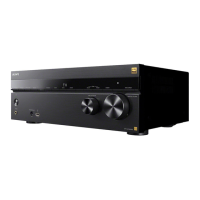
Multi Channel AV Receiver
STR-AZ1000ES
Updating the software (Software Update)
By updating your software to the latest version, you can take advantage of the newest functions.
The new software is available when:
the [UPDATE] indicator lights up on the display panel.
a message of the unit appears on the TV screen if the [Software Update Notification] is set to [On].
Note
Do not turn the unit off or disconnect the AC power cord (mains lead) and the LAN cable until the download and update processes are completed.
Doing so may cause a malfunction.
Note
It may take up to about 20 minutes for the update to be completed.
You cannot restore the old version after updating the software.
Set [Auto Update Settings] to [On] when you want to perform software updates automatically. Depending on the contents of the updates, software
update may be performed even if you set [Auto Update Settings] to [Off].
If the update of Sony wireless rear speakers/subwoofer (not supplied) does not work, move them closer to the unit and update them.
When you use Sony wireless rear speakers/subwoofer (not supplied), turn on each speaker and make sure the connection
with the unit is established.
The power indicator of the Sony wireless rear speakers/subwoofer (not supplied) lights up in green.
1
Select [Setup] - [Software Update] from the home menu.
2
Select [Network Update] or [USB Update].
If you select [USB Update], please visit the following customer support website to download the latest software version.
https://www.sony.com/am/support
3
Check the software update progress.
The progress rate is displayed in percentage.
The progress of loading software will be displayed as [DL XXX%] for the network update, and [RD XXX%] for the USB update.
When the update is completed, [COMPLETED] appears on the display panel and the unit restarts automatically.
4




 To Next Page