Help Guide
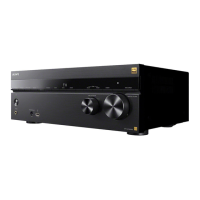
Multi Channel AV Receiver
STR-AZ1000ES
Connecting Sony wireless rear speakers/subwoofer
The unit is compatible with connection to Sony wireless rear speaker/subwoofer (not supplied).
When you connect the wireless rear speaker/subwoofer to the unit for the first time, follow the steps below.
Once the Sony wireless rear speaker/subwoofer turns on, it will automatically connect to the unit.
Hint
For the latest information about the compatible wireless rear speaker/subwoofer models, visit the Sony website.
If you connect 2 wireless subwoofers, use the same model.
For details on the wireless rear speaker/subwoofer, refer to the operating instructions supplied with each speaker.
If the wireless communication is unstable
If you use multiple wireless devices, such as a wireless LAN router, the wireless signals may become unstable. In this case, the wireless
communication may be improved by changing the following setting.
Note
If you change the [RF Channel] setting from [Off] to [On], it may take 1 minute to reconnect.
Select [Setup] - [Speaker Settings] from the home menu.1.
Select [Wireless Speaker Settings].2.
Select [Start manual linking].3.
Press LINK on the speaker (not supplied).
The power indicator of the speaker flashes twice repeatedly in green.
4.
Select [Start].
The manual connection starts. The connecting process appears on the TV screen. To cancel the manual connection, select [Cancel].
5.
When [Connected] is displayed for the target speakers, select [Finish].6.
Press
(enter).
The manual connection is established and the power indicators of the speaker light up in green.
7.
Follow the on-screen instructions to perform Auto Calibration.
When the connection settings of wireless speakers are complete, a screen that guides you to [Auto Calibration] is displayed.
When you connect a wireless rear speaker, select either [Surround] or [Surround Back] on the [ - Wireless Speaker Assign] screen in
[Auto Calibration] to assign the speaker position.
8.
Select [Setup] - [Speaker Settings] from the home menu.1.
Select [Wireless Speaker Settings].2.
Select [RF Channel].3.
Select the setting you want.
[On]: Normally select this setting. The unit automatically selects the optimum frequency with wireless interference resistance for
better wireless communication.
[Off]: The unit selects a channel from the limited frequency band to prevent external wireless interference. If sound dropping occurs
while [On] is selected, it may be improved by selecting [Off].
4.




 To Next Page