Help Guide
Multi Channel AV Receiver
STR-AZ1000ES
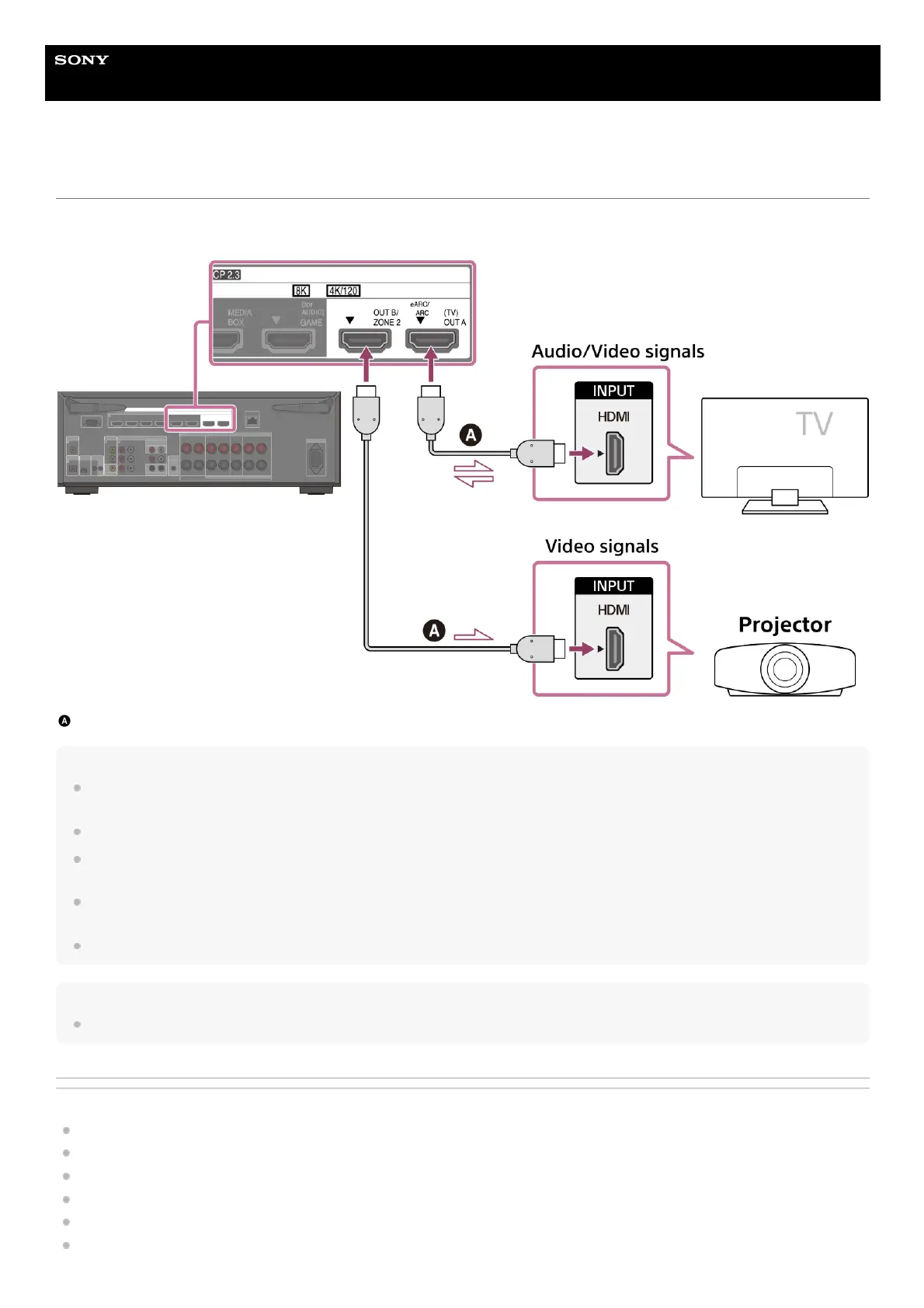
Connecting a TV and a projector using an HDMI jack
Connect a TV to the HDMI OUT A (TV) jack and connect a projector to the HDMI OUT B/ZONE 2 jack.
Be sure to disconnect the AC power cord (mains lead) before connecting cables.
HDMI cable (not supplied)
Note
Be sure to use a Premium High Speed HDMI Cable with Ethernet, which supports bandwidths up to 18 Gbps. For video signals that require a high
bandwidth such as 8K, 4K/120p, etc., be sure to use an Ultra High Speed HDMI Cable that supports bandwidths up to 48 Gbps.
Select the HDMI signal format suitable for the video signal band of the TV or AV device connected with the HDMI cable from the menu of the unit.
HDMI-DVI conversion cable is not recommended. If you connect an HDMI-DVI conversion cable to a DVI-D device, you may lose audio and/or image.
If the audio is not output correctly, connect the audio cable or digital connection cable and set the input jack again.
To display the same image as the TV, set [HDMI OUT B Mode] in the [HDMI Settings] menu to [Main], and then press HDMI OUT to select [HDMI
A+B]. If you want to display different images on the TV and the projector, use the multi-zone function and set [HDMI OUT B Mode] to [Zone2].
When [HDMI OUT B Mode] is set to [Zone2], the [Control for HDMI] and [Standby Linked to TV] functions do not work.
Hint
You can operate this unit using the menu on the TV.
Related Topic
Notes on TV connection
About input/output of video signals
Notes on connecting cables
About HDMI connections
Setting TV audio output (when using the eARC/ARC function)
Controlling HDMI devices (Control for HDMI)




 To Next Page