59
US
Using Network Features
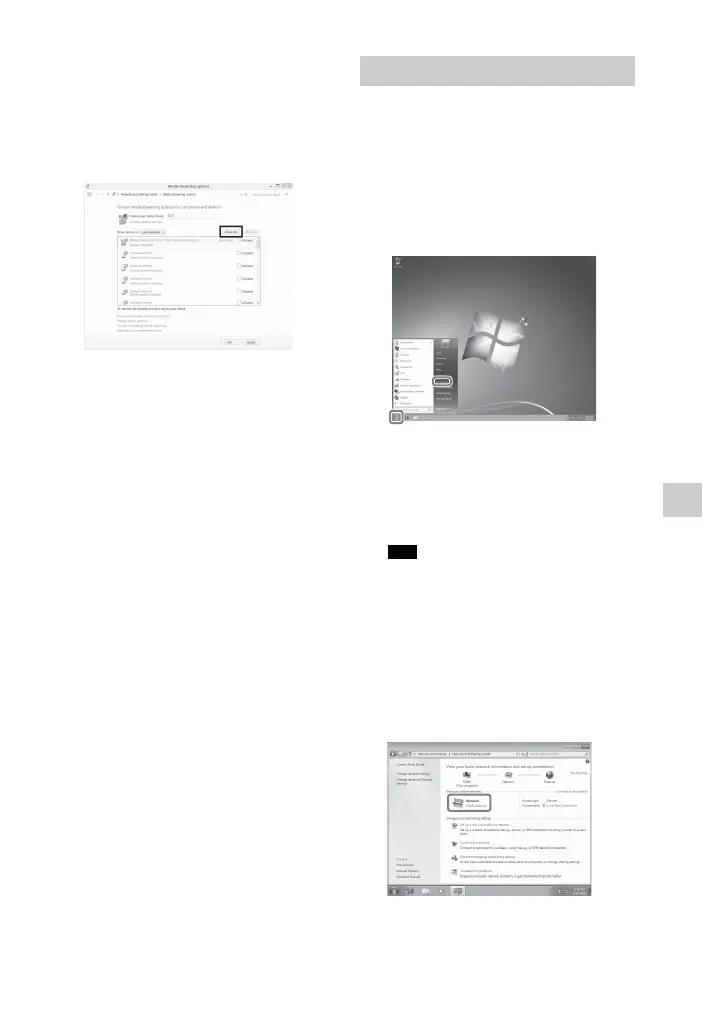
6 Select [Allow All].
The [Allow All Media Devices]
window opens.
If all the devices in the local network
are set to [Allowed], select [OK] and
close the window.
7 Select [Allow all computers and
media devices].
8 Select [Next] and [Finish] to close
the window.
9 Refresh the server list.
When the settings are completed,
refresh the server list of the receiver
and select this server from the server
list. For details on selecting a server,
see “To refresh the server list”
(page 62).
This section explains how to set up
manufacturer-installed Windows Media
Player 12 for Windows 7.
For details on how to operate Windows
Media Player 12, refer to Help for
Windows Media Player 12.
1 Go to [Start] – [Control Panel].
2 Select [View network status and
tasks] under [Network and
Internet].
The [Network and Sharing Center]
window appears.
If the item you want does not appear on the
display, try to change the display type of the
Control Panel.
3 Select [Public network] under
[View your active networks].
If the display shows other than
[Public Network], go to step 6.
The [Set Network Location] window
appears.
When using Windows 7
Tip



 To Next Page