EasyManua.ls Logo

Sony TRINITRON KV-M1450E - Picture Quality Adjustments; Screen (G2), Drive, and Sub Color; White Balance Adjustment; Sub Brightness Adjustment

Sony TRINITRON KV-M1450E
50 pages
Print Icon
To Next Page IconTo Next Page
To Previous Page IconTo Previous Page
Loading...
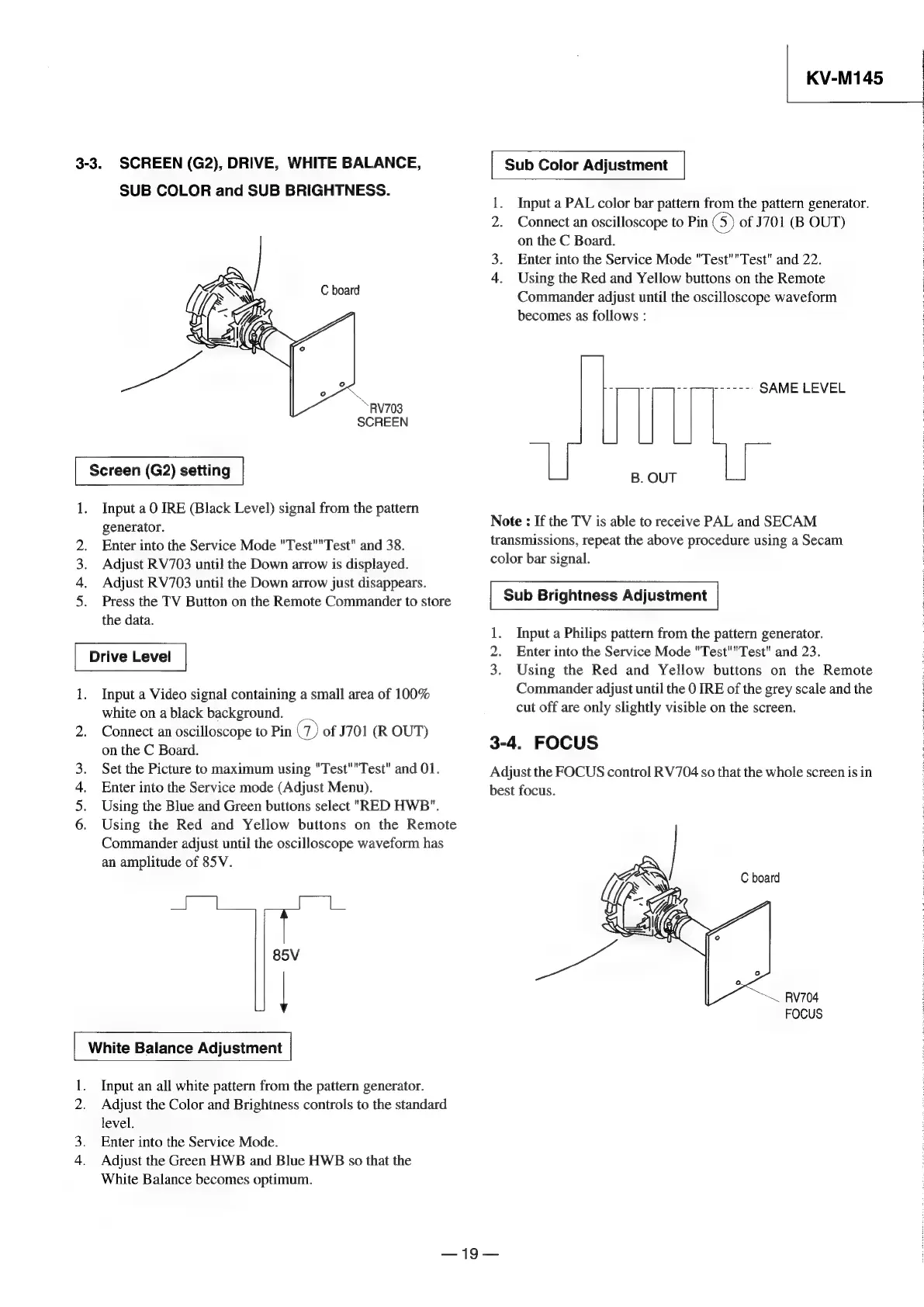
3-3.
SCREEN
(G2),
DRIVE,
WHITE
BALANCE,
SUB
COLOR
and
SUB
BRIGHTNESS.
RV703
SCREEN
Screen
(G2)
setting
1.
Input
a
0
IRE
(Black
Level)
signal
from
the
pattern
generator.
Enter
into
the
Service
Mode
"Test""Test"
and
38.
Adjust
RV703
until
the
Down
arrow
is
displayed.
Adjust
RV703
until
the
Down
arrow
just
disappears.
Press
the
TV
Button
on
the
Remote
Commander
to
store
the
data.
1.
Input
a
Video
signal
containing
a
small
area
of
100%
white
on
a
black
background.
Ot
a
2.
Connect
an
oscilloscope
to
Pin
Ge
of
J701
(R
OUT)
on
the
C
Board.
3.
Set
the
Picture
to
maximum
using
"Test""Test"
and
01.
4.
Enter
into
the
Service
mode
(Adjust
Menu).
5.
Using
the
Blue
and
Green
buttons
select
"RED
HWB".
6.
Using
the
Red
and
Yellow
buttons
on
the
Remote
Commander
adjust
until
the
oscilloscope
waveform
has
an
amplitude
of
85V.
;
|
85V
White
Balance
Adjustment
1.
Input
an
all
white
pattern
from
the
pattern
generator.
2.
Adjust
the
Color
and
Brightness
controls
to
the
standard
level.
Enter
into
the
Service
Mode.
4.
Adjust
the
Green
HWB
and
Blue
HWB
so
that
the
White
Balance
becomes
optimum.
vs
KV-M145
Sub
Color
Adjustment
Input
a
PAL
color
bar
pattern
from
the
pattern
generator.
2.
Connect
an
oscilloscope
to
Pin
S)
of
J701
(B
OUT)
on
the
C
Board.
3.
Enter
into
the
Service
Mode
"Test""Test"
and
22.
4.
Using
the
Red
and
Yellow
buttons
on
the
Remote
Commander
adjust
until
the
oscilloscope
waveform
becomes
as
follows
:
_—
praees
SAME
LEVEL
B.
OUT
Note
:
If
the
TV
is
able
to
receive
PAL
and
SECAM
transmissions,
repeat
the
above
procedure
using
a
Secam
color
bar
signal.
Sub
Brightness
Adjustment
1.
Input
a
Philips
pattern
from
the
pattern
generator.
2.
Enter
into
the
Service
Mode
"Test""Test"
and
23.
3.
Using
the
Red
and
Yellow
buttons
on
the
Remote
Commander
adjust
until
the
0
IRE
of
the
grey
scale
and
the
cut
off
are
only
slightly
visible
on
the
screen.
3-4.
FOCUS
Adjust
the
FOCUS
control
RV704
so
that
the
whole
screen
is
in
best
focus.
C
board
RV704
FOCUS
—19—

Related product manuals