30
Using Network Features
B Network
Using Network Features
Connection to the network allows you to operate the following features:
• Checking the current status of the projector via a Web browser.
• Remotely controlling the projector via a Web browser.
• Receiving the e-mail report for the projector.
• Making the network settings for the projector.
• Supports network monitoring, control protocol (Advertisement, PJ Talk, PJ Link, AMX
DDDP [Dynamic Device Discovery Protocol]).
• The menu displays used for the explanation below may be different depending on the model you
are using.
• Supported Web browsers are Internet Explorer 6/7/8.
• The menu displays only English.
• If the browser of your computer is set to [Use a proxy server] when you have access to the projector
from your computer, click the check mark to set accessing without using a proxy server.
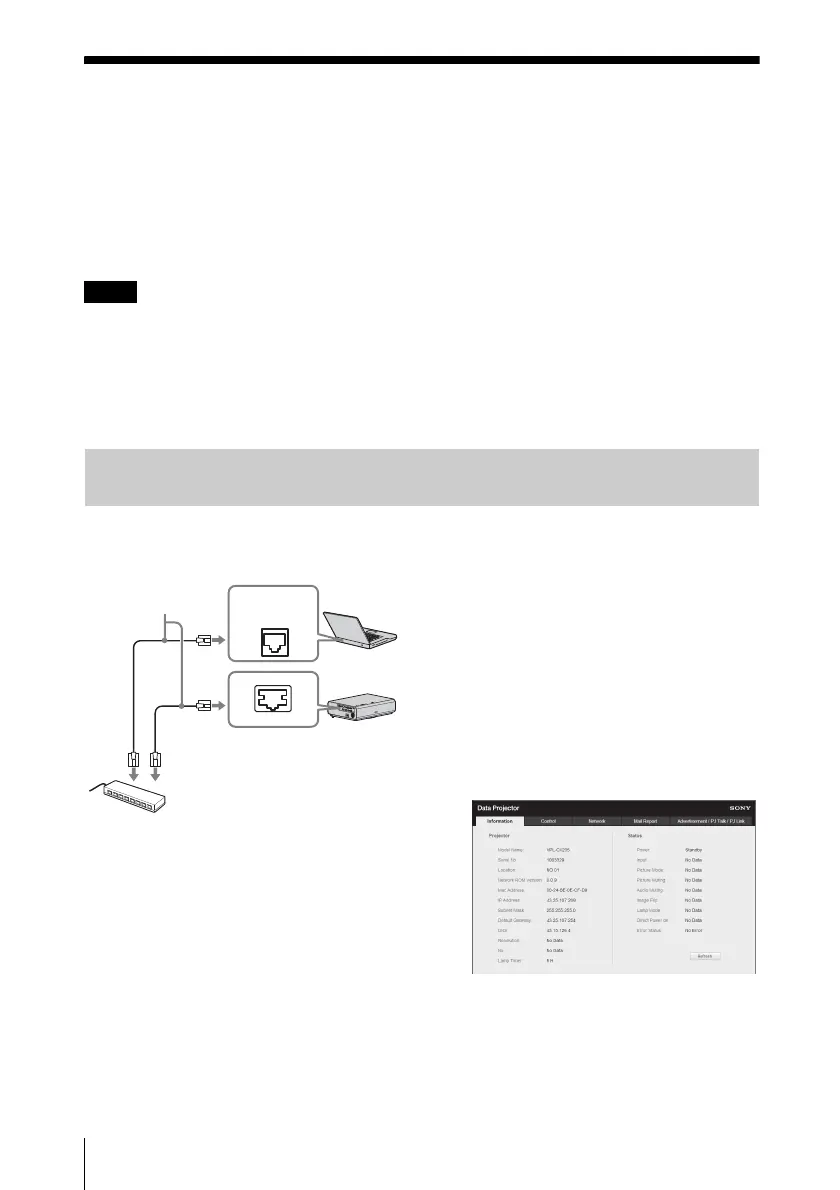
1 Connect the LAN cable.
2 Set the network settings for the
projector using “Network Setting” on
the SET SETTING menu (page 25).
3 Start a web browser on the computer,
enter the following in the address field,
then press the Enter key on your
computer.
http://xxx.xxx.xxx.xxx
(xxx.xxx.xxx.xxx: IP address for the
projector)
You can confirm the IP address of the
projector under “Network Setting” on
the SET SETTING menu.
The following window appears in the
Web browser:
Once you make the network settings, you
can open the Control window only by
performing step 3 of this procedure.
Notes
Displaying the Control Window of the Projector with a Web
Browser
LAN cable
(straight type)
(not supplied)
Hub, router, etc
LAN Connector


 To Next Page