Back Back to Top Print
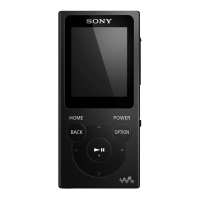
Digital Music Player
NW-E393/E394/E395
Deleting content from your Walkman using Explorer
Delete content stored on your Walkman using Windows Explorer.
1. Connect your Walkman to a running computer via USB.
2. Open “WALKMAN” using the procedure below that corresponds to your computer.
Windows 7:
Select “Start” - “Computer,” and open “WALKMAN.”
Windows 8.1:
Select “Desktop” to open “File Explorer.” In the “This PC” list, open “WALKMAN.”
Windows 10:
Select “File Explorer” in the “Start” menu, and then select “WALKMAN” from the
left screen.
3. Open the folder containing the file(s) you want to delete.
To delete a music file or a folder that contains music: “MUSIC” folder
To delete a photo file or a folder that contains photos: “PICTURE” or “DCIM” folder
4. Select the content you want to delete.
5. Delete the content.
Help Guide
How to Use
Downloaded from ManualsNet.com search engine




 To Next Page