Help Guide
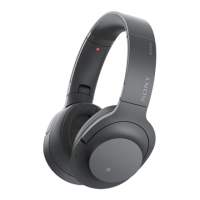
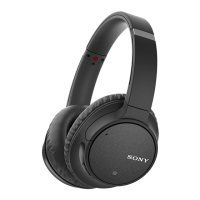
Wireless Noise Canceling Stereo Headset
WH-CH700N
Pairing and connecting with a computer (Windows 10)
You can register (pair) a Bluetooth compatible computer (Windows 10) and the headset with each other, and make a
Bluetooth connection. You must pair a device with the headset to be able to make a Bluetooth connection for the first
time.
Before you start the pairing operation, make sure that:
Your computer has a Bluetooth function that supports music playback connections (A2DP).
The computer is placed within 1 m (3 feet) of the headset.
The headset is charged sufficiently.
The operating instructions of the computer is in hand.
Depending on the computer, the built-in Bluetooth adaptor should be turned on. For whether or not a Bluetooth
adaptor is incorporated, and for how to turn it on, refer to the operating instructions supplied with the computer.
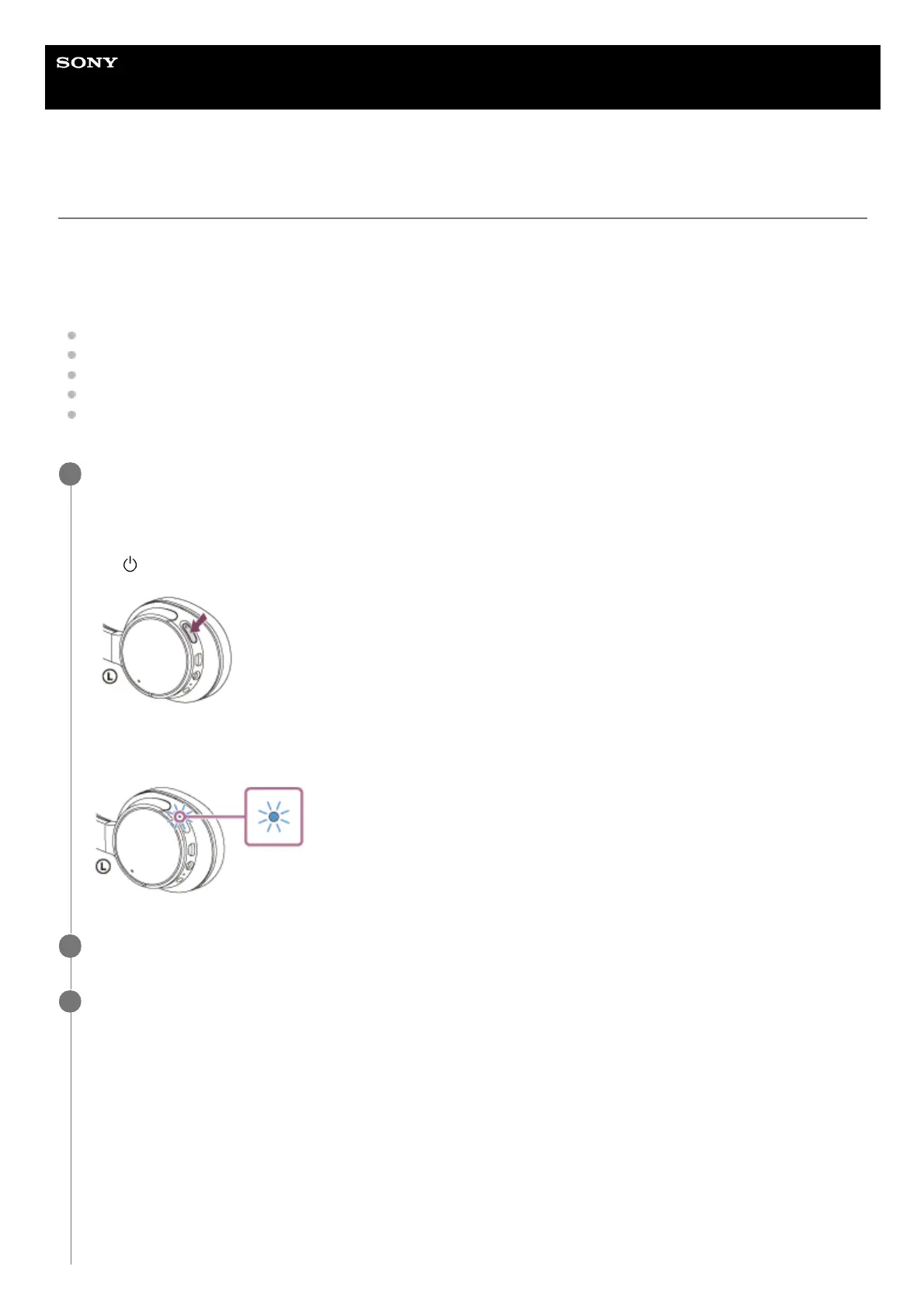
Enter pairing mode on this headset.
Turn on the headset when you pair the headset with a device for the first time after you bought it or after you
initialized the headset (the headset has no pairing information). The headset enters pairing mode automatically.
When you pair a 2nd or subsequent device (the headset has pairing information for other devices), press and hold
the
button for about 7 seconds.
Make sure that the indicator flashes blue and red alternately after you release the button. You will hear a voice
guidance “BLUETOOTH pairing”.
1
Wake the computer up from sleep mode.
2
Register the headset using the computer.
3
Click the [Start] button, then [Settings].
1.
Click [Devices].
2.


 To Next Page