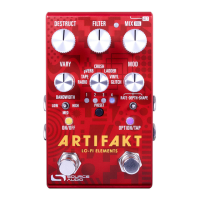
Source Audio Artifakt Lo-Fi Elements User Guide
MIDI CLOCK
It is also possible to sync the time-based effects in Artifakt with your upstream MIDI Clock
using the preset editor in Neuro 3. Please note, MIDI Clock is a preset-by-preset option
for maximum flexibility, so it will need to be enabled for each preset that you wish to sync
to your MIDI Clock.
Controlling the Artifakt with MIDI Continuous Controller (CC) Messages
The Artifakt responds to MIDI Continuous Controller (CC) messages, shown below. The
pedal comes already mapped to a default set of CC numbers. For a complete list of
default MIDI mappings and ranges, connect the Artifakt to the Neuro Desktop Editor via
USB, select the Artifakt as a Device from the left margin, then go to Settings (Gear icon) >
Edit Device MIDI Map.
Custom CC Mapping
The default MIDI map provides control over parameters using specific Continuous
Controller messages. It is also possible to override the default map and create a custom
mapping. Custom MIDI CC mappings are global, meaning they are not unique per preset.
The CC mapping will apply in all situations, regardless of which preset is active.
To create a custom MIDI CC mapping, follow these steps:
§ Connect your Artifakt to the Neuro Desktop Editor.
§ Select the Artifakt as a Device in the left margin
§ In the top bar next to “Save” and “Info”, select Settings (Gear icon) then Edit Device
MIDI Map from the dropdown menu.
§ The Artifakt’s MIDI Map Editor window will open. Simply scroll to the MIDI CC value
you wish to remap and click that CC’s dropdown menu. A list of parameter choices
will unfold.
§ Select the parameter you wish to re-assign to the chosen CC. The process is
complete.
USB
The Artifakt’s USBC port is plug-and-play ready for Windows and Mac computers. The
Artifakt uses class-compliant drivers, so no special drivers are needed. Just power up the
Artifakt and connect it to the computer using a USB cable. The computer will automatically
recognize the Artifakt, which will be identified as “One Series Artifakt Lo-Fi Elements” in
the operating system.
The USB connectivity can also be used to connect to your mobile device and use the
Neuro Mobile App with your Artifakt.



 To Next Page