VII. Cloning
Cloning Overview
AnyPixiePromayquicklycopyalltheprogrammedcodesandconfigurationsettingsfromanyother
PixieProwirelessly,orusingastandardCAT5cable.Formultiple-roominstallations,thiswillgreatly
speeduptheprocess.
WhencloningthePixiePro,thereisaDonorUnitandaCloneUnit.TheDonorUnitmustbepro-
grammedwiththeappropriatecodesnormallypriortocloning.TheCloneUnitwillreceivetheDonor
Unit'scodesandconfigurationsettings.
BothPixieProsmustbeassembledwiththesamebuttoninserts.Forexample,ifthedonorPixiePro
hasatogglingpowerbuttoninsert,theclonePixiePromustalsohaveatogglingpowerbuttoninsert.
InordertocloneonePixieProtoanother,bothunitsmustbepowered.
Wireless Cloning Procedure
1.SettheCloneUnittocloningmode.Todothat,gentlyinsertapaperclipintotheIRLearning
aperture.PressandholdanybuttonontheCloneUnitand,whileholdingthebutton,removethe
paperclip.ThePixieProwillrapidlychirpforaslongasitremainsincloningmode.ThePixieProwill
timeoutofcloningmodeinabout15seconds,sohavebothdevicesonhand.IfthePixieProtimes
outofcloningmode,simplyrepeatthisproceduretoreturnittocloningmode.
2.Positionthetwounitsface-to-face,withbothunitsheldupright,approximatelyoneinchapart.The
twounitsshouldbedirectlyacrossfromeachotherwiththebezelslinedup.ThiswillpositiontheIR
receiverwindowofthecloningPixieProdirectlyacrossfromtheIRtransmitterinthedonorPixiePro.
Note:BesurenottocoverorobstructtheIRreceiverwindowortransmitterwithyourhands.
Oncetheunitsarecorrectlylinedup,thedonorPixieProwillautomaticallyentercloningmode.
WhentheclonePixiePromakescontactwiththedonor,itsLED
willalsoturnsolidred.
3.HoldtheCloneUnitsteadilyinfrontofthedonorforapproxi-
mately80to90seconds.Bothunitswillchirprapidlytoindicate
theirprogress.Iftheconnectionisbroken(theCloneUnitceases
tochirp),repositiontheCloneUnitandthePixieProswillpickup
wheretheyleftoff.Ifcommunicationisbrokenforasignificant
periodoftime(about15seconds),theCloneUnitwilltimeout
andyouwillneedtobegincloningagain.
4.WhentheCloneUnithascompletedcopyingcodesfromthe
donor,itwillbeeploudly3timesandreset.Youwillseeallofthe
buttonLEDsflickerinquicksuccession.AfterthePixieProhas
resetitwillbefullyoperational,anditwillhavelearnedallofthe
codesprogrammedintotheDonorUnit.
TheDonorUnitwillremainincloningmodeforapproximately15
secondsuntilittimesout.Itwillthenreturntonormaloperation.
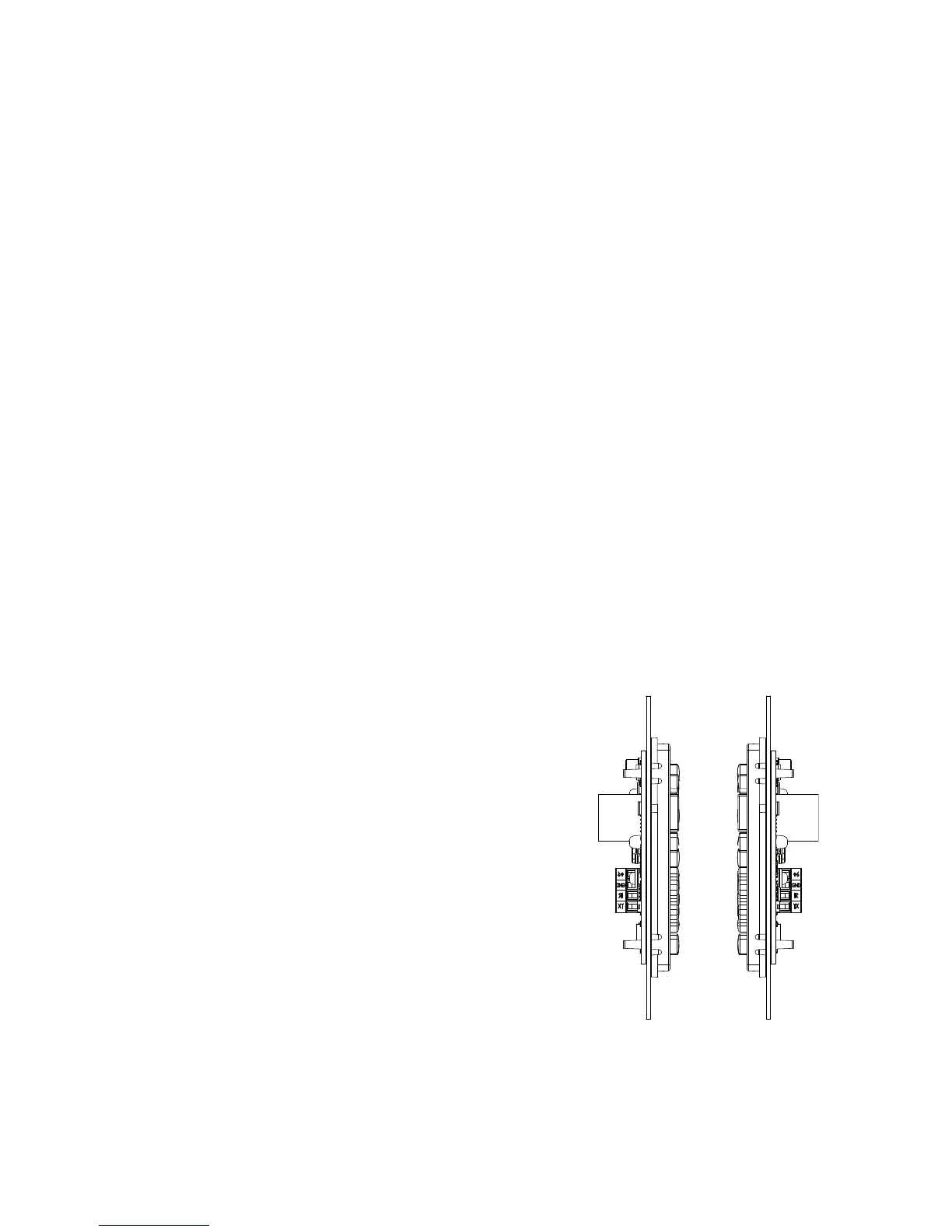
PositionCloneUnits
approximately1”-2”apart
17
Figure 14: PositioningPixiePro
duringwirelesscloningproce-
dure


 To Next Page
 Loading...