35
This item allows the user to setup a domain name manually,
using virtual keyboard displays as shown.
When manual host name input is done, move the cursor to this
item and select ON to submit the settings.
Enable/disable ezDDNS to register the host name automatically.
4-6-3. Network Port and Web Port
Connecting DVR/DVRs through an IP sharing device, each DVR must be assigned a unique TCP port
number for access from outside the LAN. This port number is displayed on NETWORK>NETWORK PORT
Setup MENU.
NOTE
If you access the DVR only within the same LAN, the TCP port number does not need to
be changed.
Network access beyond a router
To access DVR beyond a router (firewall), you must open the proper TCP ports for live/playback streaming,
for commands, for remote backup, and for audio streaming. If these ports are not opened properly, you
can’t access the DVR beyond a router.
o For live/playback streaming, for commands, for remote backup: Open the port number
on NETWORK>NETWORK PORT menu. The default port number is 5445.
o For bi-directional audio: Open the port number on NETWORK AUDIO PORT. The default
port number is [NETWORK PORT number + 1].
o For web-viewer downloading and remote firmware upgrading: Open the port number on
NETWORK>WEB PORT menu. The default port number is 80.
4-6-4. Network Stream
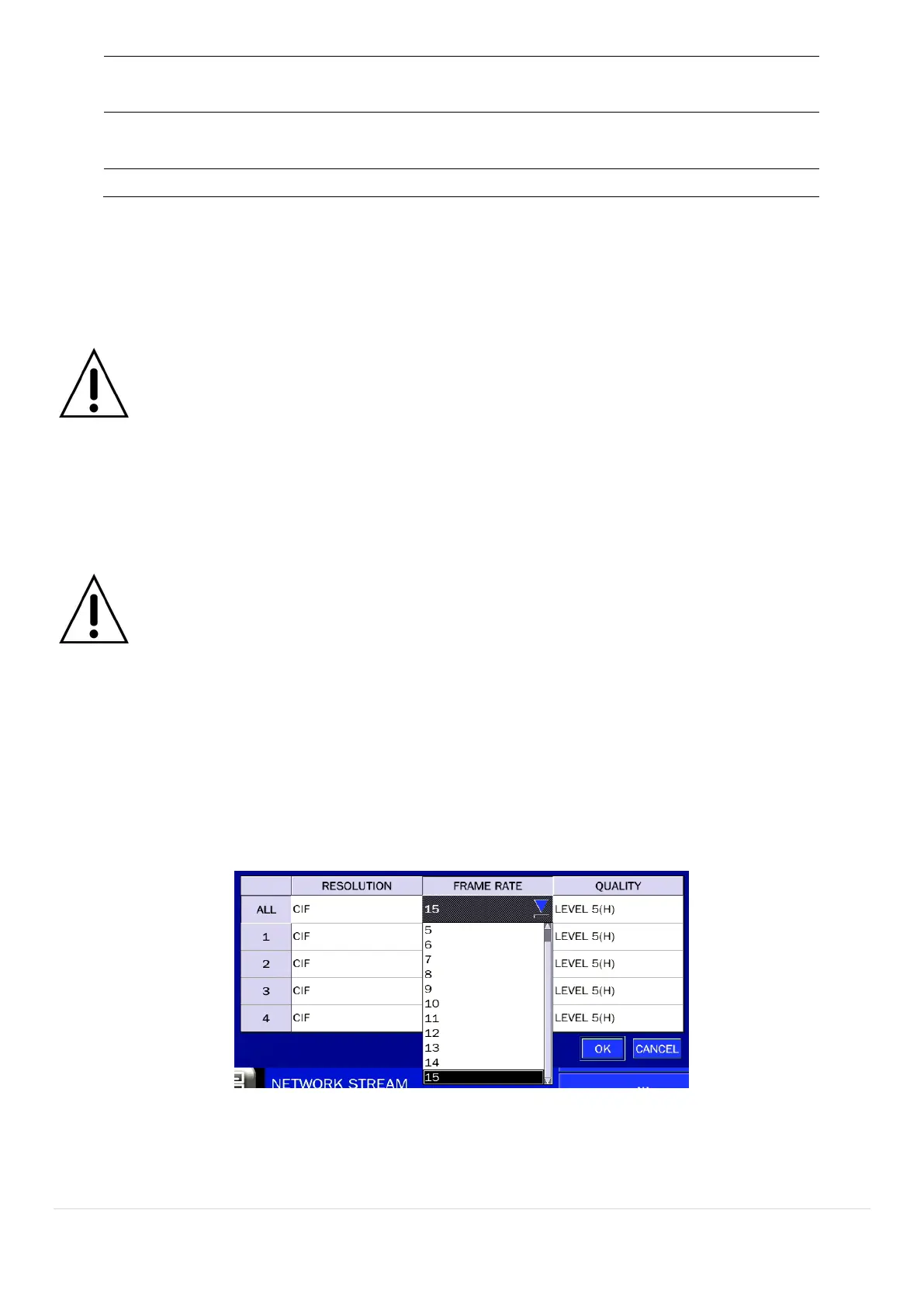
User can set the RESOLUTION, FRAME RATE, and the QUALITY for the network stream.
- D4RS: Up to 60 fps @CIF for 4 channels.
- D8RS: Up to 120 fps @CIF for 8 channels.
- D16RS: Up to 240 fps @CIF for 16 channels.
<Note> Individual Channels can be set with different RESOLUTION, FRAME RATE, and QUALITY.
Figure 4.6.4. NETWORK Setup Screen – Network Stream



 To Next Page