EasyManua.ls Logo

Speco VIP2P1 - User Manual

Speco VIP2P1
72 pages
Print Icon
To Next Page IconTo Next Page
Loading...
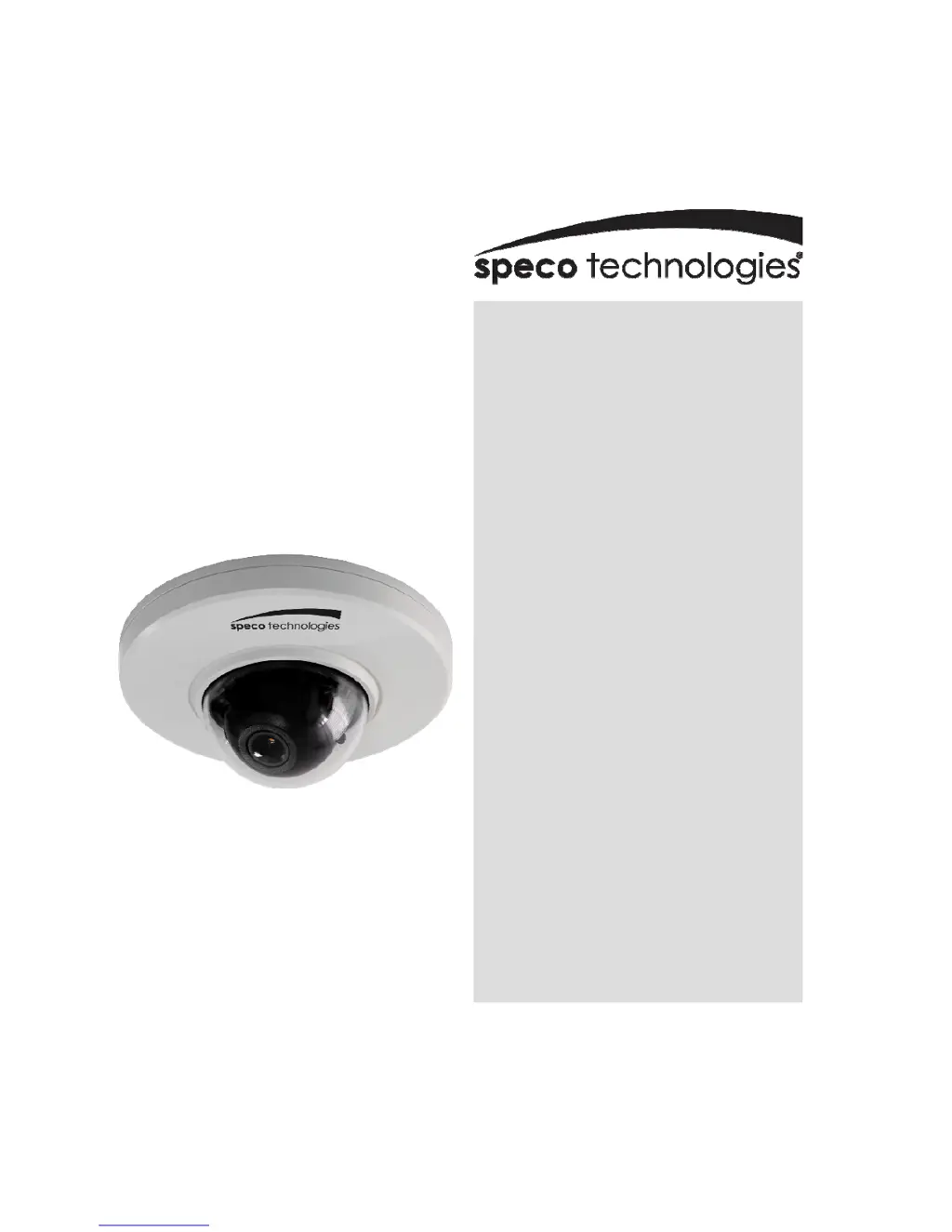
INSTRUCTION MANUAL
VIP2P1 /
VIP2P1N
Full HD Mini Dome
Network Camera
Please read this manual thoroughly before use, and keep it handy for future reference.

Questions and Answers

  • L
    Linda AriasAug 19, 2025
    How to fix poor image quality on Speco IP Camera?
    • K
      Kristina MoralesAug 19, 2025
      To improve poor image quality on your Speco IP Camera, ensure sufficient lighting at the monitored location. Also, check all image and lighting settings to optimize them for the environment.
  • D
    Darlene BrowningAug 21, 2025
    What to do if I can't log in to my Speco VIP2P1?
    • H
      Helen RamirezAug 22, 2025
      If you're unable to log into your Speco IP Camera, and HTTPS is enabled, verify that you are using the correct protocol (HTTP or HTTPS). You might need to manually type 'http' or 'https' in your browser's address bar when attempting to log in.
  • D
    Dr. Kara BullockAug 25, 2025
    How to fix blurred images on Speco IP Camera?
    • H
      Heidi White DDSAug 25, 2025
      If your Speco IP Camera images are blurred, try refocusing the camera to get a clearer picture.
  • S
    Sarah TuckerAug 26, 2025
    What to do if Speco VIP2P1 IP Camera video cannot be recorded?
    • K
      Kristin MaciasAug 26, 2025
      If your Speco IP Camera video cannot be recorded, verify that the SD Card is properly inserted and formatted correctly.
  • T
    Timothy ClarkAug 28, 2025
    Why Speco VIP2P1 IP Camera works locally, but not externally?
    • K
      Kayla GonzalezAug 28, 2025
      If your Speco IP Camera works locally but not externally, check your firewall settings to see if adjustments are needed. Also, check your router settings to ensure they are properly configured for external access.
  • A
    ashleysanchezAug 30, 2025
    How to fix rolling dark bands or flickering in Speco IP Camera image?
    • J
      jeremybishopAug 30, 2025
      If you are experiencing rolling dark bands or flickering in the image of your Speco IP Camera, try adjusting the Exposure Control setting under the AE and AWB part.
  • J
    jamessamuelSep 1, 2025
    What to do if Speco VIP2P1 cannot be accessed by some clients?
    • D
      danieljohnsonSep 1, 2025
      If your Speco IP Camera cannot be accessed by some clients, and you are using a proxy server, try disabling the proxy setting in your browser. Also, check all cabling and connectors to ensure they are properly connected.
  • F
    fjohnsonSep 3, 2025
    Why H.264 is not displayed in the client for Speco VIP2P1?
    • B
      bmartinezSep 4, 2025
      If H.264 is not displayed in the client for your Speco IP Camera, check that the correct network interface is selected in the Video & Image/Stream settings.
  • E
    ewestSep 5, 2025
    Why Speco VIP2P1 images only shown in black & white?
    • D
      Danny PorterSep 6, 2025
      If your Speco IP Camera images are only shown in black and white, check the Video & Image settings to ensure the correct color settings are applied.
  • P
    pamelayoungSep 8, 2025
    How to fix poor network connection of Speco VIP2P1?
    • J
      Justin HernandezSep 8, 2025
      If you are experiencing a poor or intermittent network connection with your Speco IP Camera, and you are using a network switch, check that the port on that device uses the same setting for the network connection type (speed/duplex).

Summary

1. Description

1.1 Components

Lists and shows the items included in the camera package.

1.2 Key Features

Highlights the main features of the network camera, like H.264 compression and PoE.

1.3 Layout

Details the physical layout of the camera and its connection ports.

2. Installation

2.1 Camera Installation

Step-by-step guide for physically mounting the camera.

2.2 Network Connection and IP assignment

Guides on connecting the camera to the network and assigning an IP address.

3. Operation

3.1 Access from Browser

How to access the camera's interface using a web browser.

3.4 Live View Page

Details the live view interface, controls, and video stream options.

3.5.1 Basic Configuration

Overview of essential device information and initial setup parameters.

3.5.3 Event Configuration

Setting up event triggers like motion detection, alarms, and notifications.

3.5.4 System Settings

Managing system parameters such as security, network, and maintenance.

3.6 Playback

How to view recorded video clips from the memory card.

3.8 Factory Reset

Procedure to restore the camera to its original factory settings.

4. Appendix

4.1 Troubleshooting

Common problems and their possible causes and corrective actions.

4.2 Alarm Connection

Diagram showing how to connect external alarm devices to the camera.

4.3 Preventive Maintenance

Recommended maintenance schedule and tasks for the camera.

4.4 Product Specification

Detailed technical specifications of the network camera.

Speco VIP2P1 Specifications

General IconGeneral
BrandSpeco
ModelVIP2P1
CategoryIP Camera
LanguageEnglish