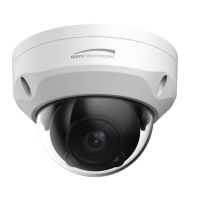
e comes in several screen
modes: 1920x1080, 1280x1024, 1280x720,
800x600, 704x480(576), 640x480,
352x240(288) and 320x240. Users are
allowed to select the most suitable one out
of those modes. Please, ad
ust the mode in
accordance with your PC specifications and
monitoring purposes.
1) General controls
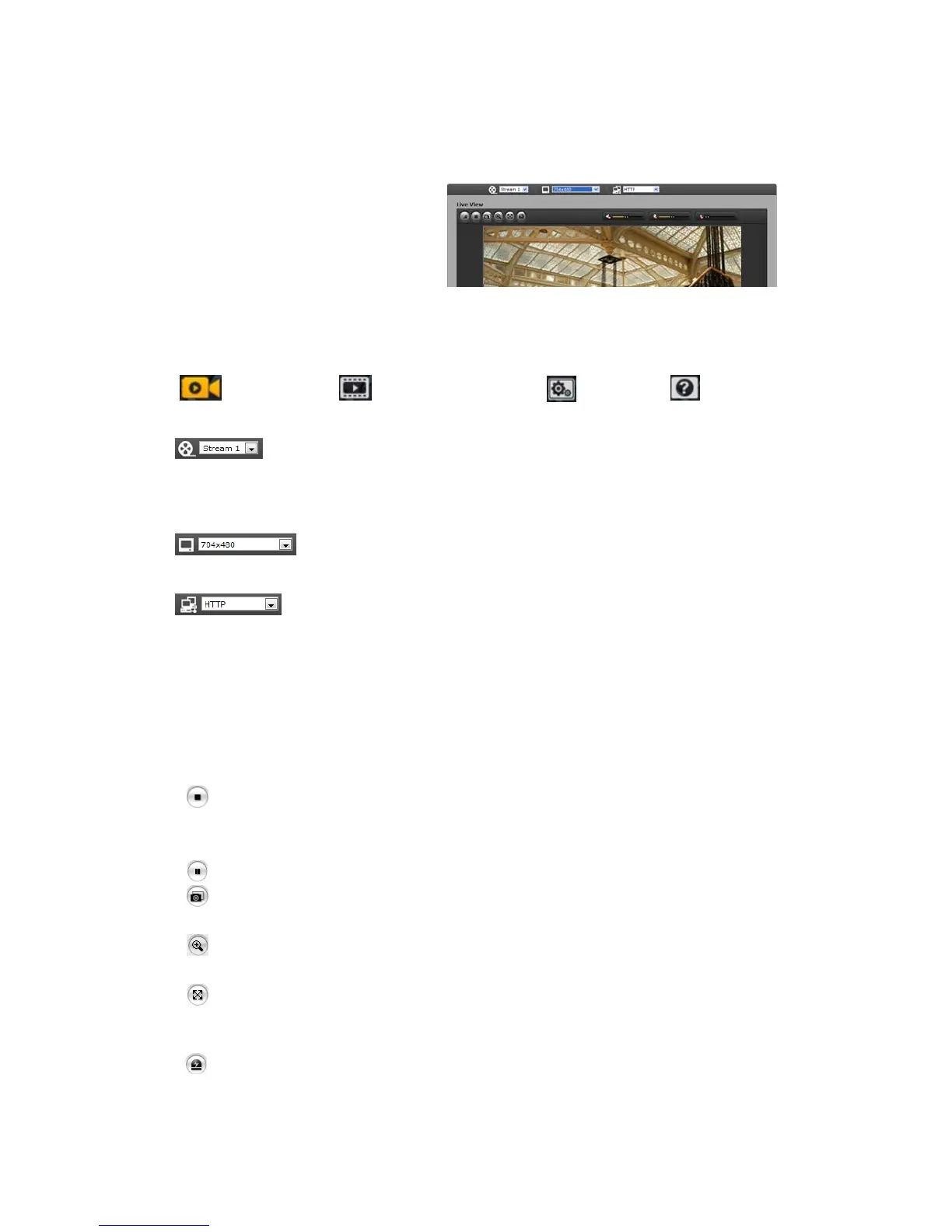
Live View Page Search & Playback Page Setup Page Help Page
The video dr
op-down list allows you to select a customized or pre-programmed
video stream on the live view page. Stream profiles are configured under Setup > Basic
Configuration > Video & Image. For more information, please see “3.5.1 Basic Configuration >
Video & Image” of User’s Manual.
The r
esolution drop-down list allows you to select the most suitable one out of
video resolutions to be displayed on live view page.
The pr
otocol drop-down list allows you to select which combination of protocols
and methods to use depends on your viewing requirements, and on the properties of your
network.
2) Control
toolbar
The live viewer toolbar is available in the web browser page only. It displays the following
buttons:
The St
op button stops the video stream being played. Pressing the key again toggles the
start and stop. The Start button connects to This network camera or start playing a
video stream.
The Pause button pause the video stream being played.
The Snapshot button takes a snapshot of the current image. The location where the
image is saved can be specified.
The digital zoom activates a zoom-in or zoom-out function for video image on the live
screen.
The Full Screen button causes the video image to fill the entire screen area. No other
windows will be visible. Press the 'Esc' button on the computer keyboard to cancel full
screen view.
The Manual Trigger button activates a pop-up window to manually start or stop the event.
15


 To Next Page