Spectralink PIVOT Smartphone Quick Barcode Connector Administration Guide
721-0045-000_A.docx
February 2017 16
Updating Spectralink Quick Barcode Connector
Options
If you’ve already installed and set up your Spectralink QBC for barcode scanning, you may
never need to change the existing settings. If you need to change options for whatever reason,
you can access them from the application icon located in your system tray. This icon is available
whenever Spectralink QBC is running.
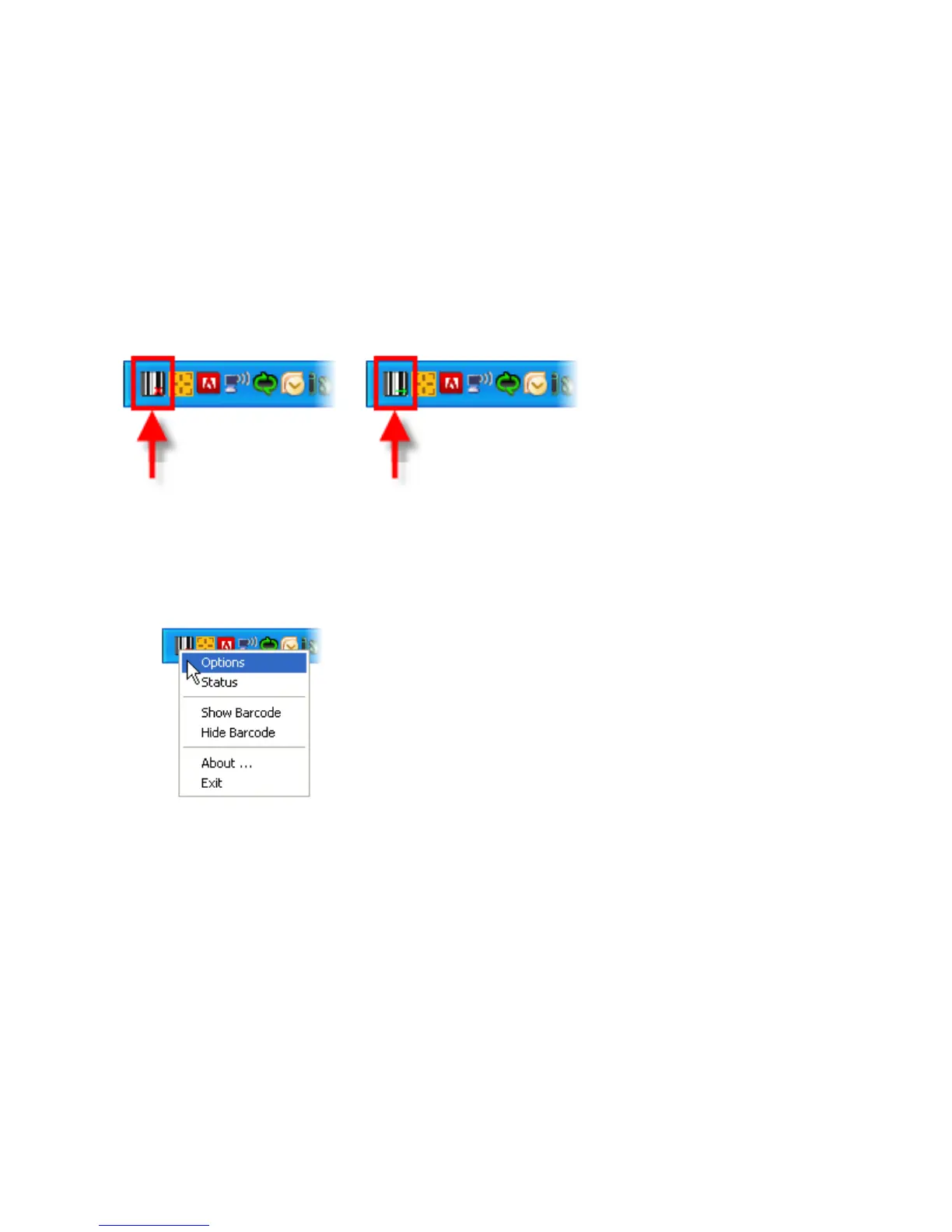
Depending if the Spectralink QBC is connected to a smartphone, the application icon will either
display a red ‘x’ (no connection) or a green arrow (connection to a smartphone), as shown next.
To access the Spectralink QBC options:
1 Right-click the Spectralink QBC icon located in your system tray.
2 Choose Options from the popup menu, as shown next.
After choosing Options, the Quick Barcode Connector dialog opens. If an administrative
password is set, you’ll need to enter the password before you are able to proceed to the
Option dialog.
3 Choose the tab that corresponds to the settings you want to change, and then update
the settings.
4 Click OK to save the changes.
When you save the settings, Spectralink QBC will update your settings.ini file.


 To Next Page