Spectralink PIVOT Smartphone Quick Barcode Connector Administration Guide
721-0045-000_A.docx
February 2017 23
Using Server Settings Options
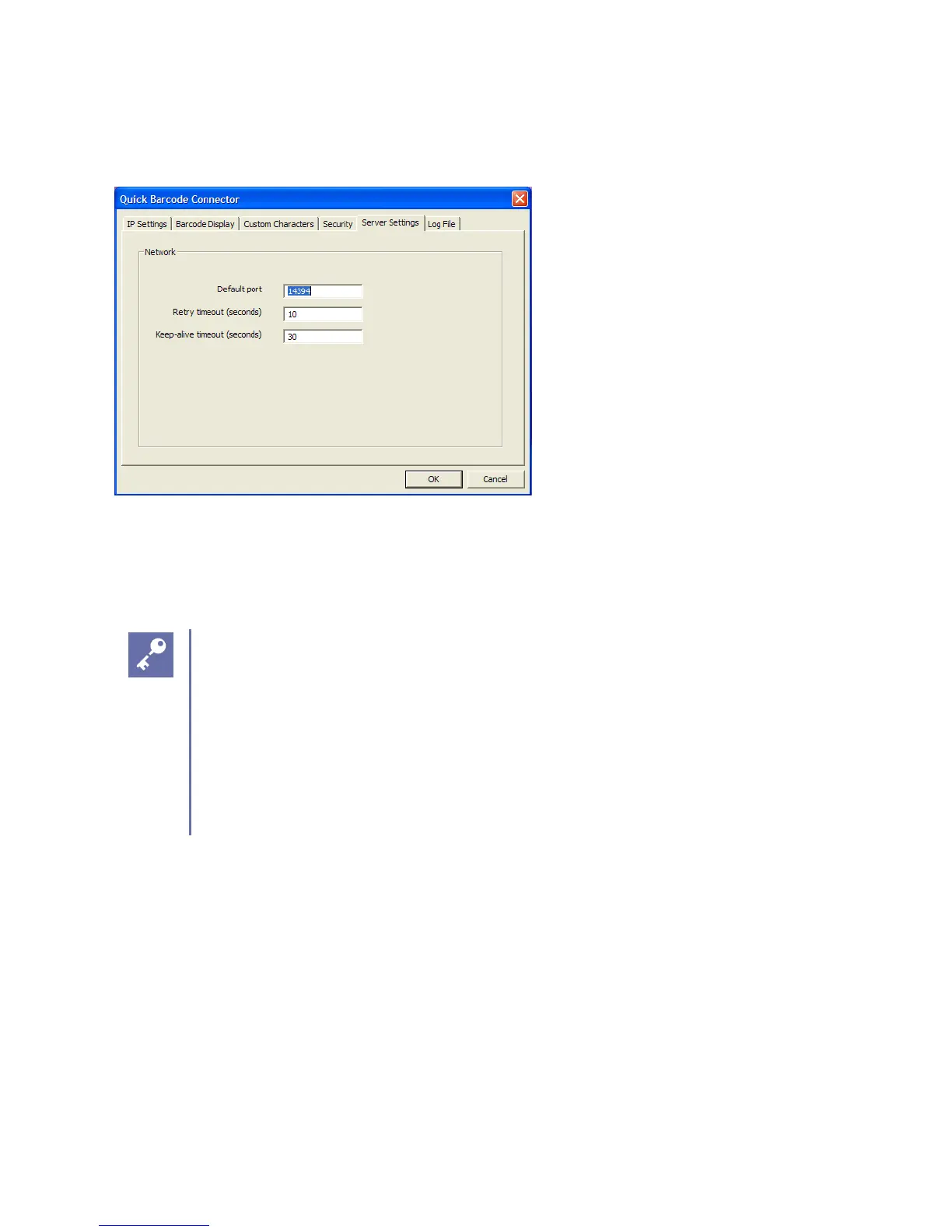
Use the Server Settings tab fields (shown next) to enter your network settings.
Enter your settings in the available fields as follows:
Default port Enter the port number used by the Spectralink QBC to monitor incoming
connections from your smartphone. The default port number is 14394. Spectralink
recommends that you don’t change the default port number.
Admin Tip: Local Firewalls
If you’re running a local firewall on your computer, ensure that you haven’t blocked
the default port address that you’ve specified in the Server Settings tab by your
firewall settings. Open your Windows Firewall application by choosing Start>
Settings> Control Panel and double-clicking the Windows Firewall icon to enable,
disable, or configure your firewall settings. It is recommended that you add an
exception in the Windows Firewall for the BCConnect.exe executable, if possible.
You can do this from the Exceptions tab in the Windows Firewall dialog.
Retry timeout (seconds) Enter a value in seconds to set the time that the application
will wait for a resent message from the smartphone before closing the connection. The
default of 10 seconds is recommended.
Keep-alive timeout (seconds) Enter a value in seconds to specify the time that the
application will wait for a connection message—referred to as a keep-alive message—
from a smartphone before closing the connection. Spectralink QBC allows two
consecutive missed keep-alive messages before disconnecting the smartphone. The
default of 30 seconds is recommended.


 To Next Page