Spectralink PIVOT Smartphone Quick Barcode Connector Administration Guide
721-0045-000_A.docx
February 2017 19
In multiple endpoint mode, a smartphone must scan a Spectralink QBC barcode on a specific
computer screen before the smartphone can start downloading data to that particular computer.
You must select an area (a hotspot) on the computer screen to trigger the Spectralink QBC
barcode to display.
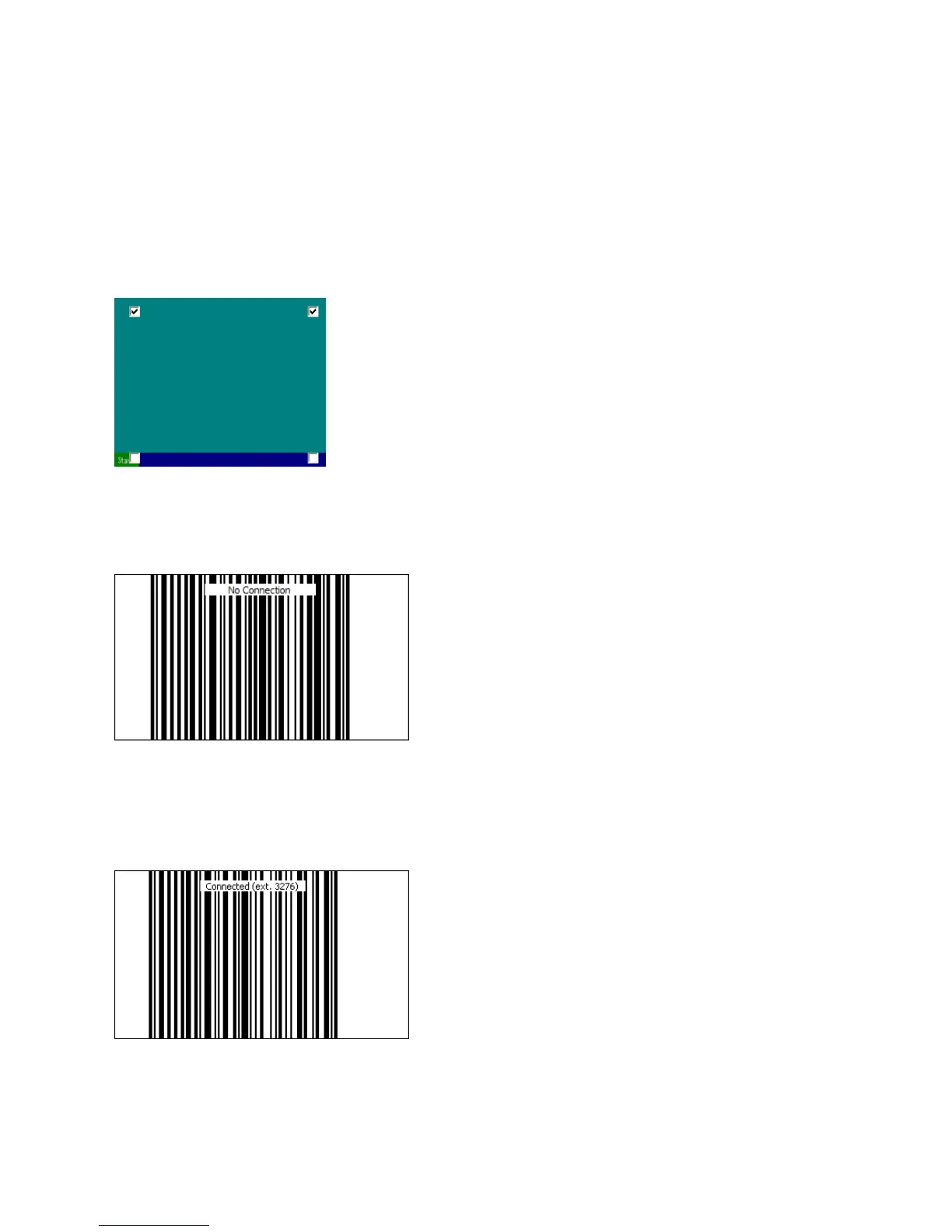
The check boxes on the figure below correspond to hotspots located in the corners of your
screen. Choose where you want the barcode to display. By toggling the selection state of a
check box, you enable or disable the corresponding hotspot on the screen.
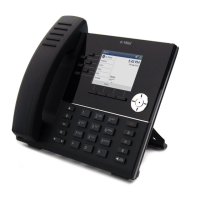
When you move your cursor to a hotspot, a pop-out window containing a barcode pattern
displays, as shown next. If there isn’t a connection between a smartphone and the host
computer, No Connection displays on the barcode.
Scanning this barcode will complete the association process and establish a connection to the
host computer so that you can immediately use your smartphone to scan barcodes.
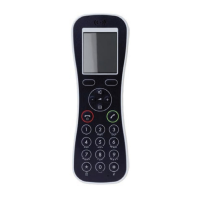
If there’s a connection between a smartphone and the host computer, Connected (ext.
<extension number>) displays on the barcode, as shown next.


 To Next Page